A not so smooth conversion to Excel 2007 from previous versions.
This page will probably get most of the material
currently in the
Excel 2007
section of my conversion to Windows Vista page. There is no pleasure
in using Excel anymore once 2007 is installed.
Excel 2007 Nightmare
Macros from earlier versions (#macros)
- Emailed pesonal.xls from Windows 2000 system, with Excel down saved as personal.xlsb as
was created in Excel 2007, but was not accepted so saved instead as
C:\Users\userid\AppData\Roaming\Microsoft\Excel\XLSTART\personal.xlsb
and appears to be accepted (the macros are found) as all files in XLSTART
are opened by Excel. (2007-08-28)
- Next problem is to install custom toolbar buttons in Excel 2007.
Can see they can be loaded from an adaption of Menu Editor, but nothing to
show what the results look like. Finally got around to being able to work at
all with Excel 2007 on 2007-09-17, see topics concerning
Ribbon and Customizing the Quick Access Toolbar (qat).
).
|
Menus are user friendly to everybody. Ribbons are designed for inexperienced
users who had never seen a computer before. The difference is reading via
glyphs in ribbons, as opposed to words in menus in a hierarchical arranged table where actual keyword shortcuts are shown encouraging faster use as users become more experienced.
This page is my attempt to make Excel 2007 more usable to me (and Excel 2007 & 2010 more usable to you). This is the
best that I can do in that attempt. I hardly touch spreadsheets anymore since October, 2008
because of the bad interface. All I can say is learn your keyboard shortcuts, and hope they don't eliminate context menus. |
Ergonomic Hell (#nightmare)
Everything in Excel 2007 is an ergonomic nightmare and takes at least one more click for anything that was in a menu, and because things have to be spread out on the ribbon they don't line up very well and is so disorganized for drill down type of viewing that you had in menus and hyperlinks. The logical arrangement is lost because you
can't read what you need in a small viewing area, which is one of the
key elements in ergonomics. Will try to get around these obstacles as
best I can but have already wasted two months so far (2007-10-13) and have
just skimmed the surface and can hardly use Excel at all at this point.
Loss of Data Hell, see Change of Ctrl+A.
Loss of Menus Hell, see this page concerning
Ribbon and Customizing the Quick Access Toolbar (qat).
Loss of Help, a steady decline that started with Excel 2000.
Excel 2007 Ribbon (#ribbon)
|
The Ribbon GUI is your worst nightmare, pretty much unusable. Suggest
you brush up on your keyboard shortcuts and on your
use of context menus (right-click menus). The
context menus have improved considerably, but is is maddening not to be able
to do anything the old way. |
- Make Developer Ribbon Tab visible:
Office Button, Excel Options, Click Popular, Show Developer tab in the Ribbon check box.
- Ron's Excel Tips http://www.rondebruin.nl/tips.htm
- Menu for favorite macros in Excel 2007 (for all workbooks) http://www.rondebruin.nl/qat.htm
You will need to download the spreadsheet from Ron's site and modify the menu sheet to match your own desired menu structure.
- J.Latham reported 2007-09-16 that a file with menu in Excel 2003 would be found
in Excel 2007 in the Add-ins (last section on the ribbon).
C:\Users\StandardUser\AppData\Roaming\Microsoft\Excel\XLSTART\personal.xlsb
- To add missing items back to the Status Bar: right-click on status bar
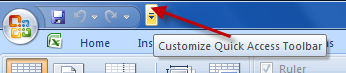
Customize Quick Access Toolbar (#qat)
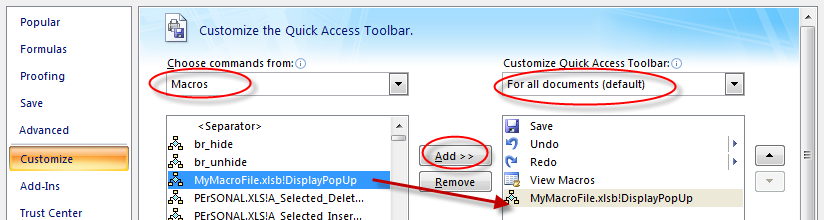
First step is to obtain Ron de Bruin's Menu for favorite macros in Excel 2007 (for all workbooks) to create an add-in with a nice menu in the QAT. Modify that with your own table of macros to be generated into a QAT menu.
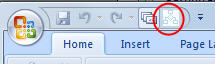
After modifying Ron's example my menu page looks like this
Since I can create a worksheet in the format of
John Walkenbach's "Menu Maker" without the icons was able to easily use
Ron de Bruin's utility "Menu for favorite macros in Excel 2007 (for all workbooks)"
http://www.rondebruin.nl/qat.htm
by pasting that into the MenuSheet before the existing examples provided in the workbook downloaded from Ron's site.
If you don't have such a list suitable for input into Ron's "Menu for favorite macros..." it is the same arrangement as needed for John Walkenbach's (Tip 53) which is now on John's page
Spreadsheet Page Excel Tips: Creating Custom Menus so you know what
the basic starting point is when Ron redid it for the QAT menus.
You can create the worksheet from your old Excel (pre Excel 2007)
using Barhopper -- fixup for Restored Toolbars (also List of Menu Items) macro, Barhopper -- fixup for Restored Toolbars,
and -- Listing of Menu Items — The macro even works with Excel 2007 though you
should have the workbook you used to create the qat as
a hidden workbook in your XLSTART directory. The code for both barhopper_ws macro and the macro if invokes, BarHop_ws, are found on the related
code page, and creates the
a new worksheet with the data in the format required.
With the workbook MyMacroFile.xlsb in place within
C:\Users\<USER>\AppData\Roaming\Microsoft\Excel\XLSTART (along with my personal.xlsb with all of my own macros) we are ready to continue; however, when it comes time to update your macros, you cannot modify and save within the startup folder. (Everything will hang up and you may ot see the resulting message.
/!\ You cannot save the Personal Macro Workbook in the startup folder. Save it elsewhere now and move it to the startup folder later. [OK]
The QAT can be created and later refreshed
by repeating the last part of Ron's instructions:
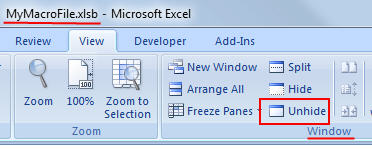
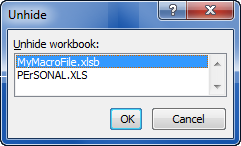
- View → Window → Unhide -- choose MyMacroFile.xlsb (as marked with
RED on pictures 4 & 5 above).
- Make changes as necessary to the "MenuSheet" worksheet, then
-
You can click on the
Refresh Menu button
on the "MenuSheet" worksheet of MyMacroFile.xlsb workbook example to see if your changes are correct.
- When It is OK click on the Hide
Save button also on the worksheet..
All of these contortions does not really make the ribbon that usable. You've still lost menus, and the ability to directly rearrange and modify your menus, and add in loads of macros in a tree structured menu. This is obviously a left/right brain issue, people who use words vs. people who use graphics. To help understand the differences, perhaps the first article helps.
The buttons copied over from Excel 2002 (XLB file) are correct except for the path
and workbookname – appears as Excel.xlb.text in XLSTART.
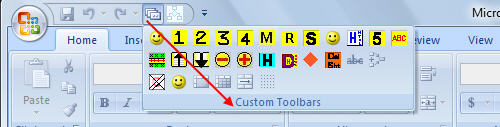
Will have to find out how to add buttons of my own creation
to Excel 2007. This relates to material in my
Toolbars page, that will have to be\
made to work in Excel 2007 rather than just a cobbled together
QAT that include a submenu of what were my toolbar buttons.
System Taskbar (#tasks)
Excel users that want to see multiple instances of Excel workbooks on the system taskbar should also refer to
taskbar on my Excel freeze.htm page,
and refer also to my Windows Vista page.
After 8 years trying to use Excel 2007 (2006-2014)
(#almost)
Sunday June 15, 2014 trying to revisit
- Library was named personal.xls instead of personal.xlsb, renamed.
- Can't modify .xlsb, must be copied to another folder other than xlstart and them moved back in.
- pinned the personal.xlsb so it can be found, and can actually be opened manually if hide/unhide found/not found has problems.
- Can't save personal.xlsb --
- /!\ Do you want to save the changes you made to Personal Macro Workbook? If you click Yes, the macros will be available the next time you start Microsoft Office Excel. [Yes][No][Cancel] -- replied with Yes, of course
/!\ This workbook contains Excel 4.0 macros or Excel 5.0 modules. If you would like to password protect or restrict permission to this document, you need to remove these macros.
/!\ Document not saved.
Regardless of what it says the main problem is be be able to save changes, this is preventing file from being saved.
- Have to recreated the QAT with Ron de Bruin's macros again. Working with Alt+F8 is not the best way to work.
- Can't see Hide/Unhide in ribbon unless you go out of your way to make a really wide Excel window (2014-08-06). Trying to read icons (hieroglyphs) quickly is best left to Egyptologists and children, should not be used or relied on in a work environment (2014-08-06).
- Have to be able to identify and remove Excel 4 and 5 macros so that personal.xlsb file can be modified and saved. Also have to make changes to a file outside of the XLSTART folder and move in in later as indicated by message telling me this (2014-08-06).
Things improved in Excel 2007 (#improved)
Is anything actually improved in Excel 2007 other than the obvious
increase from 65,536 rows by 256 columns to 1,048,576 rows by 16,884 columns,
and the multirow formula bar (expanded on right).
Inquisitive vs. Intuitive -- Ribbons vs. Menus (#nonsequitur)
See definition of Non sequitur, unfortunately we are stuck with an Office Ribbon designed for five year olds who are more inquisitive rather than results oriented. Speed of use is what is really important to users not extra clicking.
Four Big Lies (#fourbiglies)
Here are four reasons quoted right out of 2007 Microsoft Office system frequently asked questions - Products - Microsoft Office Online on why the Office 2007 interface was changed.
What were the design goals of the Office Fluent user interface and how were they determined to be top priorities?
We wanted to deliver new capabilities that empower people to get the results they want, faster. We had four major design goals:
1. Make it easier for people to find and use product features.
2. Reduce design clutter and interruptions.
3. Make it easier for people to discover the capabilities they need.
4. Support the creation of great-looking documents.
If you can't get past the first three, how can you tell if #4 is true.
Help with Excel 2007 (#help)
Help is now downloaded and not on your system. You can't simply read HELP like a book anymore, and search brings up article topics not the main topics in Table of Contents. Articles do not continue to the next article like in a book either. Once you have selected an article you will be shown the Table of Contents topic on the left that it is under so you can work manually from there. If you don't see the TOC entries click on the Book on the Ribbon on the opposite side of the Ribbon from which it appears. And the TOC shifts to show the topic instead of keeping the TOC structure in view.
More getting used to Excel 2007
Help and How-to Home Page (office.microsoft.com),
see Browse Help and How-to by Product
Some Old keys, you had better learn for Excel 2007
– Excel keyboard shortcuts 2000 - 2007, or
–
Keyboard shortcuts - Excel - Microsoft Office Online Excel 2003 (use the "Show All")
- Ctrl+1, Format Cells, at least once there the dialog is same as before
- Shift+F3, Function Wizard (actually you can still click on [fx] next to address bar)
- Use the row/column/cell context menus
to insert/delete rows/columns/cells.
- Ctrl+F1 to minimize most of ribbon (or double-click on a ribbon tab to toggle)
- Not at all happy about the loss of Ctrl+A
and since I hardly use Excel any more, don't forget these, to be able to use macros
- Alt+F8 to run macro (from within workbook since QAT connection always breaks)
- Alt+F11 toggle between spreadsheet and Visual Basic
Forced to Use Ribbon instead of Short cut keys, or assisted menus
- Previously you could use Ctrl+Edit(menu) to copy cell(s) as a picture, but with Excel 2007, you must use the ribbon to copy as picture or to paste as picture. Copy with Ctrl+C, then Home on the Ribbon, then the Paste with the drop-down then choose "Paste as Picture". [ref]
Convolution
Not convoluted enough for you see the Microsoft help Excel Ribbon mapping workbook
old menus to new ribbon (not a conversion), or the same information
in Guide (Abobe Flash),
or as a web page Help and How-To Home page (office.microsoft.com).
*** Interactive Flash showing 2003 menus.***
Those two guides are not of much help when it comes to what you need to use
for Tools,Options so here is something typical of what was
Tools, Options, View (tab), select the options
horizontal scroll bar and vertical scroll bar is now the following:
Use the Office Button in upper left corner, at the bottom of that dialog is Options,
then on the left choose the Advanced button (red), then scroll down on
the right side to "Display options for this workbook" (blue stripe) which is
about 1/3 of way down, then checkmark
"Show horizontal scroll bar" and
"Show vertical scroll bar"
ergonomics
The word ergonomics was created in 1857 by Wojciech Jastrzebowski, a Polish scholar, derived from the Greek words ergon (work) and nomos (principle or laws).[1] Ergonomics is often defined as the practice of designing the job to fit the worker, not forcing the worker to fit the job.[2]. The study of ergonomics took off with IBM studying
positioning of keyboards and chairs, and how something is quickly found (not necessarily where you expect it but at least next to where you expect it) about 1976-1986.[3]
Jumping the Shark
Here's a question for the Excel Development Team:
Did you actually use Excel, or are you just trying to make it better?
Excel 2010 (#excel2010)
Excel 2003 started a downward spiral with the destruction of Ctrl+A. Excel 2007 made Excel impossible to use, Excel 2010 looks like a minor improvement in restoring the File menu.
- The return of the File menu - Office Watch, In a rare capitulation to customer demands, the File menu returns to Office 2010 – sort of. Too little -- Too late!! Still has the ribbon doesn't have old menus which were easily updated both manually and in code. The File menu was somewhat usable after a year. That's the big improvement? I'm not rewriting anything, am hardly using Excel 2007 after loss of simple macro implementations and user modified menus, and am not buying Excel 2010.
- Ribbon customization in Office 2010 - Office Watch. Same ribbon but note how you customize it, with a menu type listing, which is for Office. Sure doesn't look like Excel does it and for what is shown you'd be better off learning to use Ctrl+1 to get you to formatting, since there aren't any menus.
- I wish Microsoft (Office Ribbon) and Mozilla (Firefox after 3.0) had put some time figuring out serious consequences as this physicist(?) has done for a hypothetical baseball question [ref].
- Excel - My Excel Pages
- Excel keyboard shortcuts 2000 - 2007
- Daily Dose of Excel » Blog Archive » Excel 2007 FAQ (Draft), John Walkenbach
- Excel -- Excel 2010 Articles List, Debra Dalgleish, Microsoft is publishing information about the next release of Excel.
- Office 2007 interface prototypes - istartedsomething, video by Jensen Harris from the Office 2007 design team gave a very rare presentation at Microsoft’s MIX08 event about not what the Office 2007 Fluent (Ribbon) interface is about, but instead how it came to be and what other concepts they tried.
This is a terrific video that describes the development process that went into the Office Ribbon, which leaves only one question: how long will it take Microsoft to admit that it was a bigger mistake than Clippy and how long will it take to get it all back into real menus that can used, ordered, modified and added to by users.
- Official Google Blog: Eye-tracking studies: more than meets the eye.
Keep in mind that not everything can not be in the prime spot, and once you know where something is, you really don't have to spend time looking for it (basic ergonomics). Since users don't really know exactly what they are looking for, a web search results page is a better candidate for eye-tracking studies than the Microsoft Excel Ribbon replacement of toolbar menus fiasco. But caution is always needed, people soon tire of looking at sore thumbs.
- Menu Addins, by Shah Shailesh, Download Free Office Menu Add-ins for Office 2007:, (formerly at http://in.geocities.com/shahshaileshs/ -- until Yahoo did away with Geocities user sites)
- UBitMenu: Classic Menu and Toolbars in Office 2007 / Office 2010 (untested, pay for solution)
Non Excel links of interest for those upgrading systems.