Titlebar

| Google site search for |
Additional pages cover Setup (initial installation), Toolbars & Context menus, Bookmarklets, Bookmarks, Keyboard shortcuts, Keyword shortcuts, and Tabbed browsing. -- Special Topics: Firefox 3 Introduction (TCF-NJ presentation/introduction) for both beginners and advanced users, and preferred use Styles instead of using userChrome.css (same coding).
Short topics: Google, Default Browser, Firefox Documentation, Firefox Portable, New Profile, Places (Fx3), Profile, Quick Launch (Windows), Use of Mouse, Use of Tabs, Search / Google, New Profile, Search Engine assistance in Generating, -- AwesomeBar (new page)
Solving version related problems and issues has been moved to Firefox Problems & Issues (Notes) (#problems) which includes: (#caret), (#firewall), (#flash), (#fragmentid), (#fx2), (#fx3), (#fx4), (#hyphens), (#minor) annoyances, (#pdf), (#slowtyping), (#superfluous window), (#willnotstartup), (#fx2config), (#fx2menus), (#fx2toolbars), (#fx2bookmarks), (#fx2files), (#fx2find), (#fx2home), (#localstore), (#fx2tabsbar), (#fx2ext), (#fx2statusbar), (#fx2display), (#fx2fonts), (#fx2images), (#fx2videos), (#fx2sites), (#slow) download, (#bounces) window, (#callout), (#scriptbusy), (#fx3rollout), (#fx3new), (#fx3comments), (#fx3interface), (#fx3ext), (#bm_overwrite_more), (#fx3p5), (#fx3p6), ::: have all been moved.
Information found on this page includes: An Introduction, Firefox notes, Customizations of Firefox and some specific extensions (Launchy, CopyURL Plus), Invoking Notepad, Extensions with short descriptions for my choices, accessing an additional home page by changing the throbber.
Organization of this page: Generate the Table of Contents (Alt+O) for this page and other webpages by installing the HeadingMap extension, then from the View menu → Sidebar → HeadingsMap (Alt+O). Headings on this web page have a slight color tint: h2 h3 h4 ; an on hover: h2 h3 h4
These notes should save you time finding materials to run Firefox like you want it. Most of the browser features and shortcuts are the same in any browser, so using or switching to Firefox should not be a problem.
This page includes everything needed to install Firefox and describes most of the customizations I've made on my system including descriptions of over 300 extensions on this page which I've used and am currently using about 87 of them in Fx 4.0 In other words there is not much point to a list of a mere 5 or 10 top extensions, many of which may eventually be incorporated in Firefox. The beauty is that many people have written code to enhance Firefox, and you can pick and choose what is suitable for your own usage. Customization you will not find here are: RSS feeds, Themes, music, audio, visual. Nor will I get involved with those lists of why others might prefer Firefox.
Firefox: The latest version is Firefox 4.0 updates to Firefox itself appear to be coming out about the middle of each month. Use Firefox - Rediscover the web to download the latest Firefox
Updates:
Updates to Firefox and extensions can be checked automatically through setting in Tools → Options → Advanced → Updates or manually through Help(Alt+H) → About Firefox.Old versions: The problem often turns out to be something else, but if you want to restore an older version, you will probably find it in your downloads; otherwise, start at ftp://ftp.mozilla.org/pub/mozilla.org/firefox/releases/ then choose version, platform (win32), language (en-US).
Bleeding Edge and Release Candidates not for general consumption:
- Nightlies (Minefield) Firefox 4 -- http://ftp.mozilla.org/pub/mozilla.org/firefox/nightly/latest-trunk/ -- are used for bug days
- Release Candidates Firefox 4 -- http://ftp.mozilla.org/pub/mozilla.org/firefox/nightly/
- Releases and Betas -- http://releases.mozilla.org/pub/mozilla.org/firefox/releases/
- Get Firefox - Get Firefox and Betas are here
- Releases - MozillaWiki, page for tracking in-progress releases. Upcoming (future), and Current (supported) Release Dates. Answers: "When is the next release / version coming out".
Mozilla: [Features] [FAQ fx4] [FAQs] [Tools, Options] [fx4 Release Notes] [Mobile (Android)] [keyboard shortcuts] [menu];
Mozillazine KB: [Firefox] links to problem solving (issues); and, installation and customizations (FAQ)In order to learn how to use Firefox efficiently you should become familiar with using HELP (F1), shortcuts, and menu items as a starting point.
The main difference people used to experience with Firefox was Firefox has tabs, today all browsers have tabs, but Firefox remains the most user customizable browser.
Firefox web browser, my notes on setting up and customizing Firefox with selected extensions after having used Internet Explorer.Have been using Internet Explorer for several years, and wanted to have more flexibility using Mozilla Firefox which offers more robust bookmarklets (IE limited size), better Ad Blocking (project) to block banner ads and block popups. Now "Adblock Plus" with EasyList Subscription are used to block ads and block popups. The initial frustration with Firefox was not being able to easily get into an editor like Notepad (see Notepad link below), and in not being able to copy the link and title to paste into source as an href anchor (see Copyurl Plus, and Multiple Tab Handler below).
Something probably unique to my site is the page on use of Right Click menus in Firefox, which are properly called Context Menus because the menu changes depending on where you right-click.
Titlebar
Menus, Search Bar and Firefox Throbber
(#searchbar_menus)

Search Menu Searchbar: The Searchbar (defaults to Google search engine) that comes with Firefox is too SMALL and Narrow. (BTW, move the Search Toolbar to end of Firefox menus). Solution: see Change the width of the searchbar (400 pixels and is self adjusting) in userChrome.css but first read about creating keyword shortcuts for your profile and chrome directories to help you locate the chrome directory for modifications. Why anyone would want to install an extension to do the same thing is beyond me -- incidentally the search bar will expand automatically in Firefox 2.0, leaving one to wonder what would happen if it is on the same row as the location bar which also expands, since there is no relative percentage maximums.
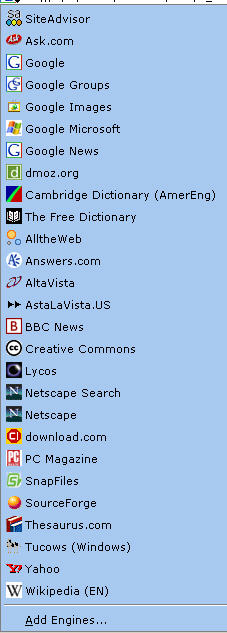
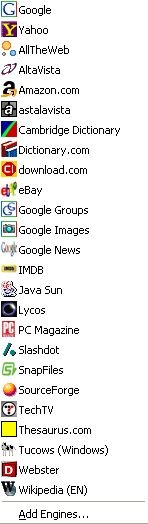
The search bar that comes with Firefox has a drop down that can easily be customized to add additional or delete (uninstall) search engines (Mycroft). Do not bother with the Googlebar extension, it is not needed, and the Mycroft customized search engine additions provide far more flexibility. For a picture of my actual search drop down click here, or see a different example. For the Advanced Search for Mycroft Search Engines, Mycroft Project: Sherlock & OpenSearch Search Engine Plugins
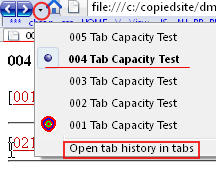
Menus & Tabbed Browsing: Ctrl+T, bottom of folder in directories/links has “Open in Tabs” -->
The Throbber can be changed to address additional home pages with up to four pages with the "Throbber Button" extension.
Location Bar

Use icons without text on most toolbars. New Tab button comes with Firefox, but is enhanced with Drag and Drop
extensionwhich has been built-in since Firefox 1.5. You could use Ctrl+click on a link instead of drag and drop. The Launchy extension provides the ability to invoke Notepad, installed browsers such as IE or Opera, the Windows Explorer, or a choice among text or HTML editors.At the right end I have Open a New Tab to facilitate use of Drag to Tab, and the Launchy icon as a time saver alternative to having to use a secondary menu within the context menu.
Suggest you continue reading below for problems, adaptations and customized implementations now; and, use the links at the top of this page later for more detailed usage of Menus, Toolbars & Context menus.
Plug-ins: (Firefox list of popular plugins – For a more complete list see bottom of that page, and check specifically for your system ). Be careful where you obtain plug-ins from -- the pages listed on that page would be the right places to use.
-- PluginDoc: Windows (Most Popular))
-- PluginDoc: Windows (A - Z), Mozilla Plugin Support on Microsoft Windows
Adobe Reader: PDF files should be directly opened with the Acrobat Reader (.pdf file type), never allow browsers to open them.
Java Plug-in -- Most users should be at Java 6 for more information see automatic update warning to check out your Java plug-in (Important !!!)Diagnosing plug-in problems
- http://kb.mozillazine.org/Video_or_audio_doesn't_play
- http://kb.mozillazine.org/Background_music_does_not_play
- http://kb.mozillazine.org/Problematic_extensions
- http://kb.mozillazine.org/Issues_related_to_plugins
- Also see problem with "obj-tabs" option in Adblock under flash.
To find what plug-ins are installed type about:plugins into the location bar. Read topics within http://kb.mozillazine.org/Category:Plugins
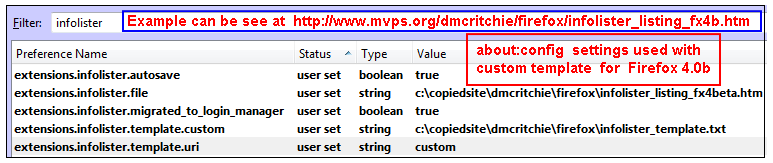
The Infolister give you a nice listing of installed extensions, plug-ins, and themes. You can compare your list to mine to make sure your versions are at least as high as mine, see my /example/ though most don't actually show the version there.
This is what I have for my actual listing for about:plugins you can check the date I created file by looking at the directory that the Plug-ins.htm is in (using Windows 2000).
Change plug-ins location: gemal.dk - Mozilla - Plug-ins with Mozilla, also see Move plugins to another location - Firefox - MozillaZine Knowledge Base which may describe other locations that would be found.
As mentioned at the beginning, I'm not into themes, but you can see what themes you have with Tools, Themes and you can obtain theme add-ons at Themes: Firefox add-ons or you can build your own search engine for themes see ...

| (-) | Copy URL + Title |
| (-) | Copy URL + Selection |
| (-) | Copy URL + Title + Selection |
| (1) | Copy URL + <dt>title<dd>selection / url |
| (2) | Copy URL + <a href=...>...</a> |
| (3) | Copy URL + <a href=...title=selection>...</a> |
| (4) | Copy URL + <a href=...>...</a>, selection |
| (5) | Convert TEXT to HTML code |
| (6) | DIV Offset + <a href=...>...</a>, selection |
There are 3 built-in menu items that you may or may not
see depending on what is selected,
and whether you RightClick on a link or not. Forward slashes in
display represent new line.
| B1: | Title/url | -- available, even if url has no Title |
| B2: | Selection/url | -- available if there is a selection |
| B3: | Title/selection/url | -- available if there is a selection |
The additions: 1) is a dictionary list entry, 2) is the basic HTML link, 3) HTML link selection internal, 4) HTML link selection external as comment, 5) will create HTML code from text, 6) will create an offset listing if you install the required style. There is no check when presenting the additions that you have a selection or that the cursor is on a link.
If you end up with doubled set of options, see doubled problems on my page which provides more extensive notes on COPYURL Plus, create a link for HTML
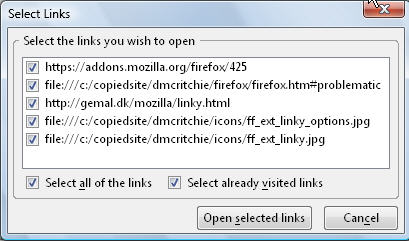
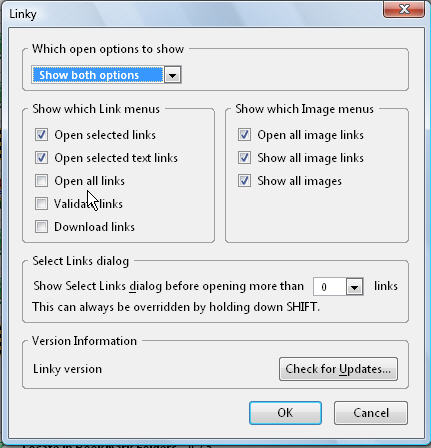
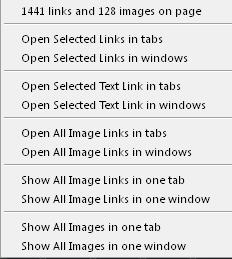
Launchy will launch a program, or editor from a webpage or a link. The Notepad editor is included in Launchy context submenus, providing sought after ability to edit with Notepad when using Firefox. I wanted to also include HTML-Kit and Edit Pad Lite. Since it is more difficult to click on a submenu item, suggest installing the Launchy toolbar as well.

Launchy (Context menu)
Launchy Links context menu The following code goes into the launchy.xml file that you create in your chrome directory (see customizations), per instructions in http://gemal.dk/mozilla/launchy.html Launchy will look for a file called launchy.xml in the chrome directory in your profile
(If you are bothered by words running through tables, especially on low resolution monitors, see write-up with Toggle Word Wrap).<?xml version="1.0" encoding="UTF-8"?> <configurations xmlns="http://launchy.mozdev.org/configurations"> <application> <label>Edit Pad Lite</label> <type>7</type> <command>C:\program files\JGsoft\EditPadLite\editpad.exe </command> <arguments>-editor</arguments> </application> <application> <label>MS Front Page</label> <type>7</type>,,,,,,,,,,,,,,,,,,,,,,,,,,,,,,,, <command>%ProgramFiles%\Microsoft Office XP\Office10\frontpg.exe</command> <arguments></arguments> </application> <application> <label>Windows Explorer *1</label> <type>1</type> <command>c:\winnt\explorer.exe</command> <arguments></arguments> </application> <application> <label>HTML-Kit</label> <type>7</type> <command>%ProgramFiles%\Chami\HTML-Kit\Bin\HTMLKit.exe</command> <arguments></arguments> </application> </configurations>For a sample launchy.xml to be able to bring up more browsers, and to be able to bring up other Firefox profiles with other versions of Firefox, see example launchy.xml.Before adding anything to launchy.xml use Tools/extensions select Launchy and check the options list. Even though Windows Explorer should work as File Explorers (type 6) from options, I had to add it to browsers (type 1) for it to work for me to look at directories and to verify an extension is opening in it's default (opened bug 8874). Although not shown I did find value in also adding NOTEPAD to extensions (type 1) so that you can get to notepad from a link, not recommended for others because a fragment-id would mess up direct usage.
With the above XML for Launchy in place, I get the additional context menus in Firefox that I wanted and basically the results I want and need to use the Windows Explorer, not to be confused with Internet Explorer.
- A link of the form http://bugzilla.mozdev.org/show_bug.cgi?id=8874 will fail in Launchy with “The path '8874' does not exist or is not a directory” -- an error message, but quite tolerable and understandable as there is no file extension. [right click on the above link, choose Launchy then choose Open link in Windows Explorer *1]
- A link of the form http://gemal.dk/mozilla/launchy.html will open just fine in the default browser and is needed and lets me know if my default browser is properly defined and working. [right click on the above link, choose Launchy then choose Open Link in Windows Explorer *1]
- Open a link to a local directory such as file:///c:/temp/ in Firefox, then right-click on white space (non link) then from Launchy bring up Windows Explorer. [left-click to open link, then right click within the browser's directory view to bring up Launchy then Open in Windows Explorer *1]
The additional entry for Windows Explorer is needed to open said directory with Windows Explorer from within HTML.- Don't open the link from the browser but use the Launchy context menu to open the link to a local directory such as file:///c:/temp/ [right click on the above link and choose Open link in Windows Explorer *1 or from the Launchy default Browse link in Explorer.
In the case of Open Link there actually is no need for the additional XML definition, though I personally like it as a choice with the browsers even if duplicated.- A link to a .jpg file such as ../icons/ff_launchy_irfanview.jpg opens according to it's file type and lets me know that it is properly defined and working, and more to the point lets me bring it up in it's intended application without additional definitions for Launchy. [right click on the above link, choose Launchy then choose View Image in IrfanView]
- Place cursor anywhere but a picture or a link on this page, using Launchy this page should reopen this page in the default browser. [right click on the above link and choose Open in Windows Explorer *1]
Don't worry too much about the type, you will see how they group from the above examples. Within their group the items are alphabetical.
To help create a Launchy entry use file search to find the directory, if you have a problem it could be you have more than one, or you can't simply use something like frontpg.exe as you could from the Run program dialog.
If you have installed IrfanView (and have .jpg defaulting to IrfanView) you can read the Exif Data information recorded by digital cameras or photo retouching by right-clicking on the picture, choose Launchy, then IrfanView, use shortcut character “I” to see picture information. [notes on IrfanView]
Customizations to support Windings and webdings is no longer supported in any manner as of Firefox 3, so this section has been archived. Web authors are expected to use Unicode to be compatible with all browsers and all systems. You will find some of the more common unicode symbols on my Symbols page. (You are expected to someday have an up to date computer to handle unicode characters in various fonts.)If the page is coded with older wingding and webdings, you will have to use Internet Explorer (possibly an older version), and if you are the author of the document, update to using unicode. This problem may affect use of barcodes as well, you will have to check barcode documentation to find out how to include your fonts.
Not having an automatic tie in to Notepad for View Source, can be alleviated by any of the following:If you change your default editor, you can still view the source of a webpage from the location bar as follows: [ref(1), ref(2)]
- Configuration Changes to tie into Notepad with Ctrl+U
view_source.editor.external set to True
view_source.editor.path set to c:\winnt\notepad.exe [use \windows\ in Vista instead of \winnt\]
The above is now a documented Tip in Firefox Help: Tips & Tricks, “View page source using an external program”.
Note the above change will change your Edit,View (Ctrl+U) to Notepad as an editor, so you lose the nondestructive browser viewer.
You can still view source in the DOM with a keyword shortcut ("view-source:"): javascript:location = 'view-source:'+location
There is also a problem with view_source.editor.path in that "View Selection Source" on the Context Menu often fails.
Getting "unresponsive script errors" on context "view source" have increased dom.max_script_run_time in about:config from 10 to 15, but don't expect that to change anything. try extracting the notepad symbol at end of this page with view source selection. DOM is busted Fx2 also happens in safe-mode see ...
- Launchy, provides for notepad see notes (above) and in extension table (below). If not on your local drive Notepad brings up a temporary copy, which is easily identified at the title bar.
MenuX. provides Alt+X as a shortcut. MenuX has/causes too many problems so suggest not using MenuX.- Web Developer, provides default shortcut of Ctrl+Shift+` (accent grave) but you must specify the location of notepad (i.e. c:/winnt/notepad.exe or in Vista use c:/windows/notepad.exe), You can change the shortcut Ctrl+Shift+` to the easier to use Alt+X with the keyconfig extension. If not on your local drive Notepad brings up a temporary copy, which is easily identified at the title bar. I prefer the configuration change though, since I've found out about it (see first item using Ctrl+U).
- JSView Add-on, allows you to open the source code of any web page in a new tab or in an external editor. If the website you are viewing contains any external js/css files, an icon will appear that says "CSS", "JS", or both. Each individual file can then be viewed by clicking on the filename from various menus. (Haven't tried this ext because not really working with JavaScript, or CSS).
view-source:http://www.google.com/
default browser — it doesn't really matter.
Though Firefox is now my default browser, I had continued with IE as the default just in case it made a difference, as it does on the Microsoft update sites. Was perfectly happy that Firefox was invoked from links in Outlook Express which was all that really mattered to me – perhaps because Firefox was installed later.– You've normally decided which browser you want to use by selecting that icon from your Quick Launch or from the desktop, but Launchy provides the means to bring up any additional installed browser looking at the same page you have up from within Firefox, and other versions of Firefox with various profiles.folder options, files types... and Windows Explorer, because I have added Explorer to the list of browsers within the launchy.xml , it is easy to remove the filename portion of a URL at the location bar to get to the directory listing (on your local drive, and some websites) then to use Launchy to invoke Explorer which since it is a directory brings up Explorer listing. Columns in the directory not normally seen in a default Windows directory have been included via View, Choose Columns. The Comments column is used by Excel. You might choose different or additional columns for other directories. Directions to make Firefox your default browser.
Name Size Type Modified Created Accessed Attrib. Comm. firefox.htm 194 KB HTM File 2006-05-24 09:53 PM 2004-08-09 10:45 AM 2006-05-26 12:00 AM A rightff.htm 69 KB HTM File 2006-05-26 06:45 AM 2004-08-11 11:03 PM 2006-05-26 12:00 AM A index.htm 3 KB HTM File 2004-11-02 98:56 AM 2004-08-16 11:42 AM 2006-05-26 12:00 AM A
- About:config entries - MozillaZine Knowledge Base, about:config is a list of preferences that you can change. Several of the references above are listed in this document and expanded elsewhere. [aboutconfig:]
- Firefox Help: Tips & Tricks [FFTIPS:] can no longer be seen within two clicks of install Firefox but it can be found (hidden away) at Customizing Mozilla.
- Firefox Menus [ffmenus] ♦
- Firefox - MozillaZine Knowledge Base, Issues and FAQ (Frequently Asked Questions) ♦
- Firefox Help: Options Window, has been replaced by this dummied down comic book style (SUMO) reference without tabs options, pick your version of Firefox at the top of the article. (Firefox Support Requirements Document - MozillaWiki is written for the below average internet user)
- Options_window [Tabs options] ♦, descriptions for Tools, Options usage [toolsoptions:] link directly to the tabs part, this document is intact despite conversion of appearance (was always on Mozilla.org).
- Mozilla HELP, Tutorials (this page no longer very helpful)
- Profile directory shortcut [profile:] , Profile folder [profilefolder:], Files in Profile (gemal), Migrating settings to a new profile
Also see Major Problems topic near end of this web page.
About (#about)
- You can type any of the following onto the location bar for more information about your Firefox:
about:about, about:blank, about:buildconfig, about:cache, about:cache?device=memory, about:cache?device=disk, about:cache?device=offlilne, about:config, about:crashes, about:credits, about:license, about:info, about:logo, about:mozilla, about:neterror, about:plugins, about:neterror, about:support, about:robots
see http://kb.mozillazine.org/About_protocol_links -- MozillaZine Knowledge Base
Have suggested about:profile and about:addons in Bug 367596 – [RFE] Create a support info page/lister.- InfoLister extension, adds about:info, a listing of your extensions, themes, and plug-ins.
- My own infolister listing can be seen here for Fx3, and my user.js, prefs.js, userChrome.css, and userContent.css can be seen as text file content.
The following keyword shortcut can help you find knowledge base articles with solutions to practically every problem you may encounter in Firefox.Install as a bookmark: ( -intitle:talk eliminates docmentation discussions)
Title: :: Mozilla KB search (or KB_: Mozilla KB search) Keyword: :: (or KB:, or KB_:) Location: http://www.google.com/search?num=100 &q=site%3Akb.mozillazine.org+-intitle%3Atalk+%S
Many things can be customized by creating and maintaining userChrome, userContent, or user.js to solve (or possibly create) problems. Read more about Customizing Mozilla
Important !!! Material on hidden files and on finding your profile has been moved to Finding Profile, and Assigning a "profile:" keyword shortcut, and a "chrome:" keyword shortcut.
Important !!! material on “QuickLaunch additions for Firefox Usage on Windows” has been moved to another page.
You can check customizations by typing about:config (also) on the location bar.
Specific Customizations (also see Firefox notes, above, and see Firefox 1.0 Rediscover the Web)
You can copy the following files example-user.js, example-userChrome.css, example-userContent.css and drop the “example-” from the file names.
c:\program files\Mozilla Firefox\defaults\profile\chrome <-copy fromread about in: Firefox Help: Editing Configuration Files (David Tenser, now --brokenlink--), also see Flii's Tips [--brokenlinks--][ archived versions of Flii's Tips phoenix and firebird are now Firefox], remaining Mozilla.org customizations pages remaining: Customizing Mozilla (appears as Unix)
C:\Documents and Settings\Administrator\Application Data\Mozilla\Firefox\Profiles\NOP.Default\US\chrome
The sources of documentation are a changing.
- Support:Article list - MozillaWiki provides the framework for adding more material to mozilla.org aimed at a limited audience that is assumed to be smart enough to read documentation but not smart enough to select a good solution if offered choices. Aimed at non-technical "MOM", a person who did not install Firefox but is going to try to do what...
- mozillaZine - Your Source for Daily Mozilla News and Advocacy
- Knowledge Base - MozillaZine Knowledge Base, Documentation of Mozilla products and applications. MozillaZine Knowledge Base:About - MozillaZine Knowledge Base
Some things than can be seen and/or documented(printed to a file).Some things to keep watching:
- about:config settings (documentation)
- Don't know of any means of exporting (/printing) a filtered listing
- Adblock Plus
- can be exported and imported as text files
- Bookmarks, and history are stored in places.sqlite (a database file), bookmarks can be exported to an HTML file such as bookmarks.html file. The bookmarks.html file is the standard means of transferring bookmarks from one browser to another browser. Import/Export, Back/Restore of bookmarks is handled by the Bookmarks Manager known as the Library list ("Ctrl+Shift+B"). You may view all of your bookmarks in the Library list or in the Bookmarks Sidebar ("Ctrl+B").
- (see bookmarks page. — would like means of stripping out icons for documentation usage; however, a page showing the icons can be seen here)
- Extensions (list with InfoLister Extension)
- Can create text or HTML file, Mine can be found here (InfoLister_Listing) as an HTML file and used my own template.
- Keyboard shortcuts (personal)
- See the Keyconfig extension (don't know about printing)
- Keyword shortcuts
- Enhanced Bookmark Search (EBS), and Keyword Bar specifically to view keyword shortcuts, also see my documentation on Keyword shortcuts (don't know about printing)
- userChrome.css, userContent, and user.js in chrome, chrome, profile
- these are text files and can be seen/printed (may be in Linux form "LF"-format )
- philwilson.org: How to export Firefox's history to a text file,
http://philwilson.org/blog/2005/01/how-to-export-firefoxs-history-to-text.html- philwilson.org: How to export Firefox's history to a text file
- Mozilla2:Unified Storage - MozillaWiki
What are extensions (#what)
Extensions (documentation): are small add-ons that add new functionality. They can add anything from a toolbar button to a completely new feature.Customizing your Firefox with add-ons, some documentation with loads of pictures for novice users, currently in initial development by Mozilla Support Planning.
Where to get extensions (#where)
Firefox Extensions (addons.update.mozilla.org/extensions), approx894331,000 extensions listed for Windows, this is the ultimate destination after being tested for fitness. (since the search reports exactly 1,000 it is probably a limit of results it will show and no longer accurate) The “More Information” and “Home Page” links normally link to a group page like extension.mozdev.org or to the extension author's own page(s). Has Popular and newest categories.compatible: Whether you look at all of the extensions (1848 Window extensions) or from a search you probably want to look at 100 at a time. On the Extensions page there is a search form, use the form for any search then on the results page there is a "Show Options" to the right of the search form which can be used to specify your own defaults for a search, which you can use to create a search engine...
Create an engine for the searchbar to search for the Extensions by right clicking within the search form (with all default options). In order to accomplish this you will need to install the Add to Search Bar extension.Extension Room (extensionroom.mozdev.org. approx. 225 entries (before Firefox 1.5), where authors provide their approved submissions. Currently shows 120 extensions but not that are shown are available in Firefox 1.5. You can see them there all at once. Topics on the mozdev.org sidebar include: Active Projects, External Projects, Project Categories
The latest versions are often on the author's own web pages: particularly when a new version of Firefox comes out. The authors websites, if available, have been included in the table below.
Install this as a keyword shortcut: ext: search extensions -- add-ons extensionroom add the ext: shortcut to the properties.
If you can't find a Firefox extension, you might still find a bookmarklet or favelet with bmk: search bookmarklet OR favelet add a keyword shortcut (kws.htm) to the bookmark's properties as "bmk:" if you want to keep that as a shortcut. A very large collection of bookmarklets described on the kws.htm page can be found as exported bookmarks in k.html
If you want to double-check for additional extensions after you have installed extension first from mozilla.org then mozdev.org you might recheck by looking at active projects at mozdev.org, which can be sorted by name or by date. You can also look at the FAQ and other topics from the left side frame for some orientation on projects and extensions from the developers (code writers) perspective.
The table of installed extensions on the right can be created by Listzilla or Infolister►. Descriptions (Title=) can be seen if you hover over the links. The Listzilla listing is not automatically updated; however, an up to date listing of my actual extensions in use can be found in my /Infolister/ Ext. listing, which is included whenever my site is updated..
Late modifications: Just because I disable or eliminate an extension does not mean it was a bad extension. I have very limited RAM memory and too much page swapping, if an extension has lots of features takes a lot of overhead and I only want one feature, it will probably get removed, and may be reinstalled on a bigger machine. removals: Clone Window, Compact Menu, and googlebar (there is a much better one built-in to Firefox). Retaining for now: keeping (/these) for awhile: EditCSS (keeping even though it is in the Developer).
Some ideas of what others feel are important for extensions. May check these again from time to time, but I've installed those I really need, and avoid those that might be somewhat nice but are large. Of 54 currently enabled extension, only 14 of those are over 34KB installation size.
- aplus » My Firefox setup, but I think they are all available in the Extension Room (Mozilla.org)
Installing an Extension (#install_ext)
To allow software to be installed you must have: Tools, options, Web Features (left side in earlier versions) or Content (top) in Firefox 1.5, [x] allow websites to install software. (I think there may be no more need to turn off this option as Firefox 1.0 and later will check that the file extension or download is from “trusted sites” that you can change on the link inserted when you get a conflict and refusal to install.

To protect your computer, Firefox prevented this site (xxxxxxxx.com) from installing software on your computer. The first time you attempt to install an Extension from a site you will get the above warning, to proceed, click on the Edit Option, then inside on Allow, then reselect the extension to be installed, and it should then install. Do not install an extension you are suspicious of, most extensions you will ever use are from the one of the four locations listed earlier.
If you have trouble installing your chosen extensions then read more detailed Mozilla Firefox Extensions installation as described in “An introduction to Mozilla Firefox, part 4”.For URIID at mozdev.org, I had to install the downloaded file by opening c:\download_win2000\uriid.xpi on the Firefox location bar as it would not install by simply clicking on the link.
I specifically will not install the Google Toolbar (extension) as the built-in searchbar is much better and is Customizable. A Race to the Bottom - Privacy Ranking of Internet Service Companies places Google at the bottom of the ranking. (letter to Google on Data Protection Policy (not the worst on openess)
Below is a list of Firefox Extensions I have installed and still use most of them. Most of these extensions are invoked from the Context Menu, see Firefox Right Click menus for the original built-in Firefox Context menus plus some of the additional menus items added by my own selection of Firefox Extensions. Some extensions are installed in the tools menu, and some have optional toolbar buttons.
Multiple profiles: is one way of essentially turning off all extensions so you can test w/o or with only one extension – Firefox Help: How To Manage Profiles, Multiple profiles and profile management is an advanced feature, mainly intended for developers. Unless you are an extension developer or an advanced user, you should probably not be trying to use multiple profiles.
Many of the extensions have additional customizable options, all have disable/enable, more information (about ...), and update, which you can see by right clicking on the extension as found in the listing found with Tools, Addons or on the Find Updates button at the bottom of the Extensions list.
Extensions can be invoked in many different ways so I have tried to identify where you invoke them from, such as from the right-click (context menu), Tools menu, Edit menu, View menu, and even the History menu(
Go menu). Options are usually set in the Extension list (Tools, Add-ons, select ext, options), but some are in the menus just mentioned.
Although all add-ons presumably were restored at addons on 2007-03-26 that is not actually the case so if still missing you can load from ftp://ftp.mozilla.org/pub/mozilla.org/extensions
If you have an extension installed you can find what the author supplied as homepage via Tools, Add-ons ("Ctrl+Shift+A")_, and right click on the addon.
Addons_2007 New Format has MAJOR Problems, and in my opinion does not belong in production.
indicates NEW to this list of extensions, and contains the date added to this list.
► indicates additional information (Requires JavaScript to be enabled for expansion to occur [try here])
conflict, abbreviation note may be used for definitions or comments (green wavy underbar may not be visible next to a border or underline).If you use Sea Monkey instead of Firefox, you might want to check for interactions with Sea Monkey.
A count of the table rows, can be found at the bottom of the table.
|
A complete Listing of Extensions I am currently using in Fx4 see infolister link for most current link,
is created automatically
by the “Infolister” extension each time Firefox is started and copied to website during website updates.
This table is
http://dmcritchie.mvps.org/firefox/firefox.htm#ext_table with brief descriptions
and usage notes,
including how to invoke once installed, also see
http://dmcritchie.mvps.org/firefox/infolister_listing_fx4.htm#extensions ▶
Make Firefox 4.0 look like 3.6 (link) | |||||||||||||
| As of 2011-01-15 the add-ons site have hidden the addon numbers what was "addon: 1865" is now "addon: adblock-plus" (server corrects to lowercase). Besides not getting a relative age of an addon, expect this will harm renaming and language usage. More ► | |||||||||||||
| Extension (#ext) | version | Author | Description ► | ||||||||||
|---|---|---|---|---|---|---|---|---|---|---|---|---|---|
| Aardvark (removed) | 2.9.7 (22KB) |
Bob Brown | Allows cleaning up a page prior to printing it Once you've read the options on the webpage, this is probably the best extension for viewing, examining a section, or printing a difficult to isolate selection of a page. Select text, right click, start Aardvark, W for Wider (several times), I for isolate, or R for remove, F5 to reset. Test this [2]. Uninstall pre 2.0 then install 2.0., did not detect Dec 16, 2006 update. | ||||||||||
| About: (addons) | about:accessibility, about:data, about:me, about:search, about:tab | ||||||||||||
| about:accessibilityenabled | 1.4 (3.1KB) | L. David Baron | show whether accessibility API support is enabled | ||||||||||
| about:me | 0.5 (51.2KB) |
leibovic | a fun way to see personalized patterns (graphs) in browser usage, including trends in browsing history and download activity. (wiki) about:me on Location Bar (see About protocol links). | ||||||||||
| About:Search | 0.2.2 (xKB) | (surfmind) | statistical analysis (graphs) of the user's history, average tab load, etc. Like Google Zeitgeist, but based on (Firefox) Places database. about:search on Location Bar (see About protocol links). | ||||||||||
| About Site (uninstalled) | 1.5 (11KB) | Gina Trapani [1] [2] | one-click access to various services that provide information about the site generating a url based on domain/page/selection you are viewing, also has a show all. [Context] Nice to see the improvements since domain only (0.4 pre Feb 28, 2007). Should add Links to this page, and change the archive.org "/*/" to "/*dc_*/" to facilitate comparison. Can all be done better with built-in keyword shortcuts which work for me, but this extension simplifies things for casual users and keeps them in one place. | ||||||||||
| Accessibility
(uninstalled) (dead-link) |
0.99.1.2283 | (Ill., /Urbana) |
beta has scripting errors, but is interesting. Don't need
two big menu items added to menus (one menu item of 3 chars would be acceptable) [uninstalled will check again in April 2006] announcements
[menus][ | ||||||||||
| Adblock | Adblock is no more see it's successor Adblock Plus (ABP) | ||||||||||||
Adblock Plus ♦
 | 2.2.2 (818.0 KB) | Wladimir Palant | (ABP) Eliminates ads. Ads, particularly third party ads, are a primary source of malware and viruses. Eliminating ads helps
 protect your system, speeds up downloads, and helps protect your system. (video overview). Filters are required (EasyList is recommended). Features: Easy to add customized filter and whitelist items. You can maintain several independent filter lists/subscriptions concurrently plus your own added filters. [Options] [Button click/context]. Also install companion " Element Hiding Helper for Adblock Plus" (below)
Due to a change in ABP you must now Uncheck "Allow non-intrusive advertising" in the preferences to receive full benefits, and besides subscribing to EasyList, and Fan boys, you might want need to also subscribe to EasyPrivacy. The menus in preferences were moved to the right hand side. On your Android get Adblock Plus directly from adblockplus.org, it is not available at the Play store [ref], and it is works with Android itself so protects you on all browsers there not just Firefox. | ||||||||||
| Add Bookmark Here ² | 17.0.20121128 (65.6 KB) | yuoo2k | Add a menuitem "Add Bookmark Here..." to Bookmark folders.
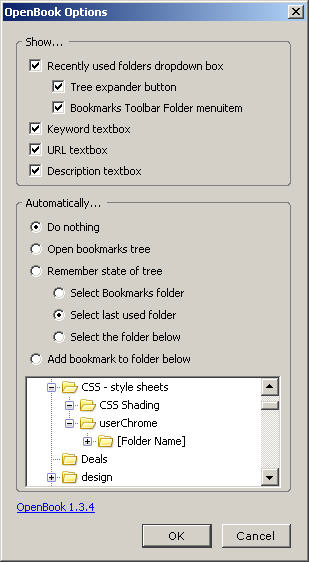
Must be done from within a bookmarks folder. (related OpenBook)
The extension has additional features as well and incorporates most of the "OpenBook" extension except for the ability to expand the Bookmark dialog horizontally. (cannot use both extensions at same time). ![[filledstar]](../icons/bookmark-star-filled.png)
![[star]](../icons/bookmark-star-empty.png)
There is a somewhat hidden feature as well, by right-clicking on the "bookmark here" in the
bookmarks context menu you can bookmark all of the tabs to the folder (or
select a different folder, or create a new folder). Not sure what features I changed from defaults but I use Expanded, and I display all in dialog (Name, Location, keyword, description, load in sidebar) except for tags (which show up anyway, even though not wanted). Also see Style 9029.
| ||||||||||
| Addictive Typing Lessons (disabled) | 3.5 (93.2KB) | Tom Kennedy | ![[typing]](../icons/ff_ext_typing.jpg) Learn touch typing, or improve your typing. [options] [Menu|tool|task bars] (normally disabled) Learn touch typing, or improve your typing. [options] [Menu|tool|task bars] (normally disabled) | ||||||||||
| Add-on Compatibility Reporter | 2.0 (284.0 KB) | Mozilla
(for beta testers) | “If you want to test Add-ons with Firefox 4 Beta, you will need to install the Add-on Compatibility Reporter first” [ref] Use this extension to report whether add-on still works or are having some issues with alpha and beta releases. Collects tester responses based on an extension's GUID number and reported problem notes can be seen if logged in at top of a report, example of a report | ||||||||||
| Add to Search Bar ♦ [New Name for extension] | 2.0 (25KB) | Malte Kraus (Dr. Evil) |
| ||||||||||
| Advanced URL builder (♦) (removed) |
1.0.26 | James Cook | Works the same as built-in Firefox Keyword Shortcuts, except you don't have to type in the word(s). URLs are added to the Extension's options, and usage is by selecting a word or phrase then using "Find this..." in the Context Menu. (Menu Editor can place menu in a good location) | ||||||||||
| After the Deadline - Spell and Grammar Checker | 1.51 (85.0 KB) | by Automattic, mitcho (Michael Erlewine) |    AtD | ||||||||||
| Allow Right-Click | 0.1.1 | Erick
Hamiter
(new site) |
Defeats web sites' right-click prevention scripts. If not available drag Enable Context Menu to your personal toolbars (preferably a folder within) to install the bookmarklet to reenable. ☆ | ||||||||||
| All Tabs Helper | 1.1.12 (2019-03-14) |
Kevin Jone | Creates a drop-down menu under [A] favicon of the tab. Each tab shows: favicon & title of tab with a close tab button to the right. Scrollbar added to right when needed. Loaded 60 tabs 1 was missing favicon and two showed partial url instead of title -- blame this on Mozilla in later versions having troubles with tabs loading slowly. Reloading those tabs in place (F5) solved problem. | ||||||||||
| Anchorun (disabled) | 1.2.3 (12KB) | Giorgio GA |  Randomly surf to a link on current page. [button][options] Randomly surf to a link on current page. [button][options] | ||||||||||
| Answers (removed) | 2.3.54 (40,6KB) | Asher Szmulewicz | point at any word,
 hold the Alt+click (pop-up), Ctrl+Alt+click (new tab), Shift+Alt+click (new window/tab), select text(context menu). Includes an optional sidebar, which of course you would refuse. (topic search)
 | ||||||||||
| antipagination
(removed) |
2005.12.21 | 383 | Combine search results pages and other next pages into one page, (pictures) [context on Next/Previous links or url bar] Warning: Google is fine, addons.mozilla.org too much (119 pages with pictures). see repagination which allows limits per use. | ||||||||||
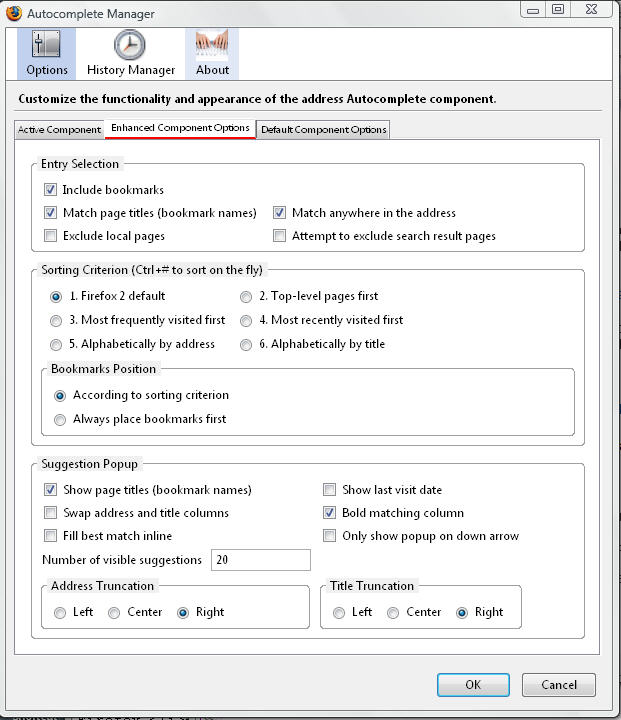
| Autocomplete Manager
♦ Removed in F3
| 2.3 (79KB) | Nikitas Liogkas | provides advanced features for the address Autocomplete component in Firefox. Displays list of addresses with titles based on
entry of a string that is within bookmarked url or title. [Options] [Ctrl+Shift+M];
* changed the Shift+L shortcut to Alt+L, after popular request.
Disabled in Fx3 which has built-in location bar search of bookmarks and history and showing title & url, but no options window. (AwesomeBar) | ||||||||||
| Auto Context
(of interest, uninstalled) | 1.4.53 ( | MIKES KASZMÁN István | Automatically opens a customized popup menu when you select text. A welcome extension when you have a LOT of items in your Main Context menu even after using Menu Editor. I like the concept but I cannot customize it by simply a context menu item of my choice (for instance first extensions that comes to mind is "Copy URL plus", and "Linky" both happen to have groups) Interferes with Web Developer Ctrl+Shift+F to examine fonts even if disabled at the status bar. | ||||||||||
| Auto Dial shitlist | 6 (6KB) | harikaried | A visual representation of your frequently visited pages easily accessible from chrome://autodial/content, which you should bookmark with keyword. To use Click on Link or use number. Beautiful report/layout but shitlisted because a new tab (like Ctrl+T) should always be blank. No way to have it not come up except when wanted which would be fun. Built-in to Fx13 as about:newtab | ||||||||||
| Auto Hide ♦
Autohide is apparently dead (per author's site)
(possibly related Fx29) | Jochen | Hide/See the toolbars of your choice in Full Screen (F11/context), Full Window - zombie mode (Shift+F11) [Options]
[Context]
[Help]
Suggestion: Show Status bar always, and AutoHide all regularly displayed toolbars. By moving cursor to extreme top/bottom can see your regular toolbars and Windows status bar though hidden in full screen mode. Use Menu Editor to put "Full Screen" context menu option at top of context menu. (Great companions: Mouse Zoom)
Requires secure server override, well worth the extra effort to install. Alternative: start in Full Fullscreen Toggle individual toolbars: Hide Tabbar [suggest Ctrl+F11], Hide BookmarksBar Alternatives (userstyles.org): Always show the tabs bar. (through top to see all toolbars) | |||||||||||
| AutoPager
(uninstalled) | 0.5.2.0 (279KB) |
Wind Li | automatically loads the next page of a site inline when you reach the end of the current page for infinite scrolling of content. Sites it works with includes Lifehacker, Mozilla addons (releases), the New York Times, Digg, and, of course, Google. Works with JavaScript links. Warning if you do not update to latest version on author's site, you will have problems with horizontal widening of Firefox window (related: PageZipper bookmark works only with normal links and uses an external js file (49KB), suggest keyword of "Pz".) | ||||||||||
| Auto Site Map (uninstalled) | 2005.12.21 | 383 | Auto generate a folder structure of a website to browse. [View,sidebar]. Interesting, but should be avoided as it will drain server bandwidth worse than most webbots) | ||||||||||
| AVG Safe Search
☹ (uninstall by removing Link Scanner Component) |
(version) (xKB) ☹ | AVG (grisoft.com) ☹ | Extension was installed as part of AVG 6 Free version end of April 2008, it was not installed from AMO (addons site). In Fx2 (2.0.0.14) it prevented use of "Enter" at the location bar. [FAQ 1253] creates other major problems as well in both Fx2 and Fx3 and is not a good substitute for McAfee Site Advisor. more info ► | ||||||||||
| BarTab | 2.0 (24KB compressed) | PhiliKON Philipp von Weitershausen | BarTab can intercept when tabs are loaded in the background or restored after a browser restart and will only load the content when the tab is actually visited. [ref]. Also set about:config value of media.autoplay.enabled to false, and
"Stop Autoplay".
Option to not load restored.
media.autoplay.enabled user set boolean False browser.sessionstore.max_concurrent_tabs to 0 in about:config (may do about the same [Ref]) see Load Tabs Progressively, Load tabs one by one. Limit the number of concurrent loading tabs and/or unread loaded tabs. | ||||||||||
| BarTab Lite | 1.2 (7.2KB) | PhiliKON Philipp von Weitershausen | Like BarTab for Firefox 3.x, but with less features. This just keeps your tabs from loading (via the now built-in hook in Firefox) and styles the not yet loaded tabs in the manner (??)familiar(??) to BarTab users. | ||||||||||
| Better Gmail (uninstalled) | (1.0) (209KB) | Gina Trapani | A comprehensive suite of Gmail enhancements, including skins, saved searches, keyboard macros, secure access, attachment icons, attachment reminders, label colors, signature floating and more. You will not see what account you are using so you might want to install a bookmark for https://mail.google.com/mail/?ui=html&zy=s with a keyword shortcut of "gmail:". tested works, but not what I want for my own email. | ||||||||||
| BlockSite | 1.0.3 (16.4 KB) | Erik van Kempen $$ | blocks websites This link is blocked of your choice. Additionally, this extension will disable all hyperlinks to these websites, by just displaying the link text without the clicking functionality. Will show tooltip of "This link is blocked" instead of title. Status bar will not show link address beyond "#", if present, for such links. You will probably have to restart Firefox for changes to take effect rather than just using the add-on's options to enable/disable. | ||||||||||
| Bookmark All Tabs, Firefox Feature on bookmarks menu [Ctrl+Shift+D] -- Bookmark This Tab [Ctrl+D] | |||||||||||||
| Bookmark Duplicate Detector
☹ (removed) |
0.7.4 (123KB) |
Stephane BERTIN | helps find and delete duplicates URL already in your Bookmarks.
☹ Do not install, if installed uninstall immediately (I have over 2,500 bookmarks) -- MozDev Bug 20647 - Detection of duplicate bookmarks on sort operations,and JSON restores DO NOT INSTALL, Remove if installed. Use CheckPlaces extension instead. | ||||||||||
| Bookmarks Scrollbar ▽ (disabled/problem) | 1.0.5 (1KB) | Was a nice extension but Firefox 2.0 changes to tabs ruined the extension by placing a horizontal scrollbar over the tabs when using this extension and 22 or more tabs; however, you can do this yourself with simple userChrome changes see Scroll Bars. | |||||||||||
| Bookmark Sorting
(works in Fx2)
For Fx3, see Bookmark Sorting in Fx3 (below). | 0.8.1 (8.84KB) | Torisugari David Lechnyr | There is was an excellent extension written by a guy named Torisugari called, simply enough, Sort Bookmarks, but was never updated. This is an updated/enhanced version. Sorts your bookmarks.html, Adds “Sort by Name” to the Bookmarks menu (or perhaps your default sort). [Tools] [related: bookmarks manager] Note to form a group for sorting purposes you must use two separators before and after the group or so I think I'm told. Says it works with Fx3 (Places) as well which will be a database instead of an HTML file. Fx 3.0b2 has sort built-in see next topic. || of interest Bookmark Sync and Sort, if modified to handle Fx3 bookmarks. | ||||||||||
| Bookmark Sorting in Fx3 (built-in) (for Fx2 see previous topic) |
Sorting of bookmarks is built-in to FF 3, context menu ("Sort by Name") is used on the individual folder and is NOT recursive for subdirectories. You can't sort on the overall "All Bookmarks", but you can sort from each of it's subfolders in 'Places Organizer' (Ctrl+Shift+B) and in Bookmarks (Ctrl+B): "Bookmarks Toolbar",
"Bookmarks Menu", and "unfiled Bookmarks". You must now select the folder not a file within a folder in order to sort. Bookmark separators cause groups within folder to be sorted within each group. Recursive sorting has not been included.
To sort bookmark folders recursively, see SortPlaces ♦. To quickly access Library list from a bookmark folder recommend also installing Manage Folders ♦. The "Library List" (invoked from Bookmarks, "Organize Bookmarks") has an additional sort ordering from the Views menu. Views also specifies which columns will be seen, but is not sticky you have to choose your non default columns each time. | ||||||||||||
| Bookmark Star
bookmark page (Ctrl+D) (Conflicts) ☹ | There is a conflict between the Bookmark star (Edit this bookmark) and the use of McAfee Site Advisor and Add Bookmark Here². Site Advisor disabled so that Ctrl+D and Add Bookmark² will function properly.
MSA 3.3 fails alone in Firefox 3.6.13 with or w/o ABH2 3.6.20101102. In Firefox 4.0b8pre, MSA 3.3 and ABH2 3.6.20100818 both are working without interferring with Ctrl+D and bookmark star but in reality MSA does not function at all in Firefox 4.0b8pre and hangs on Google search. Also there are reports of other extension not compatible. | ||||||||||||
| Bookmarks synchronization (#bookmarkssync) across browser/computers (search addons) {bad link, but Advanced Search has returned to Addons} | |||||||||||||
| Broadband Speed Test and Diagnostics | 1.1 (35KB) | GoTo MyHelp | Speed test, display config (ipconfig), local IP configurations (private IP address, MAC address, default gateway, DNS server, DHCP server, routing table, ARP table, active connections), diagnostic tests (NIC card, local gateway, DHCP server, DNS server, web site) troubleshoot and isolate problems Windows (other Os) [Tools] | ||||||||||
| Broadband Speed Test and Diagnostics (uninstalled) | 1.1 (35KB) | DSL SpeedTest | (bandwidth tester) speedtest and diagnostic tests (NIC card, local gateway, DHCP server, DNS server, web site), Display (private IP address, MAC address, default gateway, DNS server, DHCP server, routing table, ARP table, active connections) | ||||||||||
| There are lots of band width testers available that you could use with a keyword shortcut, so an extension is not at all important. I use one with a shortcut (speed:) and another is specific to my ISP, or one at InternetFrog, SG Bandwidth Speed Test | |||||||||||||
| Browse Images (uninstalled) |
0.3.5 | Juergen Binder | Browsing image galleries. Image links are added to an list which you can access by an icon in the statusbar.

 To cycle through that list you can use the normal forward and back button and so the forward and back button of your mouse. To avoid scripting errors and hidden activity try to
avoid looking at a directory of images when this
extension is enabled.
To cycle through that list you can use the normal forward and back button and so the forward and back button of your mouse. To avoid scripting errors and hidden activity try to
avoid looking at a directory of images when this
extension is enabled.
 After installing read the
test page
to see how this extension works with the Forward button such
as with the Wikipedia images page.
Browse Images is disabled because I don't need it
at this time.
After installing read the
test page
to see how this extension works with the Forward button such
as with the Wikipedia images page.
Browse Images is disabled because I don't need it
at this time.
| ||||||||||
| Browse Images | (version) (xKB) | (author) | Browse Images 0.4.1 by Jürgen Binder Browses all linked images of a page one after another or at once. Add to Firefox View privacy policy Version 0.4.1 Works with Firefox: 2.0 – 3.6.* Updated April 9, 2008 Developer Jürgen Binder Homepage http://browseimages.mozdev.org/ Rating Rated 5 out of 5 stars 22 reviews Downloads 361,841 Statistics If you have no forward history, you can cycle through this list with the forward button, the extra mouse button for forward works also. You can use always the shortcut Alt+Shift+Right Arrow.You can save all linked images to a folder of your choice.Version 0.4.1 — April 9, 2008 — 140 KB Other languages: show only English (US) add-ons Go Except where otherwise noted, content on this site is licensed under the | ||||||||||
| BugMeNot
(uninstalled) |
1.3.1 | Erick Hamiter |
Bypass compulsory web registration, right-click on username or on password. The big sites automatically reject these so it is rather limited where it will actually work. | ||||||||||
| Button Maker | (interface) | Michael Buckley |

 Custom Toolbar Buttons Maker, making a customized version of just the buttons you want; thus, keeping the file size as small as possible. Just tick the check boxes, hit Submit, and you have a customized version of Toolbar Buttons for your very own. Selected "Page Fonts" and "Page Colours".
| ||||||||||
|
CacheViewer Fx6 CacheViewer Continued (#cacheviewer) | 0.9 (43.0KB) | Pixlesplasher benki (orig) 0.8 | GUI Front-end to listcache entries of "about:cache" [2].
Allows searching on parts of the urlnames(key column) with one or more strings in any order (i.e. ".org /icons/ .gif") and sorting on any of the columns. i.e.
filter on JPG then sort on time, use down arrow to browse through the
files. You can see additional columns by clicking
on little icon to right of rightmost column header. The key column is the urlname, the selectable columns are: *mime type, *size, *Device, *Last Fetched, Last Modified, Expiration Time, Fetch Count. You can rearrange columns. Display rows have
a context menu to browse, save, or delete. Double-click the row to view the file in browser. You will not see local files in Cache Viewer. [Tools][F5] (Cache contains even more...
Web Browser Forensics)
usage tip: Use search as filter to narrow down to domain or webpage and/or word "image" then use of the down arrow key to view each next cache image, very fast because it is all in cache. replacement: CacheViewer 0.7b (32.8kb) by benki (Mozilla and new author have deemed abandoned), replaced by CacheViewer Continued 0.8 (75.8kb) by James Summers and must now go through Tools > Web Develooper (Shift+F2). | ||||||||||
|
Removed by author
CheckPlaces
♦ | 2.6.2 ( | Andy Halford | basic checking of your bookmark URIs, with optional checks that the pages still exist, checks for duplicate bookmarks, and for empty folders. Provides bookmark counts. The options list of what to check comes up each time it is invoked. [Bookmarks menu] [Tools] [Context] [Statusbar]. -- I need duplicates much more often than duplicates would ever cause even a minor problem. Duplicate folders can be annoying, though valid, should be renamed if using Star bookmarking to a recent folder. | ||||||||||
| Checky (not available) | 2.5 | Joachim Schreiber | interface to many free and commercial Online Validation and
Analysis Services. Validate and analyze HTML, XHTML, CSS, RDF,
RSS, XML, WAI, Section 508, P3P, Hyperlinks, Metadata and many
more. [context, tools]
Even though this is NOT available for Firefox 1.5, there is Web Developer, and bookmarklets, and bookmarks for all kinds of references and checking. Most of my syntax checking is done with HTML-Kit invoked through Launchy. | ||||||||||
| chromEdit (not installed, senseless solution to a senseless problem) | 0.2.2 ( |
Chris Neale, Brian King |
User File Editor - lets you customize your Mozillan application [ Moz, Fx or Tb ] ChromEdit is a User File Editor for all the major Mozillan applications which lets you edit userChrome.css, userContent.css and user.js from the comfort of your app. and still not know the location of your profile, nor help with other profile items. A more practical approach is to create QuickLaunch shortcuts (in Windows) instead. The most practical solution, especially if you have multiple profiles, is to install Open Profile Folder in each of your profiles. |
||||||||||
| Chrome List ♦ | 0.4.1 (43KB) | Gijs Kruitbosch | Lets you take a peek at the folders, files and code within each of your extensions [Tools, Explore Chrome] (also see ref) | ||||||||||
| Clippings
(uninstalled / No use to me only for forms such as in web forumns) | 3.1.2 (191KB) | AE Creations | Saves and manages frequently-entered text for later pasting into Web page forms in Firefox. Pasting a clipping is accomplished with just two mouse clicks, eliminating the hassle of retyping or repetitive copying and pasting. [Snippets wiki] [context (selection/form)] Stored in user profile as clipdat2.rdf and in .clipbak folder. Did not seem efficient, too big, too limited, too specialized, not expandable, not useful. | ||||||||||
| Close Tab(2x) (♦) (see note) | 1.14 (2KB) | Pavel Vlasov | Close current tab by double-clicking it. "Close Tab by Double Click"
Incorrect and frustrating in not closing the last tab with user set "browser.tabs.closeWindowWithLastTab" to false, that option if true is supposed to close Window not just the tab. AND now (1.14) won't close an app-tab. Use Ctrl+W or tab context menu to close the last tab (or install much larger tab "clicking options"). | ||||||||||
| Clone
Window (uninstalled) |
0.2.4 | Pike | Clones the current tab's address and history into a new window when the New Window command (Ctrl+N) is used, and optionally into a new tab when the New Tab command (Ctrl+T) is used. (see Duplicate Tab) | ||||||||||
| Codetch (uninstalled) |
0.3.6.2005 1230 |
Zachary Carter ? |
a full featured editor right beside your web pages as you surf! [tools] uninstalled -- lacks documentation, never had very good experiences with WYISWYG editors anyway. | ||||||||||
| Colour Contrast Analyser (uninstalled) | .96 (55KB) | Gez Lemon | Determine if color contrast of text background is sufficient. As an aid to compliance to Web Content Accessibility Guidelines 2.0 (w3.org) [context] | ||||||||||
| ColorResults
| 3.1 (11 KB) | JochenBaier | will highlight the words queried in a Google search as long as the user is scrolling the page.
Bookmarklet alternative: g:hi | ||||||||||
| ColorZilla ♦(should drop) | 2.7 ( |
Alex Sirota | Eyedropper (color sampler, status bar options),
ColorPicker, Page Zoomer (similar to Opera's zoom ►), DOM inspector (if present)
– See features
there are lots of subtleties and options (see ext options, status
bar options, context options)
Note [footprint, will tolerate no more than this one to left of status bar]
statusbar choices: %hex% | %element% | css: %css-size% | box: %box-size% 2.6.4 Crashes Firefox 3.0b1, probably fixed with 2.7 |
||||||||||
| Compact Menu - Blue (not installed) | (missing) | Frank Lion |  Replace the menus with a button (blue ball) to invoke menus. [icon] Move icon to menu bar from customize. Replace the menus with a button (blue ball) to invoke menus. [icon] Move icon to menu bar from customize.
| ||||||||||
| Context Highlight
♦
(Context Find) (Multiple Find) |
0.3.4 (16KB) |
Ben Basson (Cusser) | Lets you highlight all instances (multiple instances) of a string/word/phrase then color (yellow)
directly from context menu "Highlight Words" (slow), or "Highlight phrase".
Must use Ctrl key when invoking context menu to mark additional words and/or phrases.. Reload (F5) clears. Limitation on ability to find same words if there is mixed tagging as in this missed → word ← which include some boldface markup tagging. (also see
Find, line marker, and Text Marker ext.)
Good list to try on this page: keyboard shortcut keyword search find documentation highlight keywords |
||||||||||
| ContextMenu Extensions (uninstalled) |
4.0. 20060113001 |
Shimoda Hiroshi | Read this as help document ContextMenu outsider reflex. Late in getting updated to Firefox 1.5 (it is compatible with 1.5.0.1), has many features basically on my wavelength since it includes same functions as some bookmarklets I created, it is a self-contained conglomeration similar to construct of Web Developer, best parts are stylesheets (esp. Show Elements Model) and other shortcuts (can fix in Menu Editor). Disabling Find as you Type (find problems page) would probably enable you to use the extensive and logical single key shortcuts because someone changed Firefox Find. Firefox would do well to implement most of things in this extension -- regrettably uninstalled same day | ||||||||||
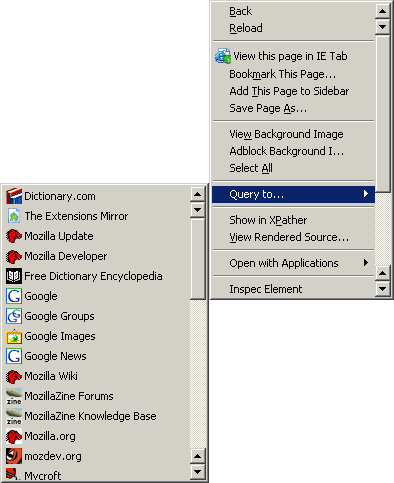
| Context Search ♦ (not installed) | 0.4.1 (9KB) | Ben Basson | Expands the context menu's 'Search for' item into a list of search engines.{related: Add to Search Bar, MyCroft, searchbar, SmartSearch} | ||||||||||
| Copy All Urls
♦ (disabled) |
0.9.2 (49KB) |
Juergen R. Plasser | Copies all URLs of open tabs in structured form (plain text, html, ReST = ReStructured Text) to clipboard.
[Edit][context - Copy All URLs as...]
HTML: <li><a href="$url">$title</a> – [x] Copy only URL (no title) – Sort on title Text: $title in first box, $url in second box – [x] Title before URL – Sort on title. Generated content is customizable. [Edit] Works fine but am using Multiple Tab Handler with similar features plus a lot more and easier inteface (but sorting is not an option with MTH, CAU was confusing with other Edit menu choices of another extension). | ||||||||||
| Copy Link Text (CoLT) (uninstalled) | 2.1.1 author's site |
Jonah Bishop | Adds “Copy Link Text” to the context menu, also has customizable link options similar to CopyURLplus, but content is strictly from a link and appears on the main context menu. (related) | ||||||||||
| Copy Links (♦) | 0.1.7 (9KB) | JackieKu | Copies all the links or links in a selection to clipboard (ONLY url name one per line)[Edit (options)] | ||||||||||
| Copy Plain Text (redundant) | 0.3.3 (6KB) |
Jeremy Gillick [2] | Copies text without formatting [selection + context menu] Redundant by Extended Copy extension, and by PureText which can be used between any applications since it changes content already copied to clipboard. [Ctrl+Shift+C] | ||||||||||
| CopyURLPlus
! (compatibility see note under author) |
1.3.2 (18KB) | Philip Mateescu ! (user mod. vers 1.3.2 for Fx2, 1.3.3 for Fx3, 1.3.4 for Fx 3.6) 1.3.2 for Fx 4.0 |
 Copy to clipboard a
single link via context menu as a formatted link the document's URL along with the title or
the selection. Can be used also to convert text to HTML formatted code. Besides the home page for this extension be sure
to look at the Customize Copy to
really understand this extension. (also see my notes (above), more extensive info & problems (on another page), and as seen on Firefox Right Click menus)
[edit] [context menu] cat:misc. Related extensions: Copy All Urls;
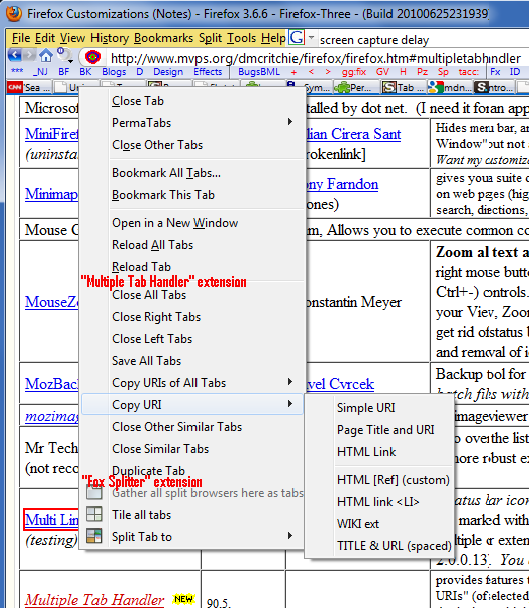
Multiple Tab Handler (works with tabs, so can't use selection with a page);
Document Map;
CoLT with limited options from a link; and Hyperwords. Copy to clipboard a
single link via context menu as a formatted link the document's URL along with the title or
the selection. Can be used also to convert text to HTML formatted code. Besides the home page for this extension be sure
to look at the Customize Copy to
really understand this extension. (also see my notes (above), more extensive info & problems (on another page), and as seen on Firefox Right Click menus)
[edit] [context menu] cat:misc. Related extensions: Copy All Urls;
Multiple Tab Handler (works with tabs, so can't use selection with a page);
Document Map;
CoLT with limited options from a link; and Hyperwords.
For an example of what I use see copyurlplus_example.txt 2012-10-21 reinstalled once more from btcorp.org and works again, thank goodness that someone watches out for actual users, maybe marked as 1.0 - 999.9 means it has to be reinstalled even if not changed. | ||||||||||
| count and counting | See Counts - Counting bookmarks history links and other data - Firefox (MozillaZine KB), also see find and highlight topics on this page. | ||||||||||||
| CSS Viewer | 1.0.3 (16KB) | Nicolas Huon | A simple CSS property viewer. [tools(/toggle)] Display font-size and other CSS information at the cursor. (overlaps WD Display Element Information Ctrl+Shift+F toggle) | ||||||||||
| Custom Toolbar Buttons Maker | 0.6.0.8(interface) | Michael Buckley |
![[page color] title=](../icons/pagecolor.png) a simple way of making selected buttons of Button Maker that has just the buttons you actually want. [show button for... Page colors]. Would have also added "Toggle Styles", but can't generate any buttons in Firefox 4.0, installation indicates no buttons selected. a simple way of making selected buttons of Button Maker that has just the buttons you actually want. [show button for... Page colors]. Would have also added "Toggle Styles", but can't generate any buttons in Firefox 4.0, installation indicates no buttons selected. | ||||||||||
| Customize (uninstalled) Replaced by OptimizeGoogle (see below) |
0.76 ( |
Customize (Daniel) |
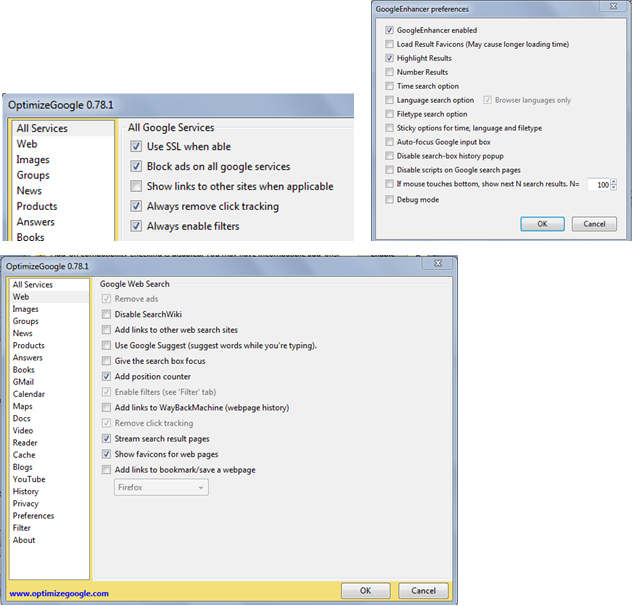
Enhances the Google search results by adding extra information on WEB searches (like links to Yahoo, Ask Jeeves, MSN etc) and removing unwanted information (like ads, and spammy sites) with a filter. All features are optional and easily configured from the options menu. Helpful in overriding Google cookies should they
get changed. The streaming option allows you to effectively have more than
the 100 max hits, by allowing you to scroll past the limit to pick up more items.
[1]
[2]
[3]
[4]
Works only from Google toolbar, or using a keyword shortcut not from search box at Google. Differences between a signed in Google user and an unsigned in Google user, as seen at the top of the search results necessitates additional use of another extension GoogleEnhancer Options to set only in CG -- streaming (not position counter, nor show favicons) Options to set only in GE -- Load results favicons, Number Results Nevertheless, being signed in to Google really slows search down, and prevents CG streaming(next pages) for getting additional results at the bottom, and challenges you as being human -- so you really should sign out of Google when doing searches. A recent change (0.52) hides the suppressed urls, to see them again you will need to show the title with the mouse or with a bookmarklet paren tips Suggested options: Remove ads, Add position counter, Remove click tracking Loss of icons on search results even though Customize Google has "show icons for web pages" will be lost when signed into Google. Experiment with combinations so that you see the actual icon of sites and not Google icon for all results or no icons. If you do not see the icons you will not see the important replacement icon on the left,  advising of an attack site
[ref].
Google adds the warning "This site may harm your computer" which is easy to miss, fortunately Firefox itself will block such sites
(Tools, Options, Security, [x] block reported attack sites). (see style 16887, incorporating part into style 16842). advising of an attack site
[ref].
Google adds the warning "This site may harm your computer" which is easy to miss, fortunately Firefox itself will block such sites
(Tools, Options, Security, [x] block reported attack sites). (see style 16887, incorporating part into style 16842).
Being signed into Google will mess up Google searchs, especially if using "Customize Google", so there are some additional features to be used from Google Enhancer instead of same feature in Customize Google. | ||||||||||
| Dafizilla Table2Clipboard, see Table2Clipboard as it is known in menus and at Addons | |||||||||||||
| DejaClick [DO NOT INSTALL] ☹ | 2.0.0.1 (1,098 KB) | AlertSite | DéjàClick is a web recorder and Super Bookmark utility designed exclusively for Firefox. You can record and bookmark your browser activities, then with a single click, replay the entire sequence all over again. ☹Will be tested primarily to see if it works for presentational purposes, but this is one very large extension, and if it bookmarks it probably is not compatible with multiple bookmark exclusions of Firefox 3. One h*ck of an indemnication release agreement, callbacks. ☹[UNINSTALLED within 5 minutes insufficient resources, BROKE FIREFOX, can't run JavaScript even though options say it is on] | ||||||||||
| dictionaries: Using the spell checker, SpellCheck (extension), SpellCheck: (bookmarklet)-- have a problem with all spell checkers they all claim to use persdict.dat whether they can add to dictionary or not and no such file exists in profile. about:config (filter on: spell) | |||||||||||||
| DictionarySearch
|
3.6.1 (50KB) | Jaap Haitsma | Looks up selected word in up to four online dictionaries, each choice uses a context menu entry. Yahoo dictionary has free pronunciation, can be changed or added in options or via about:config [context menu] -- http://education.yahoo.com/reference/dictionary/entry/$ | ||||||||||
| Double Click Closes Tab | 0.27 (28.7 KB ) | Mingyi Liu | Close any tab by double clicking the tab. Close current tab by triple click anywhere on the page. Optionally middle click or double right click on page to close tab. | ||||||||||
| Document Map
♦
(♦ must have ) See alternative HeadingsMap |
0.6.1 (20KB) |
James Graham | Displays the current page's H1-Hn heading structure (indented by heading level) in the sidebar, allowing rapid navigation between sections. Useful to ALL users. [View Menu, Sidebar, or Alt+O]
more info ►
This extension is a must have extension to create an index of topics so you can see the structure of pages such as mine. Bad blocks of hide/show JavaScript can cause "document links" to fail. Because of sophomoric decisions by the Firefox Development teams, you will to jump through some hoops to install this extension. Turning off compatibility testing and/or accepting from another site is better than mucking with the download maxVer number such as with Nightly Tester Tools to install. Alternative: HeadingsMap (80KB), colors selected heading, header# shown, iframes, rest is same.
<h/>
diff
| ||||||||||
documentation and finding things: --
extensions: Document Map, Launchy, PageDiff,
methods: Find (but Opera's is Find is better and you
can use Launchy to get to it), Find All, Keywords, search,
Utilities (external): Agent Ransack (Free version) search locally. -- (also see topic documentation)
| |||||||||||||
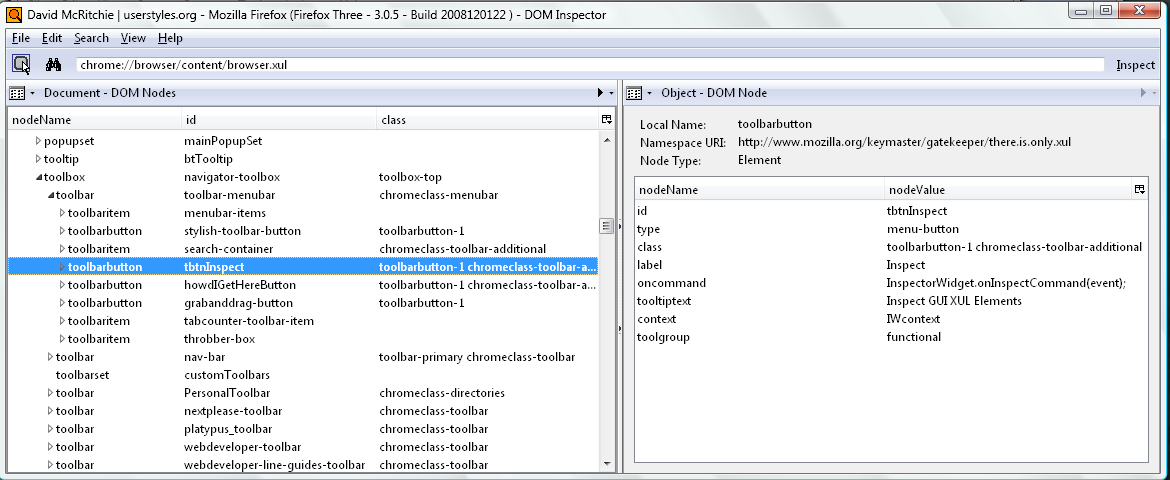
| DOM Inspector (Fx3/Fx4)(disabled) | 2.0.12 (159.7 KB) | Shawn Wilsher (sdwilsh), Colby Russell | Inspects the structure and properties of a window and its contents. use to inspect and edit the live DOM of any web document or XUL application. | ||||||||||
| DOM Inspector (built-in Fx2) | 1 | Joe Hewitt | A powerful tool for viewing and manipulating documents. [context(ctrl+Shift+I)] (KBarticle, also see project) | ||||||||||
| DoNotTrackMe | 2.2.5.1205 (797.8 KB) | Abine, Inc. | protects your privacy by blocking online tracking. | ||||||||||
| Download Helper see Video Download Helper(Disabled) | |||||||||||||
| DownThemAll! ( not installed) | 0.9.9.10 (473KB Hugh) | Federico Parodi, Nils Maier, Stefano Verna | download manager/accelerator lets you download all the links or images contained in a webpage (features, video) [context|tools|button] More infos here: http://www.downthemall.net/main/install-it/downthemall-10-beta/ | ||||||||||
| Drag to Tab
(built-in) ♦ |
Firefox 1.5 built-in | Awan Afuqya | Drag a link from anywhere for tabbed browsing. The
advantage is that even if the tab bar is filled up, you can drag
a link or paste a link onto the Start New Tab built-in Firefox
button in Customize (you can also drag to the New Window Firefox
button). I use only the  New Tab icon, shown on to the
right. For other choices I prefer to use reversed tabs shortcuts:
Ctrl+Click on a link for new tab, or Shift+Click for new window,
or Ctrl+Shift+Click (background) for new tab but not leave
current tab. [tool bar]
Now included in Firefox. New Tab icon, shown on to the
right. For other choices I prefer to use reversed tabs shortcuts:
Ctrl+Click on a link for new tab, or Shift+Click for new window,
or Ctrl+Shift+Click (background) for new tab but not leave
current tab. [tool bar]
Now included in Firefox.
|
||||||||||
| Duplicate Tab (♦) (uninstalled) | 1.0.2 ( |
twanno |
Uninstalled in favor of Multiple Tab Handler (38KB). Another method is Ctrl+L → Alt+Enter and Ctrl+drag-tab. |
||||||||||
| Easy Copy | 2.7.0 (46.6 kB) | Byron |
Copy links to a page with one click, ready to paste anywhere else, eg. emails, blogs, forums and Twitter. Copy a single page, all open tabs or all links on a page. Adds "Copy All Tabs ►", "Easy Copy ►", and "Copy Title Link" to the main context menu. You can process the active tab or all tabs, but unlike Multiple Tab Handler you cannot be more selective of which tabs to process.
Features: (HTML below means rich-text format ready for pasting) * Copy links to a page with one click, ready to paste anywhere else. * Copy other details such as its URL, title, today's date, HTML source, etc. * Lots of pre-built templates including copy title as link, Wiki-format links, BBCode links, HTML Source and more. * Copy across all tabs in the active window or all windows. See the Copy All Tabs Options. * Copy all links on a page or links in the current selection. * Copy selected text as plain text or Markdown links. See More Template Ideas for details. * Move frequently-used templates to the main context menu so they're one click away. * Assign keyboard shortcuts to frequently used templates. Note: Keyconfig is required if you want to manage shortcuts.(addons: Keyconfig * Create your own templates with lots of variables to choose from. Also see Multiple Tab Handler, which I prefer, even though would have to use an online HTML editor to create rich-text-format. | ||||||||||
| Edit Config Files
(uninstalled) |
1.5.7 | s2works | Edit configuration files with your favorite editor from Toolbar or Tools menu. Additionally, it can open your profile folder. Profile shortcut already used by AdBlock, suggest using your own profile: and Chrome: keyword shortcuts based on about:cache instead. The big advantage of this shortcut is that you can install all extensions you want at one time and quickly edit during your initial installation of extensions. | ||||||||||
| EditCSS | 0.3.7( |
Pascal Guimier | Stylesheet modifier in the Sidebar. Not needed see Web Developer | ||||||||||
| Element Hiding Helper for Adblock Plus ♦ | 1.2.3 (122.9 KB) | Wladimir Palant | Fight the text ads! Element Hiding Helper is a companion extension for Adblock Plus meant to make creating element hiding rules easier. [Adblock button context] wider ctrl+Shifdt_+K pr Ctrl+Shift+S | ||||||||||
| Element Properties | 8.0 (97.4 KB) | Geoff LankowReturns | restores the Properties dialog and context-menu item removed in bug #513147. (properties of a link (size/date), or an image Unfortunately it is actually it was Extended Link Properties which provided properties menu for a link to show size and all HTTP that was of interest and broke. | ||||||||||
| Enhanced Bookmark Search (EBS) ♦ obsolete |
Firefox now has built-in features to search Title and Location but does not include description or keyword including modifiers of contains, starts with, ends with, is, is not, doesn't contain that the extension had.. | ||||||||||||
| Enter Selects (uninstalled) | vers. 4 (2 KB) | Edward Lee (harikaried) (edilee) | Press [Enter] in the AwesomeBar to select the first choice. Since you've already used keyboard to use AwesomeBar, keeping hands on keyboard is useful w/o using arrow or mouse. Uninstalled -- interferes with use of Keyword Shortcuts. | ||||||||||
| Extended Cookie Manager
(Fx2 disaster, ok in Fx3) |
0.9 (21KB) | Sven Jost |
 detects if a website sends a cookie and shows if this cookie was blocked, allowed or only allowed for session in the statusbar of your browser. It also enables you to change the cookie permissions of websites on demand. [options] [task bar]
 | ||||||||||
| Extended Copy Menu
♦ | 1.6.1 ( | Ryan Cook | adds a "Copy As Html" and "Copy As Plain Text" to the context (right-click) menu. (IE version also available) [context] (also see ref)
Fx3 "Copy As HTML" not working in Firefox 3 Beta (3.0b2)-- oops only fails in this area (local drive). | ||||||||||
| Extended Copy Menu (fix version) | (version) (xKB) | Oleksandr | adds a "Copy As Html" and "Copy As Plain Text" to the context (right-click) menu. (IE version also available) [context] (also see ref) | ||||||||||
| Extended Link Properties
♦ | 1.4.2 (21.5KB) |
Torisugari fremea | Extends the Link Properties and displays File Size, Last Modified Date, Content Type and HTTP Header of a link target. Get File size of a link. [link context as Properties] (picture) [alternatives: Named anchors, Get File Size, bookmarklets] | ||||||||||
| Extended Statusbar (uninstalled) |
1.2.8 (7 KB) |
Strahinja Kustudic {Bad Link} | A Statusbar with Speed, Percentage, Time and loaded size (HTML files, images, audio or video,
| ||||||||||
| 2.8.1 (12KB) | Paul Spangler | adds view the id, date installed, and the folder of an extension or theme. [addons] (picture) Also see Chrome list | |||||||||||
| FEBE
Firefox Backup (not installed) | 5.3.1 (771KB) | Chuck Baker | FEBE backs up your extensions, themes, bookmarks, preferences, passwords, cookies and just about everything else Firefox offers (it can even backup/restore your entire profile). You can selectively restore only the items you need. Beyond just backing up -- It will actually rebuild your extensions individually into installable .xpi files. Now you can easily synchronize your office and home browsers. | ||||||||||
| File Title (not installed) | 1.3 (3KB) | Pavel Cvrcek (JasnaPaka) | save HTML pages like in Microsoft Internet Explorer. Default filename is generated according to HTML tag TITLE. (not installed but of interest (.mht, .mhtml, .maff) fix for bug: 254139. Alternatives: Scrap Book, UnMHT for Firefox) | ||||||||||
| Find | See Find topics below. To find multiple instances of words or phrases in a document see Context Highlight (above). Also see topics highlight and count and counting. | ||||||||||||
| Find (built-in) | The Find in Opera is much better than the Find in Firefox as it will never hide the found string behind the built-in Find Bar. You can use the "Launchy" extension to switch to an Opera page (or any other browser or editor) from a Firefox page. (You may have come here looking for Find Problem). Firefox 3 has incorporated "Highlight All" into the Find bar (you can modify appearance with style 7566), so if you use it first then Find it will work very much like Opera. Also check out "Context Highlight" extension if you want to have more than one choice highlighted such as "Firefox" and "JavaScript". (Also see highlight). Ongoing problem in Firefox see Bug 171237 from 2002 and before that Bug 78833 from 2001, vote on bug-fix for Bug 171237 (and Bug 14871 find whole word) | ||||||||||||
| Find All | 3.3 (43.0KB) | Justin Rodes |
replaces the find bar's Highlight All button (by default) with a “Find All button”, which highlights all search terms found and ![[Find All]](../icons/ff_ext_findall.png) displays them in an easy to view list of words in context and a count of total items found. Separator bar above list is draggable. [Options]
displays them in an easy to view list of words in context and a count of total items found. Separator bar above list is draggable. [Options] | ||||||||||
| /Find Bar/ (alpha stage) Disabled | 1.0.1 ( | (author) | adds
"Regular Expressions" to the Find Bar. Implemented with
the JavaScript engine so check the JavaScript RegExp syntax for the full details.
Use "/bexcel/b" to find the word "Excel".
Could be disabled because not really into RegExp yet.
fx3 (2008-04-13) Prevented Find from working Ctrl+F and from Edit, so Disabled, reinstalling did not work. |
||||||||||
| Find Sidebar (uninstalled) |
there is
no such extension, but it would be nice to have one, as was a
suggestion by Michael Schonfeld (mockup.
| ||||||||||||
| FireBug
(uninstalled) | 1.2.0b3 (417KB was 105KB) | Joe Hewitt |
Warning & Disclaimer: Firebug is obsolete and no longer available see Firebug Alternatives: 10 Best JavaScript Debugging Tools. As far as I am concerned Firefox was destroyed by graduate students who essentially said nobody needs lots of bookmarks, hardly anybody uses bookmarklets, nobody needs descriptions in their bookmarks, tags are the same as keywords, nobody needs the browser as they want it anymore, nobody needs to crunch down wasted space in their toolbars or make them more usable. The use of user styling was rendered useless. Mozilla chose not to pay attention to their users. There is no decent browser anymore, Firefox self-destructed. Firefox Problems & Issues (Notes). This page will only receive minor maintenance, and no corrections for bad links, most of the extensions do not work - a tribute to self-destruction. If you still want to use Firefox or Chrome see Bookmarklets, history, exported bookmarks, extensions for Chrome & Firefox. The small laptop I was using for post Firefox 56.0.2 was rendered unusable by a Windows update. | ||||||||||
Firefox search sidebar(installed addon name) from searchsidebar project (search engines),
see search sidebar (below), also badly named as viewsearch sidebar (as seen in view, sidebar Alt+K). | |||||||||||||
| Firefox Showcase (uninstalled) | 0.9.4.8 (203 KB) | Josep del Rio | provides a small preview of other tabs and windows as active thumbnails. [View] Easier to setup, but I think Fox Splitter (formerly Split Browser) may be more practical. Possible problems with F11&F12. | ||||||||||
| FirefoxView
(installs on IE) |
1.31 | Alex Sirota | View pages and links loaded into IE in Firefox (see earlier topic note) [context menu of IE] | ||||||||||
| FireFTP | 1.04, 583 KB, will uninstall for now anyway. FTP transfers, directory comparison, syncing directories while navigating, SFTP, SSL encryption, search/filtering, integrity checks, remote editing, drag & drop, file hashing, and much more! | ||||||||||||
| FireShot (just a quick test/uninstalled) | 0.55 (792 KB) |
susbox | Adds the ability to take a screenshot of web page (entire of visible part), edit it, add annotations and upload to server, save (PNG, GIF, JPEG, BMP), copy to clipboard, send to external editor or e-mail it. (I use SnagIt®) | ||||||||||
| Flash Got (uninstalled ) |
0.5.96 | Giorgio Maone | Enables Mozilla and Firefox to handle single and massive ("all" and "selection") downloads using the most popular external download managers for Windows. FlashGot also overlays the "Opening file" Firefox dialog, giving you a chance to override the default download manager just before it starts. FlashGot correctly dispatches the referrer URL (which I suppress, oh well) [documentation, screen shots] Haven't really figured out how to use or if wanted. Disabled due to context Menu bloat Flash Got & Browse Images are disabled because they appear to affect Platypus including disappearance of Platypus from the context menu. | ||||||||||
| Flat Bookmark Editing (uninstalled) | 0.8.1 (10KB) | chouser | Edit bookmarks <Ctrl+P> in the bookmark organizer, without opening the properties window. [View Menu - Properties (Flat Bookmark)]. Too distracting. (obsolete in Fx3) | ||||||||||
| FormFox | 1.7 (8.2KB) | Daniel W. Steinbrook | displays data destination for your entered form data, from search boxes to order forms, mouse over the final Submit button to reveal the destination. Forms using JavaScript will show as "possible trickery. A button turning yellow indicates that the form is being submitted with encryption (over HTTPS). | ||||||||||
| FxIF (Firefox exIF) | 0.4.5 (73.7 KB) | Ted Mielczarek | view a quick summary of the EXIF data contained in JPEG images from the convenience of your Firefox browser. (IrfanView for more complete information). Most digital cameras add this data to all images you take. [added to Properties on Context menu] test pictures | ||||||||||
| Gmail |
| ||||||||||||
| Gmail Space (as seen in addon) see GSpace | |||||||||||||
| GoogleEnhancer (disabled, removed by author w/o comment) | 1.87 (22.5KB) | NettiCat | Light-weight Google enhancement -- Adds: Icons, Numbering, Highlighting. Problems noted in comments: only works for url like:
http://www.google.com/search?q= , results lost if using StumbleUpon. Being signed into Google messes up several items when using Optimize Google, avoid using same options available in Customize Google. GoogleEnhancer enabled,
retesting: improved features: Classic Google (no instant, no preview), Disable Google suggest, Disable Google preview. Major problem: Ctrl+Shift+click anywhere on Google search results makes it impossible to easily continue on the list to pick another link when the listing format keeps changing making leftmost column narrower/wider -- don't even want either the left most or right most columns anyway. 3:42 PM 2011-11-25 ongoing since possibly Fx 8.0 | ||||||||||
| Google Instant ☹ option in Google Search returns only 10 hits per page and greatly interferes with typing into the search bar, and results in 100% CPU time with the following extensions: Enhance Google, McAfee Search Advisor, and Optimize Google, so be sure to turn it off. Turning off the option in Google "Settings" can be tricky and frustrating so read the Newsgroup page in the first link. So much of a problem I had to modify my Google keyword search ("g:"). Nov-Dec 2010 and also had unrelated problems also with 100% CPU time caused by WLM -- had to move most of years email to storage, and with JPhone application, "Identity Protection" feature of AVG being active. And with the problems had disabled my audio (microphone and speakers) and had to reactivate audio through the Control Panel. | |||||||||||||
| Google Notebook
(uninstalled) | 1.0.0.5 |
Save scraps into notebook via context menu.
(intro,
newsgroup) Notes are
stored at Google.
![[Goggle Notebook]](../icons/ff_ext_notebook.jpg) [context -- Note This (Google Notebook)] [Statusbar (Open/Close Notebook)]
[context -- Note This (Google Notebook)] [Statusbar (Open/Close Notebook)]
| |||||||||||
| Go Parent Folder ♦ | 2.7 (9.2 KB) | Alice White | Locate the Bookmark folder for a Bookmark in Bookmarks search results. Adds "Go Parent Folder" to context menu. [context of a bookmark search result] [Option]. Also install Show Parent Folder. [forum help]. Related Manage Folders brings up parent folder in the library list. | ||||||||||
| Grab and Drag | 3.1.2 (173.1 KB) | Ian Weiner |
![[Grab and Drag]](../icons/ff_ext_grabanddrag.jpg) Enables grab and drag scrolling. (Scroll without scrollbars) [Tools for options][icon (toggle)]. Use the startup wizard in options to produce the toolbar toggle button.
Enables grab and drag scrolling. (Scroll without scrollbars) [Tools for options][icon (toggle)]. Use the startup wizard in options to produce the toolbar toggle button.
2.8.0 add let/right flicks for back/forward, support for HTML5 contenteditable. | ||||||||||
| Greasemonkey
(uninstalled/disabled, now mostly using Styles with "Stylish" extension) |
1.7.1
(242.1 KB) |
Aaron Boodman, Anthony Lieuallen, Johan Sundström
[search] and Jeremy Dunck [list] [blurb] |
Adds bits of DHTML ("user scripts") to any web page to change its behavior. In much the same way that user CSS lets you take control of a web page's style, user scripts let
you easily control any aspect of a web page's design or interaction.
Doesn't stop anything from being loaded up so you still can get unwanted things
happening, but
does eliminate items from displayed content so you don't have to look at unwanted fluff
and can't click on things you don't want anyway.

 Modification is through Tools, Manage User Scripts —
use Edit to modify, uninstall to remove an entity.
Platypus makes preparation easy.
Greasemonkey alterations can be turned off or on with the taskbar button (shown on right).
[using,
UserScripts (repository),
online manual] [edit entities at Tools, Manage User Scripts]
more info ►
Modification is through Tools, Manage User Scripts —
use Edit to modify, uninstall to remove an entity.
Platypus makes preparation easy.
Greasemonkey alterations can be turned off or on with the taskbar button (shown on right).
[using,
UserScripts (repository),
online manual] [edit entities at Tools, Manage User Scripts]
more info ►
|
||||||||||
| Gspace
(of interest) (Gmail Space) | 0.5.995 (204KB) from 102KB for Fx2 | Rahul Jonna [tnarik] |
allows you to use your Gmail Space (4.1 GB and growing) for file storage. It acts as an online drive and to manage unlimited Gmail accounts to store all type of files within its simple, user friendly interface.. Has it's own FTP layout.
GMail limits 500 and 750 emails (equates to files) per day, you can log into
only one GMail account at a time (cookies).
![[gspace]](../icons/ff_ext_gspace_.jpg) Comment: "good for don't have rights to insert and use a USB drive", but wouldn't you have to have the extension installed to use it, so doesn't sound like something to use in a library/kiosk
|| "double backup thumb drive; calendar, appointments, text, bookmarks, e-mail addresses" -- uploading an entire thumb drive at once could get your ability to use GSpace disabled forever.
/\). Keep transfers under 1GB/day; NOSCRIPT extension must be disabled.
Comment: "good for don't have rights to insert and use a USB drive", but wouldn't you have to have the extension installed to use it, so doesn't sound like something to use in a library/kiosk
|| "double backup thumb drive; calendar, appointments, text, bookmarks, e-mail addresses" -- uploading an entire thumb drive at once could get your ability to use GSpace disabled forever.
/\). Keep transfers under 1GB/day; NOSCRIPT extension must be disabled. | ||||||||||
| gTranslate (uninstalled) | 0.3.1 (30KB) | Pau | translate selected text in a webpage using Google translation services. [Context] Bookmarklets work well for translation -- gt: google translate | ||||||||||
| HeadingsMap <h/> | 2.0.2 (55.9KB) | Rumoroso | generates an index (or map) of any web document structured with headings. This one includes IFRAME [Alt+O just like Document Map][sidebar] Related: TocBar | ||||||||||
| Hide Caption (Hides Title) (Uninstalled) | 0.53 (8KB) | GOLF-AT | Hide the title bar (caption of Firefox), displays Minimize, Maximize/Restore and Close buttons on the menubar/nav-bar. What I really seek is a means to reduce height of title bar not remove it. Alt+Spacebar and arrow keys need to move window. | ||||||||||
| Hide Menubar (♦) (disabled) | 1.0. 20080310 (15KB) | yuoo2k | Toggles Menu Bar Display with simple use of ALT key. Does not interfere with other "Alt+" keyboard shortcuts. Looked good but can't use searchbox which I have on the menu bar. | ||||||||||
| Hide Tabbar | (version) (2.0.0 KB) | mr321 | Hide the tabbar by just pressing a key. [Suggest Ctrl+F11 to not conflict with Auto Hide] | ||||||||||
| highlight and highlighting | See highlight topics below, Context highlight and also see topics count and find | ||||||||||||
| Highlight all (builtin) | The "Highlight all" (builtin toggle) has been added to the Find bar. Since it works from the Find bar you cannot add another Find or Highlight all to what you last found but must start over. | ||||||||||||
| HighlightAll (uninstalled)(does not work) |
1.4 (13KB) |
Jerome Goudey | Highlight and count all occurrences of the selected text with just a click (substitute to Ctrl-F with highlight option). Supposed to work 2x-click on a word. Another click in the document removes highlighting.
HighlightAll displays in the status bar how many times the selected text was found.
Does not provide the advertised count (occurences); Opera does this much better/faster/default. Discarded in favor of ContextHighlight. | ||||||||||
| Highlighter (presentation) (problems/uninstalled) | 0.1.4 (12KB) | Terry Yuen |
![[//]](../icons/ff_ext_highlighter.png) Allows you to highlight text on a webpage by selecting it and clicking 'Highlight' on the context menu. If you hold down the Shift key while opening the popup menu, a sub-menu appears with more advanced options. Allows you to highlight text on a webpage by selecting it and clicking 'Highlight' on the context menu. If you hold down the Shift key while opening the popup menu, a sub-menu appears with more advanced options.Major features include an 'Instant Highlight' function, a tracker system to keep count of how many highlights were made, a warning dialog when trying to leave a page with highlights and more. Also see LineMarker | ||||||||||
| History Tree (uninstalled) | FoxTree | shows your browsing history of current tabs as a tree of tabs in outline form or in thumbnail webpage pictures as in ShowCase. [Tools] [video tutorial] Uninstalled -- Unresponsive Script: chrome://historytree/content/firefoxOverlay.js:586 | |||||||||||
| HistProp | 0.2.3.5 (22KB) | Andrew O. Shadoura | Adds a Properties item to the browser's History viewer context menu to provide the url location. | ||||||||||
| HostIP.info Geolocation
(not installed) | 0.4.3.3 ( | Matt Walker | Displays Geolocation information for a website using hostip.info data. Shows URL, IP, Country, City, coordinates. However it no longer shows the Firefox default of Title. May help identify phishing scams. [mouseover] [options] | ||||||||||
| Hotmail Tabs (unsupported) |
0.9 | flatline formerly Ben Basson (Cusser) | Microsoft changed Hotmail's link handling so that it was
done entirely through JavaScript, this stopped everyone (any
browser) opening new windows or tabs for their mails etc. This
extension |
||||||||||
| How'd I Get Here (uninstalled) | 0.1.2 (10.6KB) |
 Jesse Ruderman Jesse Ruderman | go to the page on which you first clicked a link to the current page.[toolbar]. 0.1.2 no longer works in Fx3.0.7 Tab History was suggested as a replacement but has too much overhead. | ||||||||||
| How Many Times Can I (Go) Back? | 0.2. 2011012001 (13.3KB) | Piro | Count of items available using BACK/FORWARD buttons  , and/or page number within total pages shown for each tab , and/or page number within total pages shown for each tab  . . | ||||||||||
| Html Validator | 0.9.5.1 (2.2 MB) | Marc Gueury | adds HTML validation inside Firefox source view using HTMLTidy. (Installed to check out a reported problem, I use and prefer HTML-Kit, since you can actually change the source)(uRef) | ||||||||||
| HTTPS Everywhere (disabled) | 0.9.7 (56.9KB) | eff.org | rewrites all requests to selected sites such as twitter, facebook, hotmail, paypal to HTTPS. Sadly, many sites still include a lot of content from third party domains that is not available over HTTPS. As always, if the browser's lock icon is broken or carries an exclamation mark, you may remain vulnerable to some adversaries that use active attacks or traffic analysis. However, the effort that would be required to eavesdrop on your browsing should still be usefully increased. | ||||||||||
| Hyperwords (uninstalled) | 5.0.1 (806 KB) | Hyperwords | TO USE Hyperwords select any text (single word or more) and select a command from the menu. There is quick showcase display, click on a command takes you to the article. If this menu gets in the way right-click to get on through to the main context menu, or hit Esc to make the mini Hyperwords menu disappear. Customizable menu and behavior. [Demos 1, 2][Context/Preferences] | ||||||||||
| IE8 Activities for Firefox (uninstalled) | 0.7.3 (34KB) | Michael Kaply | Activities is a new feature in IE8. You can get more information here | ||||||||||
| IE_View (redundant/uninstalled) | 0.84 | Paul Roub | Open pages in IE, Right click on web page, or on a link
[context menu] Great extension but Launchy makes IE_View redundant. |
||||||||||
| iMacros for Firefox (looks interesting, not installed) | 6.0.1.2 ( | iOpus | Automate your web browser. Record and replay repetitious work. iMacros has many uses: Form Filler, Web Automation, Data extraction/Web Scraping, Web Testing. unrealistic runup of version from 0.8.0.2 in one month to 6.0.0.2 | ||||||||||
| ImageBot (possible future use) | 2.5.8 | jAQx | Bulk/Batch/Mass Image Uploader! ImageBot allows lets you upload your images to a free image hosting service (ImageShack or Photobucket). | ||||||||||
| Image
Zoom
♦ ( Zoom Image ) |
0.4.6 |
Jason Adams | Right click on an image and select a zoom option from the popup menu, or, hold down the right mouse button in combination with the mouse wheel to zoom in or out on a single image image. Obtain from the author's site. Options, View and Context Menu. A feature of Opera (/***\) is to be able to zoom all text and images at same time, and so can the ColorZilla Firefox extension, or with MouseZoom(all text and images which is compatible with mouse functions of imagezoom). [appears similar: zoomFox] | ||||||||||
| ImgLikeOpera
(dialup usage) |
(90KB) | Danil Ivanov | load only the images that you want. Appears it would be very useful for dialup users. | ||||||||||
| InfoLister ♦ | 0.10.4a3 (209.4KB) |
Nickolay Ponomarev | some system information and list of installed extensions, themes and plug-ins. Option to
 specify output file.
[tools] [templates
(archived documentation)]
/example/
(recommended for everyone as a means of documenting installed extensions) specify output file.
[tools] [templates
(archived documentation)]
/example/
(recommended for everyone as a means of documenting installed extensions)
Fx3: When Firefox starts or any other time the
Infolist extension is invoked get "not well-formed" error in message console caused by prefix in
template -- text/html;maxversion HTML;<!DOCTYPE ... --
My current Infolister listing ("My Firefox Information") is for Firefox 3.6 running on an eMachine E627.
Picture of about:config settings for using a custom template. An alternative Extension List Dumper, 48kb, lists Firefox min-max versions found in your copy of the addon, without flexibility of HTML template. | ||||||||||
| InspectorWidget
(enabled only when using) | 4.04. 20121231 (82.3 KB) | Sailfish |
![[=O]](../icons/ff_ext_inspectorwidget.jpg "Inspector Widget toolbar button") Inspect this Frame
Inspect this FrameInspect This page Ctrl+Shift+I adds a toolbar button and context menus for invoking the DOM Inspector (DOMi) extension, for either chrome or content elements. Picture of Dom Inspector relating to the "Inspector Widget" button (also see picture and code in Style 13115). | ||||||||||
| Inspect This (disabled) |
1.0.0 (15KB) |
Laurens Mackay (9452) |
![[=O]](../icons/ff_ext_inspectthis.png "Inspect This context menu button") Inspect the current/selected element with the DOM Inspector*
[Context] chrome://browser/content/browser.xul nodeName(col)>#document>toolbox>toolbar>toolbarbutton
Inspect the current/selected element with the DOM Inspector*
[Context] chrome://browser/content/browser.xul nodeName(col)>#document>toolbox>toolbar>toolbarbutton | ||||||||||
| In The News | 0.0.2 (3KB) | Kurt Wilms | Highlight text in Firefox, right-click to see the latest related news stories. Mouse over any of the headlines to see a brief summary of the story. Click on any of the stories to have it open up in a new tab. [context] " | ||||||||||
| InvisibleHand | 3.8.28 (93.1KB) | invisiblehand | Automatically get the lowest price when you shop online or search for flights. Shows a discreet notification when a better price is available on a product or flight you're shopping for. Covers over 580 retailers in the US, UK & Germany. | ||||||||||
| Is It Compatible? | 0.5.3 (15.4KB) | eternicode | displays compatibility versions for each addon in the addons window (Tools Menu → Add-ons). Works for extensions, themes, and locales. | ||||||||||
| It's All Text! | 1.4.2 (125 KB) (not installed) | Christian Höltj>br>(docwhat) | Right click on a textarea, select "It's All Text!" and edit the text in the editor of your choice. [button][options] | ||||||||||
| iWEBTOOL
(uninstalled) | 1.0.05 (36KB) | iWEBTOOL | Webmaster's Toolbar, information about websites quickly [statusbar]
(statusbar HOG to be disabled) Reliant on a home site with loads of ads and appears to be content of other site pages. (here are the included web tools)
Interfers with use of Scrollbars (style 52, 54, 56) added with Stylish [ref], so suggest keeping disabled when not needed. | ||||||||||
Java Console,
don't know why it appears (and appears twice at that) in Infolister listing as there is
no such addon installed. | |||||||||||||
| Javascript Command | 0.0.8 (9KB) | max1million | For writing/testing javascript on Firefox windows (extension development, etc), web pages, and bookmarklets. [Tools] | ||||||||||
| JSView | 2.0.8 (110.6 KB) | Ron Beckman | View external JavaScript and CSS source [View][Tools][StatusBar][Options] | ||||||||||
| Jump Link
(not installed) | 1.3.2 (8KB) | Philip Mateescu | Open redirect links. Directly! (e.g. in Hotmail messages without going through the frame window). Doubtful will ever be seen as I also have Redirect Remover (unless whitelisted) [context] (not installed) | ||||||||||
| Key ... | More usage information on other pages ► Keyboard and Mouse Shortcuts, and Keyword Shortcuts Keys to symbols used on this page | ||||||||||||
| keyconfig
◈ |
20110522 ( ! Use author's site, now works with 4.0 | Dorando ◈ | allows you to change any existing keyboard shortcut to another shortcut,
or remove a shortcut. [options][tools]
Using default Ctrl+Shift+F12
Not nice to have to change keyboard assignments but was very necessary (◈), the extension is very useful in identifying keyboard shortcut conflicts by sorting on key. Additional documentation. and more items: [1] [1 [2] [3] [4] [5] [6] [7 [8] (  WinHotKey looks like something similar for working with the WinKey) WinHotKey looks like something similar for working with the WinKey)
| ||||||||||
(uninstalled) | 0.3.3 (24KB) |
Cory Schmidt | Shows a sidebar [Ctrl+Shift+K]
with all bookmarks that contain a defined keyword shortcut [picture|
pict2]. Double-clicking on a keyword will insert it into the URLBar (Location Bar) for quick access. Context menu includes properties, and Bookmark Manager (or EBS) [EBS filter on keyword not equal to "a" is
somewhat of an alternative]
Disabled 0.3.3 in Firefox 3, shows an empty window will have to use Keyword Manager (below), no longer works in later Fx2 or in Fx3. | ||||||||||
| keywordManager
♦ | 0.7.2 (16KB) | Regis Caspar | manage bookmark's keywords. A toolbar button is added to the "Bookmarks Organizer" as the "Library" window in upper right corner (pretty much hidden from
![[keywords]](../icons/ff_ext_keywordmanager.png "keywords") general use due to location and black letters on dark background). And a small dialog popup when this button is pressed showing all existing keywords. Each listed keyword can be double-clicked to be edited. Finally, some filtering capabilities are present to help finding a specific bookmark/keyword. [Button]
The bookmark listing is ordered alphabetically in a case-sensitive way. Filters match against bookmark name or keyword [should not be as keywords are not case-sensitive].
There is a similar extension by Cory Schmidt, working on pre-Places Firefox versions named KeywordBar (above), which I liked better as it worked from a shortcut. general use due to location and black letters on dark background). And a small dialog popup when this button is pressed showing all existing keywords. Each listed keyword can be double-clicked to be edited. Finally, some filtering capabilities are present to help finding a specific bookmark/keyword. [Button]
The bookmark listing is ordered alphabetically in a case-sensitive way. Filters match against bookmark name or keyword [should not be as keywords are not case-sensitive].
There is a similar extension by Cory Schmidt, working on pre-Places Firefox versions named KeywordBar (above), which I liked better as it worked from a shortcut. | ||||||||||
| KGen (disabled) | 0.2.1 (24KB) | Nicolas Froidure | Counts for every word on a page, separate for HTML tags and attributes [sidebar] | ||||||||||
| Launchy
♦ [home] |
4.4.0 (25KB) |
Henrik Gemal (59) | Launchy will enable you to open links and mailto's with
external applications.
 Browsers, media players, FTP clients
and download managers are supported.
That's applications like
IE, Opera, Mozilla, Notepad, HTML-Kit,
IrfanView Outlook,
BSPlayer, Windows Media Player. [rel. 2004-10-26, 118 KB]
[context][Tools/submenu] (also see
ViewSourceWith) — [notes]
more info ►
Browsers, media players, FTP clients
and download managers are supported.
That's applications like
IE, Opera, Mozilla, Notepad, HTML-Kit,
IrfanView Outlook,
BSPlayer, Windows Media Player. [rel. 2004-10-26, 118 KB]
[context][Tools/submenu] (also see
ViewSourceWith) — [notes]
more info ►
|
||||||||||
| LeechBlock | 0.5 (42KB)(not installed) | James Anderson | simple productivity tool designed to block those time-wasting sites that can suck the life out of your working day. All you need to do is specify which sites to block and when to block them (times/days). This would be good if your computer is used in a work environment (Mine isn't). | ||||||||||
| Line Marker (not installed) | 2.0 .2009 110201 (15KB) |
Piro (piro_or)
SHIMODA Hiroshi |
![[//]](../icons/ff_ext_linemarker.png) Adds “Line Marker” to the context menu of a selection with a choice of pen colors. Changes are saved with profile. "Clear all Markers in this ..." resets. [context].
(also see
context highlight ext.)
Adds “Line Marker” to the context menu of a selection with a choice of pen colors. Changes are saved with profile. "Clear all Markers in this ..." resets. [context].
(also see
context highlight ext.) | ||||||||||
| Link And Forminfo
(not installed) | (version) (15KB) | Alice White | Restore Linkinfo and FormInfo which has been deleted from PageInfo of Firefox3. You can sort any column in the Link Info and Form Info. Open new tab by double click in the Link Info. This extension does not seem to work on MAC. | ||||||||||
| Link Checker (Check Links) ☆ |
0.6.7 (37.9KB) |
Kevin A. Freitas | Nice concept color coded link validator, but it is slow checking one link at a time, and easily interrupted. [context*] Alternatives: There are programs that will check all links on a page faster. You can use a bookmarklet to validate a page: validate: HTML at w3.org. Despite it's slow speed this is the easiest way to check a page, especially big pages. Other Extensions: Link Evaluator (44 KB) appears to color links in same manner and create some kind of results display as well. | ||||||||||
| Linkification ♦ | 1.3.8 (67.6KB) |
John Hansen
(disabled by choice) |
View plain-text URLs and e-mail addresses as actual links
[
Plain-text URL Test Cases] This is a plain-text url for Test Cases: http://yellow5.us/firefox/testcases.txt Notes & Options: You can toggle this extension on or off by using Ctrl+Shift+Y [Ctrl+Shift+L] and then to see the effect you must use F5 (Reset/Reload). There is a default limit of 15000 characters,which I increased to 115000 characters to see the effect on this page (107 KB). Don't know how to find how many characters are used. I use the option to require a double-click on a text link, so that I see page exactly as presented. [needs a documentation page!!!] alternatives: URL Link, and Text Link [a] Bookmarklet alternative with keyword shortcut: Linkify: convert plain text links to clickable links |
||||||||||
| Links Counter (disabled) | 1.0 (13KB) | iceye | counts external links without 'nofollow', external links with 'nofollow' and domain internal links in a page. (Status bar space hog) -- says it does page rank | ||||||||||
| Links List (in Opera) | --- |  (built-in) (built-in) |
Firefox has nothing to compare to the links list in Opera (tools,links or Ctrl+Alt+L) and its ability to refine the list by filtering with what looks like a search bar for the page (very similar to the filtering for Firefox about:config) And from that list (filtered or not) you can select a individual link, multiple links, or all of the links to open in new tabs. Use the Launchy Firefox extension to bring up the same page in Opera (opera.com) as you would be looking at in Firefox. A filter added to Linky extension might work in Firefox. | ||||||||||
| LinkVisitor 3
(Fx2 vers) | 3.4.1 (10.2 KB) | Kevin Milburn
(kinitawowi) |
red: Visited links to RED for visibility (suggested keyword of "red:") will mark visited links in Red, as some sites use same color for all links. | ||||||||||
| Linky
♦
|
3.0.0 (24KB) |
Henrik Gemal (documentation) | lets you open all or selected links or text links into multiple tabs (|windows); or all images or image links as images into one|multiple tabs(|windows). You can select specific links from among all links or those in your selection area. Also can Validate|Download links. [options] [context] Linky ▶ "Open Selected Links in Tabs". Provides count of links on a page, but no separate count of a selection. Tab Counter extension would let you see how many links are open before/after using Linky. Compariable extensions: multi links, Snap links; and some in Chrome are Open Selected Links, and Linky. | ||||||||||
| List All Images | 0.6 (10KB) | DonGato | Shows image, url, size and dimension properties for all images of a page. (no CSS images). [context]. Also available inWeb Developer (images, view image information), summary of size in Page Info (Tools, Page info). | ||||||||||
| ListZilla
(redundant/obsolete) |
0.8 (16KB) |
Neil Phillips |
Outputs either a plain text, VB code, or HTML file that lists all installed themes or extensions (/\) (#). When showing a Listzilla list, it would be helpful to others if you also include the date when run, the version of Firefox, and the, and the operating system and version. [Tools] an alternative listing is InfoLister | ||||||||||
| Load Tabs Progressively | 1.6.1 (12.3KB) | (ithinc) | Limit the number of concurrent loading tabs and/or unread loaded tabs. | ||||||||||
| LocalLink (not needed) | 0.5 (4KB) | Michael J Gruber | avoid security error when webpage links to a local page see Links to local or network pages do not work (Sumo), suggest using config variables instead see Links to local pages don't work (Mozillazine). Example of a bookmarklet is “sw:” | ||||||||||
| Locate in Bookmarkfolders (♦ not for Fx3) | 0.2.5 (14KB) | Alex Muntean | Adds Locate to the Bookmarks Manager (Ctrl+B) context menu so you can
tell what “folder” your selected bookmark is in. [context menu of Bookmark Manager]
Firefox 3 users should switch to Go Parent Folder | ||||||||||
| Location Bar Autocomplete | (built-in) | can be limited to bookmarks by prefixing with an asterisk ("*") and a space, and likewise for history ("^"), tags ("+" ) and also for limiting to title ("#"), limiting to url ("@"), typed ("~"), and to open tab ("%"). | |||||||||||
| Locationbar Limit | 2008.11.17 (3KB) | night_stalker_z | Change number of visible results shown in locationbar dropdown when searching. Use with oldbar extension. Options (80 results, 30 visible). Found from note in style 16361 (but styles server too busy) See Bug 440400 - to possibly add pref browser.urlbar.dropdownSize | ||||||||||
| Location Navigator (not installed) | 0.6.2 (46KB) |
Richard Klein (100) | Location Navigator is an extension that lets you grab a location, select a portion of the location that varies, and then navigate up or down from that starting spot with a specified increment.
You can define where the next url is to be located (compare to Next URL).
[ | ||||||||||
| Longdesc (uninstalled) | 0.7 (4.4KB) | Patrick H. Lauke | Adds "View Image Longdesc: ..." to the image context menu, when this accessibility attribute is used. [context] | ||||||||||
| Long URL Please (not installed) | 0.4.1 (8 KB) | Darragh Curran | Replaces short urls with the originals so you can see where links actually link to. See hidden dangers using shorturls on Twitter (LifeHacker, video) | ||||||||||
| Lori
(uninstalled) |
20051225 | Hung Le | # track how long it takes to see the first byte from remote server (time-to-first-byte (TTFB)),
# track how long it takes to complete displaying the page (time-to-completion (TTC),
|
||||||||||
| Lost Features (#lost) |
| ||||||||||||
Manage Folders ♦ | 1.0.5 (10.2 KB) | Chad McHenry | Places a "Manage Folder" item on the context menu of bookmark folders, which opens the "Places Organizer," expanded to that folder (only). [context of bookmark folder]. Useful companion: Sort Places and Parent Folder | ||||||||||
| McAfee Site Advisor
♦
(Not for dial-up users) (disabled)(blocklist) Look for some resolutions 3rd week July 2011 [ref] [ref] (blocklist bug 660111) (Disabled !!) |
3.6.0 (guess 38KB) | [download]
(Not recommended for dial-up users, but can be enabled/disabled at status bar) |
Displays site security alert as green/yellow/red, red indicates serious issues. Biggest surprise -- it

![[G]](../icons/siteadvisor_red.jpg "red: alert! may be unsafe, have malware, generate spam")
![[G]](../icons/siteadvisor_yellow.jpg "yellow: use caution")
![[G]](../icons/siteadvisor_unknown.jpg "gray: untested/unknown")
![[G]](../icons/siteadvisor_green.jpg "green: probably safe") actually puts the site rating on the links within a Google search
so you can steer clear of unsafe sites.
[ref] [Statusbar HOG]
(does not give filesize but installed it is 569KB in folders)
Similar: WOT (1,073 kb, yipes!))
actually puts the site rating on the links within a Google search
so you can steer clear of unsafe sites.
[ref] [Statusbar HOG]
(does not give filesize but installed it is 569KB in folders)
Similar: WOT (1,073 kb, yipes!))
Firefox version 3 includes some site checking. SA is nice because it is seen on Google web search, but it does slow down searching and only seen on first group of hits. In status button options use "Show highlighted site ratings" so rating shows up better in Google results, also for Google use a style 16842) that shows up Google attack warnings. Has had past problems causing "bookmark this page" (Ctrl+D) to fail. Problem with bookmark star (edit this bookmark) appears to be with McAfee Site Advisor and other extensions may suffer as well, see Bookmark Star (Ctrl+D). In addition to any other problems versions before 3.3.1 are in the Blocklist (view bug 637542). As noted in first column is blocked entirely in Fx5 and up. There may also be major performance issues with searching and with seeing rating beyond the first page especially with streaming (/page zipper) in use. |
||||||||||
| Measure It (uninstalled) | 0.3.8 (17.9KB) | Kevin A. Freitas |  Draw a ruler across any webpage to check the width, height, or alignment of page elements in pixels. Uninstalled, due to status bar bloat, and seldom used. Draw a ruler across any webpage to check the width, height, or alignment of page elements in pixels. Uninstalled, due to status bar bloat, and seldom used. | ||||||||||
| Media Player Connectivity (uninstalled) | 0.9.1 (137KB) | Sethnakht | launch embed video of website in an external application with a simple click ... Also consider alternative Tool, Options, Application. | ||||||||||
| Memory Leak Problem | Steps to improve FireFox 4 memory leak problem (suggestions); Reducing memory usage | ||||||||||||
| Menu
Editor ♦
Reorder / Hide / Move Menu items, a necessity for anyone with ten or more extensions. |
1.2.7 ( |
Devon Jensen, Nickolay Ponomarev (maillist) (link at mozdev) |
Hide/unhide/rearrange menu items and
separators. Mandatory extension to reduce the bloat and rearrange your context menus to find items faster. In
advanced mode you can drag and drop menus, and separations to
rearrange menus. My immediate eliminations from the context
menu: Bookmark This Link.., Save Link As..., Send Link,
Copy Email Address, – Back, Forward, Reload, Stop, –
Book This Page, Save Page As, Send Link, – Undo, –
Cut, Copy, Paste, –, Select All. Used as an aid to
bypass a pre Firefox 1.5 bug in positioning and non scrolling of context menu
especially impacted by lots of extensions in use. MozillaZine thread. (More of my notes and on another page
pictures of how I have rearranged my context menus,
and a side-by-side comparison of pictures of my context menus to your own. [ext.
Options] (related: 'Organize Status Bar', 'More Tools Menu'
to move items to a Tools submenu) – The State of Search Engine Safety (McAfee paper) <??>
[Ctrl+Shift+S]
Possible replacement may change buttons as well and keyboard shortcuts, but haven't checked it out, see Menu Wizard extension. |
||||||||||
| MenuX
(uninstalled) ▽ |
0.2.4.5 | Mark Bokil | Allows access to all toolbar menus from the context menu. Alt+X brings up the editor of your choice (i.e. Notepad ♦). Documented shortcuts. more info ► | ||||||||||
| MetaTags
(disabled) | 2.3.5.2 (59kb) | Victor Porton | Sidebar displays page meta-information (metatags, links, etc.) Has automated search engine submission menu. [Sidebar]Probably not very useful but does provide a link to stylesheets (PageInfo alternatives do not link to listed stylesheets) | ||||||||||
| Microsoft.NET Framework Assistant, 1.0, installed by dot net. (I need it for an application, YUMV) | |||||||||||||
| MiniFirefox (uninstalled) | 1.2.2 (5KB) | Kilian Cirera Sant [brokenlink] | Hides menu bar, and all but a modified navigation bar combined with menus. Use (upsidedown) arrow buttons to switch back. Pretty close to a "Full Window" but not as good as AutoHide is for "Full Screen". Unfortunately even disabling the extension will not return your original customizations. Want my customizations in normal view; therefore, uninstalled. | ||||||||||
| Minimap
(examination) | 0.3.8 (232KB) | Tony Farndon (Tones) | gives you a suite of in-built maps and mapping tools for your web browser. Create and save a sidebar map using the addresses or address links you find on web pages (highlight then drag and drop), or by manually adding locations. View traffic Info, drag and drop or manually add kml file links, local search, directions, and view in google earth option. [Sidebar] Help | ||||||||||
| Mouse Gestures (disabled), The Optimoz Team, Allows you to execute common commands using mouse gestures. | |||||||||||||
| MouseZoom ♦ | 0.4.9 (16.4KB) | Konstantin Meyer |
Zoom all text and images on page with the mouse.
Hold the right mouse button and turn the mouse wheel to zoom in/out.
Hold the right mouse button and click left to reset to normal font size. [Options]. Compatible with Firefox's own text zoom (Ctrl+0, Ctrl++, Ctrl+-) controls. [options] Displays zoom level when changing. Fx2: Zooming images as in Opera is an option.
![[|mouse zoom image|]](../icons/ff_ext_mousezoom.jpg) Fx3: uses your View, Zoom, {text | text-only} option in Firefox, but adds additional mouse functionality. (see zoom thing).
Warning get rid of status bar icon with "Organize Status Bar" or other means,
this extension assumes use of middle-click to hide/restore toolbars and removal of
icon prevents you from getting into trouble.
Fx3: uses your View, Zoom, {text | text-only} option in Firefox, but adds additional mouse functionality. (see zoom thing).
Warning get rid of status bar icon with "Organize Status Bar" or other means,
this extension assumes use of middle-click to hide/restore toolbars and removal of
icon prevents you from getting into trouble.
| ||||||||||
| MozBackup (not installed) | (819KB never used) | Pavel Cvrcek | Backup tool for Firefox and Thunderbird (etc) profiles. Also see FEBE specifically to bundle up chosen extensions. I use Windows batch files with XCOPY to backup all my data files.)> | ||||||||||
| mozimage (not installed) | 1.0.0 | Luca Minuti | an image viewer for the Mozilla Platform. [Tools] | ||||||||||
| Mr Tech Toolkit, (not recommended) | (formerly Mr Tech Local Install) (316KB) Go over the list of extensions that it replaces, and which you would choose to have, if you choose three extensions, you would certainly be better off installing those as more robust extensions, rather than one bloated extension, or anybody else's choice of a collection of extensions wrapped into one package. | ||||||||||||
| Multi Links
(disabled /testing) | 3.0.0.16 (37.9KB) | Grizzly Ape | (Status bar icon to too big) Open(/copy/bookmark) links with boxes drawn by holding right mouse button to encompass links, links are marked with red border outlines, and are opened in new tabs upon release (unless Escaped). (Ctrl and Shift can be use to create multiple or extend selection). Use extension's addon options to hide the OVERSIZED/unneeded toggle icon for status bar (ver 2.0.0.13). You can modify selection limit, unlike with Linky, but choices are invoked instantly w/o review. | ||||||||||
| Multi Links Plus (will use only as long as Linky is broken) | 3.9.0 (54.9KB) | Geoffrey De Belie | lets you open, copy or bookmark multiple links at the same time rather than having to do them all individually. (improvement over above), but it wipes out use of context menu while you have this extension active. Activate/deactivate mouse buttons on menu icon that work with two of Alt, Space, Ctrl buttons. it is a weak substitute for Linky, but it does have clipboard features for multiple links. | ||||||||||
| Multiple Tab Handler ♦ | 0.8.2015111101 ( |
SHIMODA Hiroshi | provides features to handle multiple tabs (via ctrl+click, shift+click) at once.
[Options] are confusing be sure to go through. Additions to the Tab Context Menu include:
"Copy URIs of All Tabs", "Copy URIs" (of selected),
"Duplicate Tab", "Close All Tabs", "Close Left Tabs", "Close Right Tabs", "Copy URL" and "Close Slimilar Tabs" (same URL). And when multiple tabs are selected with ctrl+click on tab has the entire
context menus: "Reload Selected Tabs", "Bookmark Select Tabs to New Folder", "Duplicate Selected Tabs", "Move to New Window", "Close Selected Tabs", and "Copy URIs of Selected Tabs".
Customize Option format for Copy: %TITLE%%EOL%%URL%%EOL% Options: increase drag delay cutoff from 400ms to 700ms (the time before multiple selection coloring occurs) Recommended companion: Tab Clicking Options to close a tab with double-click. [Picture] [MORE information] (related topics: tabs) Bug 455694 – Implement animation for tab reordering and detaching (via drag and drop) may create problems with MTH if and when implemented (Firefox 4), since in MTH dragging a tab across other tabs selects the other tabs, must be selected quickly the delay is measured in ms by extensions.multipletab.tabdrag.delay mine is set at 500ms in Fx3.6.* Fixed with 20110511 Problem closing app-tab when other tabs is closed. Fixed with 0.8.2014102201 problems closing other tabs, and Shift+Click to extend selection, had not auto updated since 0.7.2014050101. Something usable in Google Chrome: TabCopy - Chrome Web Store just remember to double-click to pick up more than current tab (3X all open Chrome windows). Also see Easy Copy which will generate rich text format ready for direct pasting. | ||||||||||
| MultiSidebar (disabled) | 0.2.1 (12KB) | Josep del Rio | Use multiple sidebars simultaneously. To use, right click on a menu item in the sidebar menu, or right click on the sidebar header. Fox Splitter (formerly Split Browser) | ||||||||||
| MyBookmarks (uninstalled) | 0.5.7 (48KB) | ma2ten |
Creates a formatted page from bookmarks.
Type the URI "about:mybookmarks" in the Location bar, then the page is displayed in a new tab. Also in Bookmarks menu as "about:mybookmarks".
Uninstalled 0.5.7 using Fx 3.6 only see a blue background (removed/clean-up). | ||||||||||
| myurlbar
[dumped] |
2005.12.14 | lev (8960) | Similar to search in Manage Bookmarks, but finds string right at the location bar from among your bookmarks and history. Too distracting and speed issues more info ► | ||||||||||
| Nearby
(not installed) |
0.6 | Neil Phillips | Shows you Flickr photos, provides GeoURL links nearby when the link you are viewing has
![[(:)]](../icons/ff_ext_nearby_lighted.jpg)
![[( )]](../icons/ff_ext_nearby.jpg) Geographical META data. Related: How to GPS tag photos (test on Neil's site] [StatusBar]
Geographical META data. Related: How to GPS tag photos (test on Neil's site] [StatusBar] |
||||||||||
| New Tab Button
(Mandatory for Fx3.5) (Button restored in Fx3.6) | 1.0.8 (32.2KB) | Cat thief | Restores New Tab Button into Firefox 3.1 divorced from shitty positions on tabs bar.
Mozilla seems hellbent on ruining Firefox at all costs, this is a LARGE extension. To install drag .xpi link to extensions list.
See http://www.tom-cat.com/mozilla/updatenews/newtab-retired-06-19-09.html /* Hide the tab container's New Tab button */ .tabs-newtab-button { display: none !important; } | ||||||||||
| Next Page: There are several extensions and bookmarks that will obtain the next page or next image.
AutoPager,
Fast Forward,
Next Image,
Next Please,
Optimize Google,
Page Zipper,
PN-Buttons,
PrevNextArrows,
repagination,
Rewind/Fastforward Buttons,
SmartPager,
(TidyRead) — Some extensions that create or use a layout: — Besides extensions also
see
DownThemAll,
FlashGot,
Video Surf.
— Some extensions that open multiple links into tabs:
Linky and
Multi Links.
In addition, you can also do some of those things using bookmarklets rather than extensions:
| |||||||||||||
| Next Please ♦ | 0.9.2 (65.5KB) |
Howie Wang |
2
| ||||||||||
| 3.1 (57KB) | Dave Townsend (Mossop) | Force compatibility, place FF build information into
 clipboard/titlebar.
Lets you take a screenshot of any open window and save it as an image, copy it to the clipboard or submit it to Imageshack. [Tools submenu](also see disabled) clipboard/titlebar.
Lets you take a screenshot of any open window and save it as an image, copy it to the clipboard or submit it to Imageshack. [Tools submenu](also see disabled)
Severe weather warning! Nightly Tester Tools 2.0 tries to take over compatibility, reply NO to retain
documented versioning, or lose
For a extension with lower impact and which is much smaller see "Titlebar Tweaks.
After a browser update, NTT will "disable" a lot of extensions, even though you have extensions.checkCompatibility set to False, since you would not want to lose the exclamation warning to re-enable extension, you can get things back to normal by disabling NTT, restart Firefox, see your extensions are back, and then re-enable NTT. I could probably do with just the Title bar information and do away with everything else just to do away with the disabling nonsense. DISABLE!!! messing with compatibility testing as of 2011-03-15 even though I have compatibility testing off for 3.6 in both prefs.js and user.js -- even though I want customized Title information -- The extension is now changing my options!!! -- This addon is no longer wanted. Will just manually update a folder name at far left of tabs bar to indicate the version of Firefox used with the profile. *2.20*, *3.6.20*, *9.0*, *5.0.1*, Aurora(7.0a2), *Minefield 8.0a1*, *Minefield64* | |||||||||||
| No-Referrer [new] | 1.3.2 (5KB) (not installed) | Dor | open a link in a new tab, without sending the referrer... [context] as "Open Link in New Tab Without R..." | ||||||||||
| No Squint (not tried) | 1.0.1 (30KB) | Jason Tackaberry | allows you to adjust the default text zoom level, and optionally remembers the level per site. Haven't tried it, but seems to fit what some people ask for. Also see Bug: 46415 and zoom things. | ||||||||||
| Old Add Book behavior (uninstalled) | 1.9 (6KB) | Alice White | makes "Bookmark This Page", "Bookmark This Tab" and "Bookmark All Tabs.." behavior equal with Firefox2. (fixes bugs 450437, 451581, 451586) more info ► | ||||||||||
| oldbar
♦ (*single lines* with all of the information is a lot more readable) | 1.2 (2KB) | sspitzer | makes the location (URL) bar look like Fx2, but same symbols and algorithms of Fx3 AwesomeBar. // where to set number of items// [Bug 467067, 417692]. Also see Locationbar Limit as a companion. | ||||||||||
| OpenBook ♦ (alternative is style 9029)(uninstalled) | 2.0.1.1 | chuonthis | customization of the Add Bookmark (Ctrl+D) dialog.
[Options].
Including Description in Options automatically fills in Description, also see Bookmarks properties. Bookmarkers
who use keywords would be lost without this extension.
Alternative: User Style Keyword addition for Add/Change Bookmark (Fx3) Edit bookmark caution ► Uninstalled because Addbookmark Here 2 incorportates almost all of features and maxVer gets updated, and is incompatible with "OpenBook" extension resulting in turning off features instead of turning them on. | ||||||||||
| Open Bookmarks in New Tab | 0.1 2010043001 (5KB) (wanted/tested/missing?) | Piro | Force bookmarks to always open in new tab | ||||||||||
| OpenDownload (uninstalled) |
1.0.0 (16KB) | Jeremy Gillick | open any file from the internet into the OS assigned program. This is similar to IE's 'Open' or 'Run' file download functionality. NOTE: This does not support streaming. How it works, is it downloads the file to your temp directory then launches it. Your operating system will then choose the default application to run it with. After 24 hours the file will automatically be deleted from your system. [BY WHAT MEANS?]. The dialog box looks almost same as PDF Download with an extra option. – [_] Open with default Win32 application) [picture] Test opening Notepad (/\ v) [use \windows\ in Vista instead of \winnt\] or other .exe fail, can be opened with a modified Launchy with it's Open button. | ||||||||||
| Open IT Online (missed) | 2.9 (212KB) | Denis Remondini | open documents/images online without software. Supports Excel, MS Word, Google Docs, Zoho, View Docs Online, Vuzit to edit/view documents and Snipshot, Picnik, Pixlr, etc. to edit/view images. Adds to "Open With" dialog:". Failed 3 of 3 attempts Google search filetype:xls (Google's HTML link worked). Failed on local firelfox.xlms file. | ||||||||||
| Open Long Url
(uninstalled) ♦ |
0.2.3 (6KB) | Jeremy Gillick [77] | to open URLs that span several lines. You can rework/edit within the dialog box. {File menu] | ||||||||||
| Opera_View (redundant) | 0.11 | (like IEView) | Author not listed but indicates only that it is essentially same as the IE View. [context menu] ‡ made redundant by Launchy, so not installed. | ||||||||||
| Operator
(looks interesting) |
0.6.2 (108KB) |
Michael Kaply | combine pieces of information on Web sites with applications in ways that are useful. For instance, Flickr + Google Maps, Upcoming.org + Google Calendar, Yahoo! Local + your address book, and many more possibilities and permutations. [Mozilla Labs] Screen scrapping. | ||||||||||
| OPML Support for Firefox (disabled) | 1.3 (18KB) | Christopher Finke | adds OPML import/export functionality to the Firefox Bookmarks manager. OPML is a file type that is widely used to distribute lists of RSS/newsfeeds. | ||||||||||
| OptimizeGoogle
Replaces Customize Google (description here was copied from my Customize Google descriptions) Had to disable and use ?? instead as Google can't function properly otherwise |
0.79.1 ( |
Phoglenix | Enhances the Google search results by adding extra information on WEB searches (like links to Yahoo, Ask Jeeves, MSN etc) and removing unwanted information (like ads, and spammy sites) with a filter. All features are optional and easily configured from the options menu. Helpful in overriding Google cookies should they
get changed. The streaming option allows you to effectively have more than
the 100 max hits, by allowing you to scroll past the limit to pick up more items.
[1]
[2]
[3]
[4]
Works only from Google toolbar, or using a keyword shortcut not from search box at Google. Differences between a signed in Google user and an unsigned in Google user, as seen at the top of the search results necessitates additional use of another extension GoogleEnhancer Options to set only in CG -- streaming (not position counter, nor show favicons) Options to set only in GE -- Load results favicons, Number Results Nevertheless, being signed in to Google really slows search down, and prevents CG streaming(next pages) for getting additional results at the bottom, and challenges you as being human -- so you really should sign out of Google when doing searches. A recent change (0.52) hides the suppressed urls, to see them again you will need to show the title with the mouse or with a bookmarklet paren tips Suggested options: Remove ads, Add position counter, Remove click tracking Loss of icons on search results even though Customize Google has "show icons for web pages" will be lost when signed into Google. Experiment with combinations so that you see the actual icon of sites and not Google icon for all results or no icons. If you do not see the icons you will not see the important replacement icon on the left, advising of an attack site
[ref].
Google adds the warning "This site may harm your computer" which is easy to miss, fortunately Firefox itself will block such sites
(Tools, Options, Security, [x] block reported attack sites). (see style 16887, incorporating part into style 16842).
Being signed into Google will mess up Google searchs, especially if using "Customize Google", so there are some additional features to be used from Google Enhancer instead of same feature in Customize Google. Bug: 3065412 - Add position counter option fails and is available thru a different option instead. | ||||||||||
| Organize Status Bar (enabled when needed) | 0.6.4 (24KB) | y5 (John Hansen) | rearrange/remove status bar icons. Can use to identify the names of status bar items and use the Stylish extension and then disable this one. [options] [picture] [alternative: totaltoolbar] | ||||||||||
| PageDiff
♦
(source/text compares, my Infolister listings are formatted at end specifically to compare different profiles) | 1.5 (10KB) | Khadir Abdul | page compare application. Right click on old version and select "Start DIFF" from the context menu, then select the new page and select "Show DIFF" from the context menu. [context]. Essentially comparing text within the source (not comparing tags) but you see half width screen of source for each version. If .js extension for example does not appear in Firefox then right-click on the file, then open in Firefox. If comparing to an archive.org version all URLs will appear to be changed. [context: "Start DIFF", "Show DIFF"]. Comparisons when not in Firefox: Use Google Docs To Compare Two Text Files Online. You can compare text pasted into a before and after text areas online with Quick Diff Online Tool, an Online Tool to do a 'quick and dirty' diff of two text or code fragments. | ||||||||||
Page Info (built-in to Tools menu) various extensions (used to) add tabs to this: All-in-One Sidebar, JSView (tabs, scripts(.js), stylesheets(.css)), Named Anchors, View Cookies, View Dependencies. [Tools][Context] .
General | Forms | Links | Media | Cookies | Security
See Link and Form Info or Page Inform Forms and Links to add these tabs back into Fx3.
| |||||||||||||
| Page Info Forms and Links | 0.8 (28KB) (MIA) | Shutnik | Adds forms and links tabs to page info dialog like at Firefox 2.0. (also see Link and Form Info) | ||||||||||
| PageZipper | (version) (49KB external) | (author) | PageZipper is a free bookmarklet which automatically merges all the "Next" pages into one, so you can skip directly to the stuff you want. Also available as an extension (33KB) so your data stays on your machine. (also see AutoPage, and similar next page extensions and bookmarks) | ||||||||||
| PDF Download (not needed ▽) |
0.7.4 (110KB) |
Denis Remondini | Click on link shows size and you then choose: Download it,
Open in a new tab, View as HTML in a new tab (single
column, no images), or Cancel. [PDF examples:
ACGNJ]
alt May2005] How To Use:
Options, don't display popup, use OS (as defined in systems File Types).
(also see pdf notes) 22KB [context
menu]
Apparently needed even with Firefox internal settings: Tool,Options,Downloads, View and Edit Options(button), for PDF set to Adobe Acrobat. [More info: FAQ, MzineKB] This extension is NOT needed after all, but you do have to watch your options whenever Firefox is updated. (also see OpenDownload (16KB), which does better with less overhead.) |
||||||||||
| People Search and Public Record Toolbar (uninstalled) | 1.0 (33KB) | Skip Trace | People search and public record toolbar menu for Firefox, alternative to bookmarks and links on it's website. (many are revenue generating affiliate program links) [View Toolbars] | ||||||||||
| PermaTabs Mod ♦ [Fx3, possibly not for 4.0]
(Something similar can be done with a bookmarklet) app-tab builtin to 4.0 will lock a tab | 1.9.3 (55KB) | thomas haberzettl (deos) For Fx2 use older | turn tabs of your choice into permanent tabs(Alt+P). PermaTabs can't be closed accidentally, remain locked between sessions, and by default force links within to open in a new tab. Perfect for doing a links check.
Can be optioned to be like Opera's Lock Tab. [options] [tab context]. Reload (F5), Back, Forward, and bookmarklets work okay.
 Appears to be available only for the first instance (Window) of Firefox in the system status bar.
My userChrome changes had prevented me from seeing tab color changed to yellow -- so was only apparent in tab context menu, but if you use my userstyle
9023 you avoid conflicts with coloring of Flat tabs. While tab is protected cannot use bookmarklet (href:) within tab;
Usage Examples: Protect page while checking out links with Checky extension, protecting a page while listening to a podcast.
Appears to be available only for the first instance (Window) of Firefox in the system status bar.
My userChrome changes had prevented me from seeing tab color changed to yellow -- so was only apparent in tab context menu, but if you use my userstyle
9023 you avoid conflicts with coloring of Flat tabs. While tab is protected cannot use bookmarklet (href:) within tab;
Usage Examples: Protect page while checking out links with Checky extension, protecting a page while listening to a podcast.
Did not work and menus were not seen when Menu Editor was enabled, although they did work together on another fx 3.0.8 profile. With both enabled these steps may or may not be complete but both are working now. Rebuilt localstore.rdf (reduced from 61.8KB to 7KB, but no change), dragged toolbar button to toolbar and clicked, works, turned grouped options of ext back off in Menu Editor, removed toolbar button from toolbars. Still working together. Seems the single context option only works for a session, only the context folder like option carries into another session. (related topics: tabs) [Fx4] Firefox 4.0 introduced app-tabs which will force links to open in a new tab, which is the primary benefit to me of Perm Tabs Mod, you may have to use Perm Tabs mod in 4.0 instead, looks like there would be a lot of rewriting of the enxtension with little benefit, for myself I would only have one such tab being used such as for checking for links to having a constant width tab at the left for that purpose is about how I work with a permanent or locked tab anyway. | ||||||||||
| PicLens (uninstalled) | 1.5.15 (555KB) Untested | (author) | PicLens provides an immersive full-screen experience for viewing photos on the Web. PicLens can be used on Flickr, Facebook, Friendster, Picasa, and image search results from Google and Yahoo, and any page that supports Media RSS. Disabled because not using possible problems with mouse zoom on Google Maps. | ||||||||||
| Places Maintenance | 1.3 (6.1 KB) | MaK77 (bonardo, Firefox Team) | You can access the maintenance options through the Options button in the Add-ons Manager. Common operations like reindex and vacuum are supported. Can fix problems with Places database. | ||||||||||
| Plain Text to Link PTTL - see note |
1.5.2006 1126 (59KB) | Tommaso Beniero | Open a plain text link with right-click. Main feature is actually save selected text with choices for save to folder, email. [options] [context]. I want to see my pages as others would see them so I don't use the extension. Alternative is to copy/paste to tab, or drag to tab. | ||||||||||
| Platypus ♦
(uninstalled) |
0.81 ( |
Scott R. Turner | Lets you modify a Web page from your browser -- "What You See Is What You Get" -- and then save those changes as a Greasemonkey script so that they'll be repeated the next time you visit the page.
Once installed, please read the Platypus help page [chrome://platypus/content/help.htm], or hit the '?' key after starting Platypus, if you are confused about what Platypus does or how it works. This 404 page is a good page to test with (or this more extreme example of bad layout). Start from context menu, use Ctrl+X (Cut) to remove portions, use I (Isolate) to isolate and keep only what is selected, use P for Page background removals, use S (Style) to modify font, use R (Relax) to remove width restrictions, and finally Ctrl+S to save in Greasemonkey (you will then have to use the pop-up or tab to install the script). Went from 67KB to 209KB download for what is marked as "minor" changes for Fx3 usage, and still no undo. These notes continue on another page (platypus.htm) |
||||||||||
| Pocket (formerly Read It Later) | 3.0.1 (223.7KB) | Read It Later, Inc | When you find something on the web that you want to view later, put it in Pocket. It automatically syncs to your phone, tablet or computer so you can view it at any time, even without an internet connection. | ||||||||||
| preferential
(not recommended, needs improvement) | 0.8.1 (85KB) |
Stephen Bounds | GUI interface to some of the about:config variables in your configuration. Seems to be rather sparse, even considering extensions not included, and the tree structure of listing with [+] and indentations makes it hard to read. Descriptions are too short. [Tools, Advanced Preferences] | ||||||||||
| Prefsearch
♦ | 0.2 (7.2KB) |
Eric Hamiter | research an about:config preference via Google. [context menu within about:config] Fx3.1b1pre, causes about:config to fail with: XML Parsing Error: undefined entity // Location: about:config // Line Number 45, Column 3: // -^ -- Appears to be working with Firefox 3.6.3 okay, but broken again in Firefox 11.0, and still broken in Firefox 12.0 | ||||||||||
| Print Edit | 8.9 (91.6 KB) | DW-dev | Allows editing of the web page content while in Print Preview mode. Editing the web page prior to printing can compact the layout and remove unwanted content such as adverts, sidebars and blank pages. Any element can be formatted, hidden or deleted. | ||||||||||
| Professor X (uninstalled) | 0.5 (26KB) | Stuart Robertson | let's you see contents of the page's head element, including Meta, Script and Style content without viewing the source code. [context]. May be helpful for those not familiar with HTML Meta Tags. | ||||||||||
| "Properties" or "Page Info" (context menu) | Firefox built-in | --- | Clicking on Properties of an image context menu will show both ALT= text and Title= text, no need for an extension to show both or to show ALT= if there is no Title= attribute. You would need an extension to view or support longdesc=. More information on context menus (right-click menus). NOTE: no longer built-in as of Fx3.6 use Element Properties addon but use version 9.1 for Fx47.0.1 and also works in fx48. | ||||||||||
| Quick Calculator (testing) | 2.1 (43.0KB) | barius | Show SUM MIN MAX AVERAGE and QUANTITY of selected items in status bar. Not reviewed by Mozilla, not updated for current Firefox, a similar addon (Quick Sum) had a problem with scripts. Name may be misleading it is not for entry, but summing selected cells.. | ||||||||||
| QuickRestart
♦
(a necessity use Ctrl+Alt+R) (for Fx4 & up use Restartless Restart instead) | 1.1.6 ( | Juan C. Avila |
 Restart Firefox such as after enabling or disabling an extension, adds "Restart Firefox" to File menu has shortcut Ctrl+Alt+R (or Ctrl+Alt+F4).
Like restart from tools, add-ons ("Ctrl+Shift+A")when you install an extension. Loss of shortcut may be fixed by keyconfig extension. (Firefox 4 users see “Restartless Restart”)
Restart Firefox such as after enabling or disabling an extension, adds "Restart Firefox" to File menu has shortcut Ctrl+Alt+R (or Ctrl+Alt+F4).
Like restart from tools, add-ons ("Ctrl+Shift+A")when you install an extension. Loss of shortcut may be fixed by keyconfig extension. (Firefox 4 users see “Restartless Restart”)
| ||||||||||
| Quick Sum
scriptbusy! (disabled) | 0.1 | Ted Mielczarek | sum up values on webpages, much like a similar feature found in Microsoft Excel, works well with the Ctrl+Click feature of Firefox that allows you to select multiple table cells works nicely use of Ctrl+Shift+click seems to work better. (bug 190515, 239223) | ||||||||||
Quote Colors (not for Firefox), Malte Rücker, Configure text and background colors for different quote levels in mail/news messages. | |||||||||||||
| QuoteURLText (uninstalled) | 1.0.9b (12KB) | Jay Palat |
Provides a single formatting option alternative to CopyURL+ for the technically challenged. Selection
[Options/Tools}
[Context] --
<a href="@url'>@title</a>, @quote (@date) -- would generate <a href="https://addons.mozilla.org/firefox/addon/4292'>QuoteURLText</a>, Quote URL text will copy selected text to the clipboard including Page Title, Location and copy date. (Tue Aug 19 2008 10:35:50 GMT-0400 (Eastern Daylight Time)) | ||||||||||
| Readability | 2.4( | Baris Derin (arc90) | makes reading web pages simpler and more enjoyable. The system strips the superfluous information and shows the main content in a single column of easy-to-read text. (Better than Safari 5 "Reader" feature.) [R in status-bar/page controls] [thread] | ||||||||||
| Read Easily
♦
(Toggles page style ON/OFF) | 1.0.9 (7.2 KB) |
Aliaksandr Radzivanovich |
A bookmarklet that toggles CSS style on/off for the current page is NoStyle: | ||||||||||
| Red Hand Cursor |


 Style for Stylish extension. J=Java, N=New, PDF, ...
test “files”. Target="_blank" appears to take precedence over PDF
Style for Stylish extension. J=Java, N=New, PDF, ...
test “files”. Target="_blank" appears to take precedence over PDF | ||||||||||||
| [Mozilla Labs: Prospector]
Recall Monkey | 22.00 (267.3KB) | Labs | Firefox history search. Pro: shows favicon, blue bookmark star, per instance site exclude/favored. Cons: unlike any other search only has implied OR what good is that?, Takes 5 lines instead of 1 per item, also wastes space on side, Bad keyboard short Ctrl+Shift+M (multi-conflicts) so removed, using "Hist:" keyboard shortcut, it does not deserve a toolbar button let alone an add-on button as it has not context menu. Not as substitute for Google History search by any means, and without implied AND it is inadequate compared to Firefox history (Ctrl+Shift+H) which relegates Google search to bottom of pile any (I delete them). Why is this such a large extension most of it is available in Ctrl+Shift+H which is where it belongs without affecting the footprint (add three columns to History - Library List). | ||||||||||
| Redirect Remover ♦ | 2.6.4 ( | xeen (mozdev.org) ♦ |

 Redirect Remover detects relinking URLs like http://www.url.com/redirect.php?i=54&url=http://www.mozilla.org and directly links to the desired target: http://www.mozilla.org
In most cases they are used for adding a frame like "go back to page xyz" or to spy the user's clicks; however, there are some useful services using the same method:
E.g. the Babelfish translation service. Use the whitelist to exempt
those links from cleaning.
Redirect Remover detects relinking URLs like http://www.url.com/redirect.php?i=54&url=http://www.mozilla.org and directly links to the desired target: http://www.mozilla.org
In most cases they are used for adding a frame like "go back to page xyz" or to spy the user's clicks; however, there are some useful services using the same method:
E.g. the Babelfish translation service. Use the whitelist to exempt
those links from cleaning.
 When enabled
() at the status bar removed redirects show up as a modified cursor and with a "RDR:" prefix on the url as seen on the status bar. [Options][Properties (enhanced)] (screenshots)
(try test page and testing links) Suggest showing the icon
in the status bar via options.
The send email at the bottom of this page will
not work when this extension is active, unless overridden in whitelist
options, also should exempt archive.org, and if you include (embed)
bookmarklets in your HTML check such usage on your pages: When enabled
() at the status bar removed redirects show up as a modified cursor and with a "RDR:" prefix on the url as seen on the status bar. [Options][Properties (enhanced)] (screenshots)
(try test page and testing links) Suggest showing the icon
in the status bar via options.
The send email at the bottom of this page will
not work when this extension is active, unless overridden in whitelist
options, also should exempt archive.org, and if you include (embed)
bookmarklets in your HTML check such usage on your pages:
mailto:* -- expected to be handled by ver. 2.5.1 internally http://*.archive.org/* http://login.yahoo.com/* http://geocities.yahoo.com/* http://www.alexa.com/* This addon has in the options a button to "Add Default Filters", suggest you use it, includes one for yahoo. http://*.rd.yahoo.*/my/login/drawbridge/signin/ | ||||||||||
| RefControl (of interest) | 0.8.11 (33KB) | James Abbatiello | Control what gets sent as the HTTP Referer on a per-site basis. (of interest, but not installed) | ||||||||||
| Regular Expressions Tester
| 3.2.11 ( | Sebastian Zartner | Testing Tool for regular expressions with color highlighting [Tools] — see these: Design215 Toolbox, and in Excel ... | ||||||||||
Remove Cookie(s) for Site, 0.62 (12KB), Dwipal Desai, Adds right-click menu option and toolbar button to remove all the cookies of currently opened site. | |||||||||||||
| repagination
♦
| 2012.08.25 ( | Lev | See more search results etc. on one page, concatenating several pages together. Right-click on a "Next" link, select Re-Pagination, All. Or select Re-pagination, Limited and the number of pages to append. Brings to other results pages a nice feature taht was added to the Customize Google extension. For Photos select Slideshow and duration in seconds. [context] | ||||||||||
| Research Word | 1.3.7 ( | Scott A.) | Quickly lookup a word or phrase simply from the Context Menu (or as keywords). Search words with Wikipedia (wi), Google Definitions (gd), Google Images (gi), Urban Dictionary (ud), IMDb (im), etc.. [context](kw). | ||||||||||
| resize: resizeable form fields (old), Resizeable Textarea, Text Area Resizer & Mover, resize Window [Alt+SpaceBar], | |||||||||||||
| resizeable form fields (obsolete) | 0.2.1 | Raik Juergens |
 Resize textareas to your needs. (see Resizeable Textarea) Resize textareas to your needs. (see Resizeable Textarea)
| ||||||||||
| Resizeable Textarea
(uninstalled) | 0.1d (4KB) | Raik Juergens | resize small textareas (author's own replacement of Resizeable Form Fields for Fx3) | ||||||||||
| Restartless Restart ♦ (a necessity use Ctrl+Alt+R)
(For Fx4 and up) | 9 (15.8 KB) | Erik Vold | Same as Quick Start only faster and smaller for Firefox 4.0
Will restart Firefox, can also be installed/uninstalled/enabled/disabled all without requiring additional intervention to exit followed by a restart. [file][Ctrl+Alt+R]
ver 9.0 fixes memory leak in closing a window | ||||||||||
| Resurrect Pages | 2.0.6 (20.5KB) | Anthony Lieuallen | Help find
Dead pages, and broken links. Searches cache/mirrors of:
CoralCDN, Google Cache, Yahoo! Cache, The Internet Archive,
Bing Cache, Gigablast, WebCite. [Context][link context][button][Ctrl+Shift+U]
Geocities pages have been archived by archive.org in the Internet Archive: GeoCities Special Collection 2009, Free Geocities sites began in 1994 and were shut down by Yahoo on Oct 27, 2009. | ||||||||||
| Sage (disable not my thing) | 1.4.2 (168KB) | Jerome O. Flaherty | Sage is a lightweight
RSS and Atom feed reader extension for
![[rss]](../icons/ff_rss_feed.jpg "as seen on lcation bar") RSS
XML
Mozilla Firefox invoked from [tools} or with Alt+S.
In Fx2 remove the History menu with Menu Editor to regain the Sage shortcut.
RSS
XML
Mozilla Firefox invoked from [tools} or with Alt+S.
In Fx2 remove the History menu with Menu Editor to regain the Sage shortcut.
| ||||||||||
| Save As Image
(not installed) |
1.044 (12KB) | Rowan Lewis | Adds the ability to save a page, frame, or part of either as an image. Useful for showing people bugs in a website, creating a snapshot of design progress, or perhaps even creating a gallery of websites. Cannot capture toolbars or flash. also see imagebot and Screengrab. | ||||||||||
| Save Complete (uninstalled) | 1.0.1 (27KB) | warhammerkid | As more and more sites use CSS, Firefox's built-in complete save becomes increasingly less effective, as it doesn't support stylesheets. This extension fixes this, and saves the complete page, including all images and all stylesheets associated with the document, even imported stylesheets and images referenced in the stylesheet files. related: Screengrab | ||||||||||
| ScrapBook (uninstalled) for replacement see ... ScrapBook+ |
0.22.12 | Gomita | Helps you to save Web pages and easily manage collections. Key features are lightness, speed, accuracy and multi-language support. Major features are: Save Web page; Save snippet of Web page; Save linked Web page; Organize the collection in the same way as Bookmarks tree; Full text search and quick filtering search of the collection; Editing of the collected Web page; Text/HTML edit feature resembling Opera's Notes. actually not into this kind of thing and used up 286MB in profile. | ||||||||||
| Screengrab
(uninstalled) | 0.96.3 ( | Andy M | Screengrab saves entire webpages as images.
It will save what you can see in the window, the entire page, just a selection, a particular frame... basically it saves webpages as images. Defaults use of Mozilla Canvas, and PHP (vs. JPG).
[Options] [Context][ | ||||||||||
| Scroll Bars ♦ | userChrome modification | (author) | No extension needed, scroll
bars can be added with code added to userChrome (see Editing Configuration Files) to add scroll bars to
[Menu (52)]
[Context (54)]
[Bookmarks (56)] (height 600px).
See my complete userChrome.css code.
(archived versions:
[Menu]
[Context]
[Bookmarks]) [picture]
See userstyles 52 (or 54 & 56) - | ||||||||||
|
searchbar Mycroft - built-in | built-in | Mycroft |
searchplugins folder - with 1.5 it is in your <profile>\searchplugins --
search-engines (addons),
and
Mycroft Project is independent of Firefox.
[see Add to SearchBar browser.search.openintab boolean True |
||||||||||
| searchcache | 2005.11.28 | 383 |
Search for previously visited pages using words in the page rather than the address or titles.
Since it is on a sidebar it will not be wasting resources except when invoked, it is slow though,
but not otherwise available. [view-sidebar]
Fx2 appears to slow down things (Not Responding) errors Fx3 beta problem: causes "bookmark this page" (Ctrl+D) to fail. | ||||||||||
| searchsidebar project | 1.2 (15KB) | ( mozdev project) | At the moment the search sidebar is being re-written from scratch to take advantage of improvements to search in Fx2. Only basic search is enabled for the time being. [Alt+K] [View,sidebar] | ||||||||||
| SEO for Firefox (uninstalled) | 2.2.1 | (seobook) |
| ||||||||||
| Server Spy (disabled) | 0.1.3 (10KB) | Christophe Jacquet | indicates what brand of HTTP server (e.g. Apache, IIS, etc.) runs on the visited sites. [statusbar] | ||||||||||
| Session Manager (reopen window, added) | 0.6.9 (380 KB) | Michael Kraft
(Morac) | Requires about:config "browser.sessionstore.enabled" set to True. Session Manager saves and restores the state of all windows - either when you want it or automatically at startup and after crashes. Additionally it offers you to reopen (accidentally) closed windows and tabs. [options] Note: Features targeted for built-in in Fx3.5 see Bug 394759. As far as reopening accidentally closed window goes for myself, so rare that I'd just go for the History sidebar or library rather than extension overhead, as the built-in features work for me. | ||||||||||
| Shazou [new] (uninstalled) | 1.1 (3KB) | Chuck Durham | one-click to map and geo-locate any website in current view, includes a WhoIS. [context] Wierd interface to Google Maps with location tag which disappears on ±zoom. Have no use whatsoever for the Status bar icon, it is already in the context menu (will uninstall). | ||||||||||
| ShortcutKey2URL
|
1.1 (24KB) | Open URL with the shortcut key. [Ctrl+Q], unfortunately does not work well with Firefox 3.5. Similar: SiteLauncher (357KB) | |||||||||||
| Show Anchors (purpose?) | 1.14 | PCDingo | Shows an anchor symbol and highlights anchor text. Lacks clear documentation and purpose, so uninstalled more info ► | ||||||||||
| Show Image
(disabled)" |
0.4.1 | Cheng Khoon | Adds context menu entry to reload a selected image that failed to show on page. [context menu] | ||||||||||
| ShowIP | 0.8.16
( | Jan Dittmer | Show the IP address of the current page in the status bar. It also allows querying
| ||||||||||
| Show keywords | Can't use customization: loss of icons within Customization while extension is active, can also cause lose of menus after starting customization. (misnamed actually tags not keywords, no interest except as a problem). | ||||||||||||
| Show Parent Folder ♦ | 2.0 (6.7KB) | Alice White | Show Parent Folder adds a column to list view of Library (Organize Bookmarks), especially useful if view is of search results. Must add column through View menu (or context menu of column headers). Reorder columns by dragging. [Option] "☒Show hierarchy", [forum]. Columns Ordered by dragging headers, mine are: Name, Keyword, Location, Parent Folder, Visit Date*, Description*, Tags*, Added date* (* very narrow columns). Useful companion: Go Parent Folder and Sidebar Bookmarks Search Plus. | ||||||||||
| Sidebar Bookmarks Search Plus | <1.9 (11.3 KB) | Alice White | A tree of the bookmarks is displayed under search results of the sidebar bookmarks. (Select search result: Click the left edge of the search result or arrow key.) /td> | ||||||||||
| Site Inspector
(unistalled) |
4.1.0.724 | (Pressler) | uses sidebar, basically same as Web Developer. Works with FF but is mainly of use to IE. The online tools portion can also be done with Keyword shortcuts from a url or bookmarklets in either FF or IE. | ||||||||||
| Smart Middle Click | For those that use middle-click on links this fixes JavaScript problem that opens an empty tab instead. click here test of a JavaScript link that normally opens in same tab. (not installed does not override my system default for ENTER) | ||||||||||||
| SmartSearch | 3.10 (24KB) | Ben Goodger, Chris Povirk | Search for the word under your cursor or the selected text through your context menu, using any of your bookmark keywords. (context (related Context Search) | ||||||||||
| Sort Bookmarks written by Torisugari is maintained by David Lechnyr and was renamed to Bookmark Sorting, but you need to use SortPlaces for FF3. | |||||||||||||
| Sort Bookmarks Menu (never worked for me) | use SortPlaces | Alice White | adds menu in the Bookmarks Menu to Sort by name|title|visitcount etc by context menu within Bookmarks menu. Options for folders at top, or inline (none), whether to sort Bookmarkks toolbar.. (see SortPlaces) | ||||||||||
| Removed by author SortPlaces
♦
(ver 1.6.4 fixes a lot of problems with structure & with Xmarks) | 1.9.2 (80.9KB) (use 1.6.4 or better) | Andy Halford |
Sorts your bookmarks in a variety of ways. [Options],
adds a new item in Bookmarks Menu ("Sort Bookmarks")
which is where you invoke the sort. The sort affects Bookmarks (in sidebar, Ctrl+B) and Library list (Organize Bookmarks, Ctrl+Shift+B), and is what
![[places|Sort Bookmarks]](../icons/ff_ext_sortplaces.jpg) ![[places|Sort Bookmarks fx4]](../icons/ff_ext_sortplaces_fx4.png) Suggest you do not have SortPlaces invoke sort automatically via it's options, use the statusbar or toolbar button, or bookmarks menu instead to sort.
SortPlaces or built-in sort will result in destroyed bookmarks and folders if you have BookmarkDD installed -- uninstall BookmarkDD immediately whether or not you install SortPlaces.
Andy Halford removed his extension for cause, obtain an unsupported copy of version prior to removal
SyncPlaces, SortPlaces ... preserving these and other excellent Firefox add-ons - Daniel Lange's blog
| ||||||||||
| Sort Tabs | 1.1 (6.1 KB) | Erik Vold | Adds a "Sort Tabs" context menu to tabs, which sorts [all] tabs by title. [Tab Context menu] Would be much better if tied into tab selection API of Multiple Tab Handler. | ||||||||||
| SpellCheck
♦ (disabled) | 0.3 (10KB) | LaGoderre | uses Firefox's spelling checker to check the spelling of the entire web page, requires the language of the page to be specified using the lang attribute on the html tag. [Edit Menu]. Also see a spelling check bookmarklet bookmarklet given a keyword shortcut of “spellcheck:”. | ||||||||||
|
Fox Splitter (formerly Split Browser)
(also see Tile tabs, extension 69 KB) | 2.1. 2012122901 ( | Piro (piro_or) SHIMODA Hiroshi |
Splits the content area of the browser window Top|Bottom |Left|Right by dragging
a link to the edge of any frame or via context menu.
Tabs bar remains with the original frame, other frames get their own location bars. | ||||||||||
| Split Pannel | 1.0 (51.2KB) | (author) | Open panel to left, bottom or right (left,middle or right click) with current URL from Split on context menu (right click on page) of the tab's page. Only installed because Split Browser is not working. | ||||||||||
| SQLite Manager
(disabled, should try to learn) (uninstalled) | 0.7.4 (254.0 KB) | Mrinal Kant | Manage any SQLite database on your computer such as Bookmarks, History. [Options] [Tools] Warning: more info ► | ||||||||||
| Status-4-Evar Needed with Firefox 4.0
[current status] | 2012.07.08.17 (162.8KB) | Sparky Bluefang | a collection toolbar widgets that provide replacements for what was previously in the status bar. After installing the extension, you can customize your toolbars and drag the "Status Text", "Progress Meter", and "Download Status" items wherever you want. [options][how to customize], Currently status text is not working | ||||||||||
| Stay-Open Menu | 2.0.1 (22.5KB) | custom. firefox. lady | Enables multiple selections from Bookmarks Menu, History Menu, or Smart Location Bar (awesomebar) dropdown list, without reopening menu or using sidebar. Stays up by default after Ctrl+click or Ctrl+Shift+click both of which open a new tab. | ||||||||||
| Stop Autoplay (uninstalled) | 1.2.1 (41.0KB) | Hemiola SUN & NettiCat | Disable the autoplay of the embedded music and movie. Unfortunately does not show a picture. Trying to use with "BarTab", media.autoplay.enabled to false. (note: I have Autoplay is turned off in Control Panel [Ref]) | ||||||||||
| Stylish
♦ ♦
|
0.5.9 (170KB) [good interface] 1.2.6 (258.0 KB) 1.3.1 (269.1kb) | Jason Barnabe (np) |
Customize the look of the application and of websites with Stylish, a user styles manager.
Make Firefox 3 and Firefox 4 appearance usable with slimmer
toolbars. Unlike other methods of using user styles, most styles take effect immediately.
[Options][Help]
[discussion]. (Styles I wrote and the styles I use)
Warning: You must now install 1.0.*, the important thing is to be able to install styles. Version 1.0.* is a disappointment, it jumps the shark, has a very bad user interface. Hopefully an update someday will put it back see discussion [2700]. Lost ability to add !important, lost ability to use a color picker to change/insert color. Syntax checking is probably impaired. Illogical placements of buttons. Loss of checkmarks to show style is ON/OFF, which is replaced by a style that shows half as many styles in the same space with horrible new stylish icon, horizontal bar, and bold/normal text, and loss of columns which also had standard sortable conventions on the column headers themselves. Where 33 styles could be displayed now only 15 can be seen, so what took 2 views now requires 5 views to see styles. To regain some of the simplicity before Stylish 1.0 you have to install Stylish - Manage Window beautified (style 17571) which is tacky but at least shows one more column than 1.0 by itself. Another extension to fix an extension by the one person who praised the Stylish 1.0, adds stuff back but has lost the quick interface and simple style of the original -- Stylish-Custom (addon 12105). Also see style 17866, style 17975 -- none of the extensions alone or altogether can put Stylish back together again. Be sure to change extensions.stylish.manageView to 1 instead of 0 so it doesn't mess up view of addons. Styles, and Extensions: that is use and refer to can be found in User:Dmcritchie (MozillaZine). In addition bookmarks (links) for Styles, Extensions, keyword shortcuts, and documentation: that I use can be found in my exported bookmarks file (k.html) that you can read as HTML or import and move the folders to your bookmarks toolbar (see Directions to install k.html bookmarks and keyword shortcut usage articles). | ||||||||||
| Stylish-Custom (Must have companion for Stylish ver. 1.*) (uninstalled) | 0.7.7 (222KB) | ChoGGi (uninstalled) | unofficial extension to Stylish, restores the !important button, Color/Site Rules menuitems, enable/update checks, use of an external editor. (Feature requests) [options]. You must install Stylish 1.* for Firefox 3.6 (Namoroka) so this is a must for editing. This extension became impossible when it did not show entire title in edit. To fix, right click on toolbars in Edit, "customize", give title the entire row. | ||||||||||
| Tab ...
(#tabs) | More information
on Tab usage see ► Tabbed Browsing in Firefox
Extensions that affect appearance of tabs: retitler; and Styles: Tabs Bar Minimal Size (9043), Tab Color Underscoring active/read/unread (9023). Extensions that can copy url and title to clipboard from active or open tab(s): CopyURLplus, Copy All urls, Multiple Tab Handler (uses Tabs Context menu), Easy Copy (uses main context menu, can generate RTF text), QuoteURLText Other tab extensions (not immediately below): All Tabs Helper, BarTab, Linky, Fox Splitter (formerly Split Browser), Perma Tabs Mod (protect tab from accidental closing) Sorting tabs: Sort Tabs Value to others: App Tabs (now part of Firefox as pinned tabs" and "Tab Groups" and I find pinned tabs very useful for some tabs though I'm not into grouping) | ||||||||||||
| (forget it) | (version) (3 KB) |
kse tmp | Close the previously selected tab by double-clicking on the active tab (ridiculous). (Test) | ||||||||||
| TabCandy Dashboard | ( experimental, Aza Raskin / Mozilla Labs) handle web workflow by being able to name and group tabs into (picture) work spaces. Built in to Firefox 4.0 as "app tabs" and Panorama. | ||||||||||||
| Tab Clicking Options ♦ (reoption for Fx 3.7) | 0.6.9 (29.7KB) | Twanno |
Select actions for various clicking events on a tab or the tab... Large extension since I only need/want close a tab with double-click [options] but this one works with Multiple Tab Handler.
Turn off double-click on tab-bar in MTH if it opens two tabs instead of one. | ||||||||||
| Tab Counter ♦ | 1.9.3 ( | Morac | Counts the number of open tabs per window and displays the count in the toolbar. [Options]. 16 Suggest placing between tabs drop-down, and close tab button at far right of tabs bar. Yellow background added by style (Tabs Bar Minimal Size). | ||||||||||
| Tab History (uninstalled) | 1.0.6 (2KB) | mattk | New tabs retain the session history of the originating tab. Links opened in a new tab won't have a blank history, but one that is populated from the "parent"
Uninstalled, does what it says, but I look at back/forward to make sure I really want to close, this will always have back data from parent. Would really like "How'd I get here" to work again. tab. | ||||||||||
| Tab History to Tabs (placeholder) | ... | Twanno | pictureCurrently see 3 items, waiting for a 4th item at mozdev.org - twanno [back/forward context menu] use Shift+ to not close active tab. Create test histories with tab capacity files by opening several links in a tab then back off 1 or 2 tabs [ref]. | ||||||||||
| Table2Clipboard ♦
(Dafizilla Table2Clipboard) | 1.5.3.1 (30.7KB) | Davide Ficano | Firefox allows selecting rows and/or columns from a table with use of the Ctrl and left mouse button. Now you can retain table features can can paste into Excel or OpenOffice, or CSV for plain text. [Option] [Edit menu] "Copy Selected Cells Ctrl+Shift+C"; [Context menu] "Select Table", "Copy Whole Table". For sorting see “TableTools”. | ||||||||||
| TableTools2 ♦
(Table Tools) | 0.28 ( | Mingyi Liu | sorts by column (ctrl+alt+click), filters (ctrl+shift+click) or copies any HTML table (ctrl+z+click)suitable for pasting into MS Excel. Auto-detect or context based sorting/filtering for date/time stamps, numbers (including scientific notations), major currencies, IP addresses, or plain text. [context][options][shortcuts] See demo page for the detailed feature list. To copy a filtered list like in Excel use Context menu then "Other Table Operations" then "Copy Filtered Rows as Tab delimited". To copy a column from a table see “Table2Clipboard”. Inverted options also available but not documented. Will not sort table if column involves merged cells (colspan). | ||||||||||
| Tab Mix Plus (TMP) (not recommended) | Suggest using Firefox configuration preferences (about:config, also see extracted tabs config options) instead of this bloated problematic extension. Expect to have serious problems with every major Firefox update. Check the author's homepage for a later version of TMP than available at addons. // Tab Utilities would appear to do the same without the bloat// Multiple Tab Handler does most of what I need, and I prefer to configure Firefox myself, and to avoid extenbsdionds that muck with existing/any keyboard shortcuts.// | ||||||||||||
| (redundant, built-in) (see Duplicate Tab) |
1.1.2 (85KB) | Nikhil Sharma | Restore tabs when last Firefox window was closed. Use Restore Tabs on Tools menu, as Ctrl+Shift+T is already in use with Web Developer (Ctrl+Shift+T toggles Web Developer toolbar).
An alternative is Tab Mix Plus which is much larger. [tools][ | ||||||||||
| tabsearch
(uninstalled) | 0.3 (2KB) | Blassey | adds a search box to the "All tabs" pop up, which hides tabs whose titles do not match as you type.
Available in 3.7 -- % modifier Returns only open tabs (visible tabs, not active tab), for Location bar search (Awesomebar search) | ||||||||||
| Tab Sidebar
| 1.0.3
(158KB) | Dave Mossep | Expected tab titles in sidebar, instead got web page snapshots, and the shortcut key (ctrl+shift+T) has many conflicts. | ||||||||||
| Tab Slideshow (uninstalled) | 1.6 (9KB)
(compatibility) | Eric Searcy | Cycles through tabs like a slideshow. (needs work) | ||||||||||
| TabVisited ♦
install from attachment in #c6 at Bug 487242#c6 | 1.1 (xKB) | Dickvl | Fixes problem introduced in Firefox 3.6 and above making it no longer possible to use the selected attribute to style unvisited and visited tabs with code in userChrome.css (or using Stylish) and only the selected tab gets a selected="true" attribute. After installing this extension the following style will be fully functional.
Tab Color Underscoring active/read/unread (Fx3.6) | userstyles.org,
Colors the bottom border of a tab with RED for active tab, BLUE for a normal tab, GREEN for a still unread tab, MAGENTA(FUSHIA) for loading/reloading tab. ![[image]](../icons/ff_stylish_09023_after.png "Style 24728 used with Stylish extension") In other words distinguishes tabs as active tab, viewed tab, unviewed tab. The default tab placement in 3.6 while not just bad is unusable without visited information available.
In other words distinguishes tabs as active tab, viewed tab, unviewed tab. The default tab placement in 3.6 while not just bad is unusable without visited information available.
| ||||||||||
| Tab ... | end of tab and table related extensions in this table, for More information on Tab usage see ► Tabbed Browsing in Firefox. | ||||||||||||
| TagSifter (not my thing) | 4.1.4 (127KB) | chiisai tsu | Select tags in the sidebar or menu, and see all the related tags and bookmarks. Or search your bookmarks with set operators, like "tag1 - (tag2 + !tag3)". Support (If I used tags I'd be using this) | ||||||||||
| Tahoe Data Manager (avail Fx4.0) | 1.3 (30KB) | KaiRo [home] | provides an access point to all kinds of data stored within SeaMonkey and Firefox, like Cookies, Content Preferences, Permissions, and Form Data, all within an about:data tab in the browser! | ||||||||||
| Talkback
♦ (probably disabled) |
2.0 | mozilla.org | Submit a crash report to Mozilla.org [used to be hard to avoid having this installed] | ||||||||||
| TestGen4Web
(disabled) | 0.50.1.1 (69KB) | Vinay Srini | Navigation recorder, and playback tool, you can generate HTTPUnit, PHP-SimpleTest scripts. [Toolbar] Step options include: wait for x milliseconds, "goto" to enable looping, enable looping of the scripts at toolbar level. TO BE TESTED, also see iMacros | ||||||||||
| Textarea Cache | 0.8.8 (34.8 KB) | Hemiola SUN | ![[TAC]](../icons/fx_ext_text_area_cache.png) save automatically the content in textarea or WYSIWYG editor when user is typing. User can recover the saved texts drop-down in the cache window (statusbar icon), even if the tab or the window is closed unexpectedly. [status bar][options] save automatically the content in textarea or WYSIWYG editor when user is typing. User can recover the saved texts drop-down in the cache window (statusbar icon), even if the tab or the window is closed unexpectedly. [status bar][options] | ||||||||||
| Text Area Resizer & Mover (removed by author) | 1.83 (17KB) | NettiCat | Allows to easily resize or even move textareas. (only resizes horiz not vertically) [context][2x] | ||||||||||
| Text Area Word Counter | 1.2 (10KB) | Gina Trapani | counts total number of words not including HTML entered into all the text areas in a document. | ||||||||||
| Text
Links (obsolete) |
0.2 (missing) |
Ted Mielczarek | Treat selected plain text urls as links, right click to open [context menu] (alternative(s): Linkification) | ||||||||||
| TextMarker!
(uninstalled) | 0.3.2 (19KB) | Simon Shareef |
highlight text selections via keyboard (Ctrl+M { | ||||||||||
| Throbber Button
♦
(uninstalled) |
1.1 (26kb) | Racer | Enables four links of your choice by clicking on the throbber [Options]. Pipes can be used for multiple urls. Bookmarklets can be used such as increment/decrement, keyword shortcuts cannot be used. | ||||||||||
| TidyRead (looks interesting) | 0.3.2 (200KB) | Matthew Chen | It intelligently extracts the core text of news articles and blog posts -- even multi-page ones. TidyRead allows you to quickly grasp the main message of the page. TidyRead automates the "next page". When scrolling near the end of the page, TidyRead detects and renders the next page, so you need not to click the next page anymore. Has disability preferences for poor vision.[options] [tools] [status bar] | ||||||||||
| TinEye Reverse Image Search | 1.1 (7.2KB) | (author) | context menu interface to "TinEye" reverse search engine to find similarly fingerprinted images including those that have been cropped, edited or resized. [Menu][options] | ||||||||||
| Titlebar Tweaks
(obsolete) | !1.8.0 (1.6 KB) | Cosmic Cat | Tweak your browser's titlebar text. A small alternative that does require you to manually update information you want to show in title bar (i.e. Firefox 3.* "Personal01") compared to using the much larger Nightly Tester Tools. For a test profile might also want to use along with Color Toolbars, Style 9514. (Main profiles continue to use Nightly Tester tools, but this is nice for some test profiles) | ||||||||||
| Toggle Word Wrap
♦ (using style instead) | 1.9 (11.3KB) (Disabled) (using style instead) |
Kaspar Brand | Toggles word wrapping in PRE elements.
test page
and text wrap in CSS3 pointed to by the author,
and a test/notes page of my own. [View (word wrap within <PRE>)][context]
To make wrapping of text permanent modify your chrome/userContent.css, can be toggled with Ctrl+Shift+G which would conflict with Find Previous in Firefox (but not with Shift+F3). pre {white-space:pre-wrap} Alternative: use a style Wrap PRE text (http and https only) | userstyles.org (style 19596) if using the Stylish extension. Bug 261081 - Add support for pre-wrap value of white-space, RESOLVED FIXED Bug 433065 - remove support for pre-wrap, RESOLVED FIXED |
||||||||||
| Toolbar Buttons | (version) (xKB) | Michael Berkley |
Set of 95 buttons for Firefox, 58 for Thunderbird, and 26 for Sunbird.
Suggest using Button Maker instead
to choose individually from a list (same buttons/maker). | ||||||||||
| Toolbar Grippies (compatibility) (uninstalled) | ! 0.4.2 (7.3KB) | motemen | Adds grippies to the toolbars. Doesn't work properly with extensions which customize toolbars such as Toolbar Enhancements. Right click on menu area to show/hide toolbars is cleaner and would allow you to reduce height of toolbars as well. Uninstalled, icons both active and stored too big and counter to making toolbars small. | ||||||||||
| Translate (removed) |
|
This Extension was not updated and has Script Busy problems. See gTranslate | |||||||||||
| Translator | 1.0.4.4 (72KB) | Byron Adams | ![[T/T]](../icons/ff_ext_translator.jpg "translator status bar button, choose language and preferences") web translation extension that allows you to translate any web page into nearly any language at the click of a status bar button,
right-click to select and invoke a translation. web translation extension that allows you to translate any web page into nearly any language at the click of a status bar button,
right-click to select and invoke a translation. | ||||||||||
| TripleSelect
Uninstalled, messes up multi selection in Fx3 |
!1.7 (8KB) (compatibility) |
Harry Patsis (badlink) | Triple click selects the whole paragraph as in IE, not just the current line. Works fine but double click was not selecting entire line before or after installing this addin. For line double-click pause at down then 3rd click. Impossible with my settings so think hold and 1 in 5 odds [3x-click] {probable alternative -- about:config browser.triple_click_selects_Paragraph} – also Ctrl+click seems to usually work. Triple click is built-in to Fx3 | ||||||||||
| TubeStop (disabled) | 3.0 (6.1KB) | Chris Finke | Stops the auto-play of YouTube videos. Embedded videos show image of stopped video, while non-embedded give no hint of what video is about. (disabled, want/need to see picture, just don't want it to start) | ||||||||||
| TV-FOX
Big (uninstalled) | 1.4.3 (312KB) | TV-Fox | TV Add-on for Firefox - Watch TV directly from your Firefox Browser, 2780 Live TV Channels sorted by country & category, the TV-FOX allow you to watch thousands of TV channels freely available on the internet. powered by a large database. | ||||||||||
| Ubiquity (uninstalled) | 0.1.6
( | Aza Raskin (Mozilla Labs) | Compose gmail/email -- Lets you map and insert maps anywhere; translate on-page; search amazon, google, wikipedia, yahoo, youtube, etc.; digg and twitter; lookup and insert yelp review; get the weather; syntax highlight any code you find; and a lot more. Ubiquity “command list” to see them all. Probably for TB and web mail. | ||||||||||
| Undo
Close Tab (♦)
(now built-in as Ctrl+Shift+T) |
20051204 (author's site) → |
Dorando
(documentation) |
Tabs can be reopened via tabbar context menu, browser context menu, middle click on the close button or tabbar, or by a shortcut (Ctrl+Shift+F12) Apparently will not undo close of first tab (grayed out) Note: is updated for 1.5.0.2 but you must first uninstall then reinstall († ‡). Undo Close Tab is built-in to Firefox 2.0 and later. | ||||||||||
| UnHide fields (uninstalled) | 0.2e (14KB) | iDo | view and edit hidden fields in forms... [context] ("Show Hidden Fields")
BUG: JavaScript Application error on Fx3 startup: "There is no forms!" [disabled] | ||||||||||
| Unicode converter
(uninstalled) | 2.098 ( | Brett Zamir | Converts entities from a selection, character references, etc. into Unicode and back, has Unicode lookup and charts, converts Hex/Dec. ref to unicode.org/charts site, also see my symbols page. [options][tools] A bit frightening to see an extension become so large, nice and I guess for what it does it has to be large and is probably efficient, but I think I will keep it normally disabled, until needed. | ||||||||||
| URIid
▽ (not updated, uninstalled, shown only for documentation) |
0.0.8 | Chris Neale (5) |
a:visited {color:#CC0000;} body#www-google-com a:visited, .fl:visited{color: #CC0000 !important;} body#groups-beta-google-com a:visited, .fl:visited{color: #CC0000 !important;} I don't think this is going to be updated for Firefox 1.5 and I don't see alternatives, except to force color of all visited links. Samples: #0000EE #0000EE, #0000CC #0000CC link, #CC0000 #CC0000 visited (REaD), #FF33FF #FF33FF There will never be a 1.5+-compatible URIid; @-moz-document rules do the same thing. Examples of use and nesting of @-moz-document in Code (button) at userstyles.org meanwhile forced to use this in userchrome.css -- don't like having to do this but can not tolerate Google overriding colors, making visited links indistinguishable from normal links on a laptop. This override messes up a rather important bookmarklet for Internal/external coloration of links, and another userchrome.css cursor modification if link opened in a new window. a:visited, .fl:visited {color:#CC0000 !important;} |
||||||||||
| UrlParams
(uninstalled) |
2.2.0 (40KB) | Erik Schmidt | Shows you the GET and POST parameters of the current website in the sidebar. You can alter their values, add new parameters, switch get/post and more. [Sidebar][Documentation] | ||||||||||
| User Agent
Switcher (uninstalled) |
0.6.1?? | Chris Pederick | Some sites don't play fair. Agent switch can pose as itself (firefox), IE6, Opera. Invoked from Tools. warning: Don't close Firefox with Agent Switcher invoked -- problem: “Java Plug-in for Netscape Navigator should not ... Please use Java Plug-in for Microsoft IE instead” -- solution if done, go to prefs.js and remove all lines with Agent Switcher, bring up Firefox, tools, switcher, default. Back to normal and agent switcher lines are back into prefs.js references: ref1-fragid# (problematic) [tools] | ||||||||||
| Video Download (untested) | 2.0 ) (2KB) | (author) | allow you to download videos from the most popular video sharing sites (Google Video, Youtube) with only one right click and selecting the option Download Video. Have yet to try. File must be playing and completely
downloaded before invoking. [Context]
Alternatives: Fast Video Download (60KB) more specifically for YouTube | ||||||||||
| Video DownloadHelper
(Download Helper) (disabled) (uninstalled) | 4.9.13 ( | (mig) |
 capture video and image files from many sites.
Icon gets animated when downloadable videos are detected, and a menu allows you to download files by simply clicking an item. [button|context][Options]
You can setup the extension to automatically convert the downloaded movies to your preferred video format.
manual
FAQ,
support,
KB,
CTRL+SHIFT+click bypasses the File Saving dialog
capture video and image files from many sites.
Icon gets animated when downloadable videos are detected, and a menu allows you to download files by simply clicking an item. [button|context][Options]
You can setup the extension to automatically convert the downloaded movies to your preferred video format.
manual
FAQ,
support,
KB,
CTRL+SHIFT+click bypasses the File Saving dialog
| ||||||||||
| VideoSurf Videos at a Glance | 0.79 (97.3 KB) | VideoSurf | Get visual video thumbnails on Google, Yahoo! & Youtube. See what a video is about before watching it and jump to specific moments in a video. videosurf: | ||||||||||
| View Cookies | 1.6 (12KB) |
Edwin Martin (uninstalled) | Show Cookies lets you see and destroy cookies on your computer. Adds the Cookies tab to the built-in “View Page Info” accessible from the context menu, tools menu (Page Info), and web developer (information tab). (To see all cookies in Firefox (built-in), Tools, options, privacy, view cookies.) [context: View Page Info (cookies tab)] | ||||||||||
| View Dependencies | 0.3.3.2 ( | Florian QUEZE | adds a tab to the Page Info window, in which it lists all the files which were loaded to show the current page. Sortable on image, stylesheet, script, size. [context,...] context to open files within. | ||||||||||
| View formatted source (format source)
(uninstalled) | 0.9.5.0 (226 KB) | Felix Ritter | Displays formatted and color-coded source and optional CSS information for each element. | ||||||||||
| View Source Chart
(was View Rendered Source) (uninstalled) |
3.0.2 (24KB) |
Jennifer Madden | Superb rendering with coloring and framed borders to distinguish HTML tokens, tables, lists, DIV, and Scripts showing their scope within the entire source content. more info ► [View, tools/submenus, context] (There are always free bookmarklets that can be used.) | ||||||||||
| View Selected (Tabs) (not updated) (uninstalled) |
0.1 | Colin's Blog | Just like it says on the context menu “View Selection in New Window”, make a selection, and you can see that selection characters/ words/ table/ frame in a new window. There is also View Selection ♦ bookmarklet available (opens new window) that does same thing . | ||||||||||
| View Selection Source | (built-in) | (Firefox) | View Selection Source is built-in to Firefox, allows you to view and copy specific source underlying a selection within a webpage. This is a valued feature even for many non developers. Dom Inspector makes this flaky in combination with Ctrl+U notepad userChrome.css modification. | ||||||||||
| ViewSourceWith [skip for now] |
0.0.8 | Davide Ficano | Extension that views the source with a program of your choice. Can't get this to work, don't understand options, main editor of interest is Notepad, sticking with Launchy until this is documented (nothing in Google: viewsourcewith viewsource.xml notepad.exe), Messes up and confuses View menu | ||||||||||
| Web Developer
Must be at 1.1.2 or higher or risk loss of data with Edit |
1.1.9 (404KB) | Chris Pederick | Adds a menu and a toolbar with various web developer tools.
22KB [context menu, optional toolbar] [F] [H] [h | 
This extension went from 118KB to 404KB it has gotten very large, and you can do everything important with keyword shortcuts. |
||||||||||
| Wikalong (uninstalled) | v0.82 (40KB) | Project wiki | Wikalong A wiki-margin for the internet. Appears to be for anyone's comments. Embeds a wiki in the Sidebar of your browser, which corresponds to the current page you are viewing. Using Wikalong | ||||||||||
| Word Count
♦ (uninstalled) |
0.4 | Eric Hamiter | Counts the number of words in selected text. [context menu] -- install from the author's site. site has tutorials on creating Firefox extensions. The Plus version uses too much space on the status bar check these out instead: Words: (count) | ||||||||||
| Work Offline ♦ compatibility/OK | 2.0 (63.5 KB) |
Naoyuki Asano | ![[online]](../icons/ff_online.jpg)
![[offline]](../icons/ff_offline.jpg) Online/Offline indicator for status bar. (Firefox default icons) Online/Offline indicator for status bar. (Firefox default icons)
![[online]](../icons/ff_online_new.jpg)
![[offline]](../icons/ff_offline_new.jpg) Smaller ambiguous snakelike icons are available. Alternatives [addon 13233] Smaller ambiguous snakelike icons are available. Alternatives [addon 13233]
|
||||||||||
| WOT
(normally disabled) | 20130129 (376.2 KB) | WOT Services | WOT (Web of Trust), rates 21 million websites on risk/trust for online fraud, including phishing and spyware. WOT can add reputations also to web search results, Digg, Gmail, Wikipedia, and other selected sites green to go, yellow for caution and red to stop. Based on lists and user experience ratings rather than empirical server testing. [support][forum][blog] -- Good page rendering, but is a large extension and the lookup slows Google searches especially for streamed search views and doesn't report on additional streamed pages. (also see McAfee SiteAdvisor) | ||||||||||
| XPather (not installed) | 1.3 | Viktor Zigo [comments] |
Features rich XPath generator, editor, inspector, and simple extraction tool. [Documentation] Need to read about this extension. | ||||||||||
| X-Ray
(compatibility) | 0.7 (xKB) | Stuart Robertson | displays the tags on a page without viewing the source code. display the documents tags, including class and ID names.[context][tools] | ||||||||||
| Zoom things
(#zoom) |
text zoom (keyboard) Ctrl+0 Reset Zoom Ctrl++ Zoom IN Ctrl+- Zoom OUT |
See
► With mouse: Auto Hide, Colorzilla, Image Zoom, Mouse Zoom, No Squint, Zoom Page; ► With toolbar buttons: Custom Toolbar Buttons Maker("Reduce","Enlarge"), “Customize” Default Full Zoom, ► Firefox 4.0 adds zoom toolbar buttons [-] and [+] through customize (but not a zoom reset) ► Help with Mouse Usage in Firefox and a more general mouse button settings especially for five buttons. MozillaZine article ► Mozillazine (Help) articles (zoom): Category:Accessibility (Firefox), Resize images, Scrolling, Zoom text of web pages • Site specific zoom is on be default (browser.zoom.siteSpecific) [how to test] ► Support (Help) articles (zoom): Accessibility, How do I zoom in and out of a website?, Page Zoom, Text Zoom ► Also see more Firefox mouse zoom gems in a search at addons [simpleton search]. || Tests: [1] [2] ► (about:config) defaults: zoom.maxPercent 300; zoom.minPercent 30; toolkit.zoomManager.zoomValues .3,.5,.67,.8,.9,1,1.1,1.2,1.33,1.5,1.7,2,2.4,3 ► Consider choice on View (Alt+V) → Zoom → text only, as increasing size of images may force table cells or columns to become larger and force horizontal scrolling.
Also see Custom Toolbar Buttons Maker for some toolbar buttons to toggle some Tools > Options easily between your default "Page Colours" and "Page Fonts" allowing pages to choose. | |||||||||||
|
A complete Listing of Extensions actually in use, is created automatically
by the “Infolister” extension each time Firefox is started and copied to website during website updates. | |||||||||||||
There are rows in the above table. That Count is determined via JavaScript ("trows:"), which includes one row as a heading row and about 47 (Colspan=) rows used for notes, the remainder would be individual extensions being described. Tables within cells are not included in the row count as they have their own row counts.
Keys to Interest Markings ♦ (#keysymbols) <font color="#0000FF">♦</font>
♦ Must have for everyone (red star).
Reminder: please double check on infolister (fx3) to see that I am actually still using.
♦ Useful for everyone during installation process using (orange star #FFB900)
♦ Useful to everyone, easily installed and no special maintenance (magenta star #FF00FF).
♦ Must have for developers (those who look at the HTML source) and those who want control.☆ I am using regardless of what I think might be useful to others. Those that show a Star in parens are among those that I don't actually need or use at least not often.♦ Morphs the page's CSS into something better (aardvark, greasemonkey, platypus, read easily, uriid – more, detail -- #00C000)◈ needed to avoid conflicts between extensions (keyconfig)▽ obsolete or use a replacement (read descriptions), color may be retained from when it was viable. (▽)☹ (☹) ☹☹ Very serious usability problems, or ☹ -- Crashes/Freezes Firefox (☹ White Frowning Face)
<span style="font-size:144%;">☹</span>
<span style="color:red;font-size:250%;">☹</span> -- font-size 144% or 250%Extension name in italics usually indicates I'm not using it and it was either deactivated or uninstalled for now. Author's name in italics no longer has any significance it used to mean look there for latest updates, or documentation.Slackers – these are still not available in Firefox 1.5. Some of those not compatible might actually have been incorporated into Firefox and if so, their documentation should be marked accordingly. My slacker's list consists ofBandwidth Tester 0.5.5,Browse Images 0.3.2, Checky 2.5, Hotmail Tabs 0.0, URI id 0.0.8, View Selected 0.1 which are (still) incompatible with later versions of Firefox.(sandbox) – the sandbox is now marked as experimental (see keyword “addons100:”)Slackers Fx2 – there are far too many extensions ! that have not been updated for Firefox 2.0 to be marking them in the extensions table yet, but here are the new/additional "slackers": (and all will run okay if not checked for compatibility): Extended Cookie Manager, Jump Link, Line Marker, Meta Tags, Open Long Urls, Read Easily, Search Cache, Tab Slide Show, Translate, Triple Select, X-Ray. [2006-11-19 3wks]]May install these later: del.icio.us, but I have installed what I needed a then some.
FEBE allows you to quickly and easily backup your Firefox extensions, and transfer to another computer.These are installed
CSS Viewer
EditCSSLost these with Firefox 1.5.0.1 coming from 1.5 (none are that important and should be back shortly) -- ATranslate.
May try these sometime in Future (#amazing)
City info search, (US only) geography, population, ethnic composition, housing, climate, hospitals, airports, etc.Data Analytics, enables importation, manipulation, analysis and graphing of data. (aid or bypass Excel) 299KBDownload Sort, automatically save downloads to different directories when using "Save Link As..." or "Save Image as...". 12KB.Mozilla Accessibility Extension, makes it easier for people with a disability to view and navigate web content. Developers can use the toolbar to check their structural markup to make sure it matches the page content. 115KBNo Squint 0.9.0, Jason Tackaberry, zoom text size by default and by domain, designed to help with small screens, and with higher resolution monitors (laptops).Regular Expressions Testers, Regular Expressions Tester 1.0.3.5, by Sebastian Zartner, released on February 21, 2006, Testing Tool for regular expressions with color highlighting 13KBResurrect, Arantius - Trac, adds it's own 404 not found page, so that you can try to resurrect old version from one of these: CoralCDN, Google Cache (plus text-only version), Yahoo! Cache, The Internet Archive, MSN Cache. [Since you have look up individually you could at least as well using a bookmarklet]View Dependencies - All Releases, 0.3.0.0, by Florian QUEZE, released on March 10, 2006, adds a tab to the "page info" window, in which it lists all the files which were loaded to show the current page. 16KB
And these
- JavaScript Cake Tutorials and Scripts
Resizable Form Fields for Firefox - Justinsomnia- Stay-Open Menu Firefox Extension
- the middleclicknocollapse extension
- Thumbs for Firefox - Easier gallery selection/surfing
- Venkman JavaScript Debugger - Development Page
Almost but not quite what I would want (#almost)
downTHEMall!, 0.9.8.7, by The dTa Team, released on January 18, 2006, filter and download (not browse) - selected/filtered/all links contained in any web-page, 395KB Too bad it's not just opening selected links in tabs because like the idea of filtering links. (see Linky)Extensions Others Seem to Ask For (#notmything)
(reserved)Avoid Useless Extensions that duplicate features (#useless)
- No to any extension that simply duplicates features built-in to Firefox. Many fine extensions make their way into Firefox so watch the Firefox change logs carefully.
- No to any extensions that duplicate things in Tips & Tricks, which can be manually set without overhead of extensions including resizing searchbox, duplicating standard keyboard shortcuts, coloring tabs.
- No to any extensions that would mess up my middle-click set to Enter. Some extensions might be okay if they only middle-clicked on a specific object like forward/backward buttons. (see mouse)
- No to any extensions to strip HTML to extract plain text as Pure Text already does that and within any windows application. Minor exception: Copy Plain Text (one exception is more than enough and fact is I hardly ever use that extension.).
- No to any extension or configuration preference that would remove the single close button at the right of the tabs bar, or wastefully adds a close button to each tab, or to just the active tab. (see Fx2 - Tabs Bar). Besides the single close button, I use the extension "Double click to close tab", and sometimes the "close tab" in the tab context menu.
- No to any extension that changes the url to make a shorter url link that has to be looked up on a third party site. (maximum stupidity)
- No to useless additions of toolbars, icons, to other extensions. In other words messes up the clean interface of the original authors. Exceptions with merit: Web Developer [Tools], Launchy icon, Read Easily.
- No to any usage that allows mouse to delete anything, except by standard means of clicking on a designated deletion indicator such as a delete button, or a (context) menu item with delete wording.
- No to overly complicated problematic extensions. There will always be problematic extensions, but if you look at an actual list of problematic extensions about half of them are actually useless and overly complicated extensions. So if a problematic extension conflicts with one that you really need then you might already have your answer. Be very wary of new extensions that step on Firefox or on other extensions.
Useless
ExtensionsUseless Extensions (#moreuseless)
I consider the following extensions some of which may be very popular to be useless or prone to trouble for reasons set forth in the previous topic. If you personally know the author or are very much on the same wavelength then they may be good for you, but I think they try to put too much into their extension and you can do much better with a few much smaller extensions or preference options that do exactly what you want. Also be aware that if part of a massive do everything extension breaks the entire thing may be broken.
- ChromEdit (25KB), lot of overhead for a one time job of identifying the location of your profile and chrome folders, for which you can make keyword shortcuts. (but Open Profile Folder (2KB) is good, especially if you have several versions of Firefox and/or several profiles in use)
- IE Tab (170KB) is a decent extension, but Launchy (28KB) covers all browsers, and editors and a lot more so IE Tab would be redundant.
- Extension List Dumper (28KB), pales to the customizable InfoLister extension.
- MrTech (259KB), MR Tech Local Install (297KB), like Tab Mix Plus is a very big unnecessary extension as the wanted features are covered better in Options, user preferences, and chrome.
- SearchBar Autosizer (29KB), useless as a simple customization does better in about 100 bytes, and some of it is built-in to Firefox.
- StatusBar Clock (11KB) in FF subject to FF load and moves around, much better to use Dale Nurden's very popular and customizable TClockEx on Windows statusbar. Unfortunately does not work properly in Vista hope a new version will come out (all I need is the seconds added to the Windows Statusbar Clock).
- Tab Mix Plus (TMP) (315KB) is a very big unnecessary extension as most wanted features are covered better in Options, user preferences, and small userChrome.css addition, and Firefox 2.0 has a built-in session manager. The Tab Configuration settings can be seen together on-site in tabs_config, extracted from About:config entries - MozillaZine Knowledge Base. Would recommend against installing in your default Firefox profile but would be good to have in a profile for checking bad links because of the ability to Freeze a tab (which combines two other tab options) so that the tab won't be accidentally deleted, but more important is to force links in such a tab to open in a new tab because such things could destroy the style changes inserted for checking bookmarks or a bookmarklet included for readability. Suitable substitutions for TMPs single redeeming feature -- see PermaTabs Mod (48KB) or with bookmarklets involving tabs (NT & ST).
- Wikipedia Toolbar (129KB), duplicates built-in search engines that you can add to yourself and is part of a big list of tracking ware as noted in the extension's comments. (do recommend Add to Searchbar (19KB))
- About:newtab - MozillaWiki, probably being thought of as an addition to Firefox, nobody need crap added to a new tab (52KB). At least AutoDial was a small extension (6KB) looked neat if could be called up on command but not into a new tab. Both are on my shitlist based on concept of messing with a blank tab.
- Abusive addons reported in mozillaZine Forums, many involve report home and other abuses and malware and were generated cookie cutter style by a few companies overwhelming AMO, many involve toolbars, most such addons get quickly removed from AMO.
Good Choices for which alternatives are usually bad choices or bloated extesnsions (#choice)
- CopyURL Plus instead of these: CoLT, Copy as HTML Link, Copy Link Name, Copy Title.
- Link Checker, Launchy, CopyURL Plus (with your customizations), and Quick Restart).
- Perma Tabs Mod as opposed to TMP.
Updates for Extensions (#updates)
- You can use Tools, Addons ... to enable, disable or check an individual extension for updates.
- To check all of your extensions at once for updates: Tools, Add-ons, Check for Updates (button).
- update.mozilla.org was swamped or down after Firefox 1.0 came out (2004-11-09), so only the only updates you get were those that came from other places. Several had already provided for upgrade to Firefox 1.0 so those were not a problem.
- There are ways to force an extension to run in a later version of Firefox than has been certified by its developer, but frequently you will find the latest version in the author's own site. (see if Windows Secrets 2005-03-10 [Fridays] differs from other advice)
- Check this page for Upgrade Shading for in such topics as font symbols, and find items that you will have to redo options each time Firefox itself is updated.
Corrections for Addons site (#addons_corr)
- Remove trash box (POS) at the bottom of Addons page, add the following to your Adblock (or Adblock Plus) list, or make modification in your Filterset P (style) in each and every profile, unfortunately need a much better solution or designers with functionality in mind.
https://addons.mozilla.org/img/amo2009/illustrations/logo-add-ons-half.png
http://support.mozilla.com/media/img/nurse.png
[src*="/img/amo2009/illustrations/logo-add-ons-half.png"],
Standard diagnostic - Firefox - MozillaZine Knowledge Base, This article offers a standard set of steps to follow as a last resort if Firefox is no longer working properly.Firefox Help: How To Manage Profiles, Mozilla Firefox stores all your personal settings, such as bookmarks, passwords and extensions, in a profile. The profile is stored on your hard drive in a profile folder. [see profile elsewhere on this page]Category:Issues (Firefox) - MozillaZine Knowledge Base, addresses problems that may occur with Firefox.Issues with Firefox - MozillaZine Knowledge Base, list of the more frequently-encountered issues or problems with Firefox is organized by subject, may reference external websites/forums.More Extensions
I think you will find most of the useful extensions on this page, and you've seen above what I want in extensions and what I don't want and consider useless, now you can make your own choices, by searching for additional Firefox extensions as follows:
Mozilla purposely eliminated it's Advanced Search (bug 372841 - 2007-03-06 - Bring back the advanced search options from v2 to Remora [Fx 2.0.0.3].). Unfortunately this is triaged with bugs that do not make a bit of difference to me because I want to specify exactly what my system needs are and use it in my own keyword search or on my own search engine as created with Firefox or with "Add to Search Engine" extension. Losing this ability for over two years is inexcuseable, but then the entire add-ons site has rapidly gone downhill with its offensive GUI styling. Advanced Search has been restored (bug: 372841) in June 2008 a bit more limited but it is now at least available/accessible on each AMO page, and you can once again tie into it with your own keyword search or search engine. Also see key word search page for "addons:" search so you can use the full power of Google to search AMO.Add a Customized Search Engine to FIND Extensions at
To install your own engine after installing the Add to Search Bar extension, click here to invoke a sort with no results [if link at left is still broken then click here for old search], then set up the “Advanced Options”, my suggestions are as follows:addons.mozilla.org/firefox – Important!!! (#customsearch)
Category: any, Type: Extensions, App: Firefox, Platform: Windows, Date: Any, Sort by:NewestName, Per Page: 50
When finished with your settings, right click in the search form at the left of the search button and chose the Add to Search Bar. Both “Add to Search Bar” and “Add a Keyword for this Search” were added to the context menu with the Add to Search Bar extension.When using your new search engine for extensions at addons, you should be aware that it is not like a Google search and works best with a single word or with the exact name of an extension for the search argument. I like it because you can read about each extension found and click on the link for the extension to see user comments and additional information such as download size. The search used appears to be rather primitive compared to modern search engines and requires that the search arguments should be in alphabetical order (2006-12-04). Examples:
context (192), color (39), color context (2), context color (1), toolbar color (6), color toolbar (5), shortcuts (27), zoom (16), zoom mouse(2), mouse zoom(3)Mozilla purposely eliminated it's Advanced Search (bug 372841) so you can't use the above example even with the partially restored AMO Advanced Search, see 2007-06-14.
The addons site is better for add-ons but the search at mozdev.org for extensions actually uses a custom Google search:http://www.google.com/custom?q=%s&cof=LW%3A458%3BL %3Ahttp%3A//www.mozdev.org/sharedimages/header.gif%3BLH %3A69%3BLC %3A%23990000%3BAH %3Aleft%3BS%3Ahttp%3A//www.mozdev.org%3BAWFID %3A39adc05eb4f99617%3B&domains=mozdev.org&sitesearch=mozdev.orgYou might also find use of a keyword shortcut (“ext:s” or “addons:”) to use Google to search at addons:
http://www.google.com/search?q=inurl%3Aaddons.mozilla.org+ OR+inurl%3Aextensionroom.mozdev.org+firefox+%Shttp://www.google.com/search?q=site:addons.mozilla.org%20inurl:firefox+%S [additional improvements to addons: keyword shortcut below]http://www.google.com/search?num=100&q=site%3Aaddons.mozilla.org +inurl%3Afirefox+install-now +-inurl%3Arecommended +-inurl%3Aphp+%SFor the crowd that goes for popular extensions and lists of favorite top xx extensions:
● I want a Firefox Extension to ... 200+ common problems solved : eConsultant (listed by categories).But for those that want more Practical extensions, you are already on the correct page and they can be found above on this page, and the comments are more precise and informative, along with usage tips, and below the list of extensions is a practical guide on how to on avoid useless extensions many of which are popular. (Extension list is listed alphabetically).
Security Considerations in Firefox
Firefox 1.0 provided more inherent security than Internet Explorer 6, while both browsers have advanced a lot, you can improve your security by blocking unwanted third party advertising that makes a mockery of the privacy statements on large company sites, where they absolve themselves of many practices carried out by another company on their behalf.Some about:config items to consider, they may keep you out of sites though, so you may end up using the defaults.
- If on Windows or Linux, install a good hosts file, see Blocking Unwanted Parasites with a Hosts File the actual updates that you would include after your own are in To view the HOSTS file in plain text form (601 kb). Large hosts file can cause major problems if you are on both Windows 2000 (not earlier or later Windows versions) and are on dial-up.
- Intermediate security within your Firefox profile and still effective if extensions are failing to work or you are in Safe Mode is the Floppy Moose additions to userChrome.css/
- Security and speed: Install Adblock Plus extension with a subscription filter list such as EasyList(USA) and perhaps Fanboy's List, you'll see them when you complete your install.
- Security From Pop-Ups [PopupTest, Test your popup blocker software]
AdBlock Plus with a good filter list will in itself block most popups.- Security From Installs; Prior to Firefox 1.0, you would turn off allow websites to install software. Firefox 1.5 removed the option but it could still be off and you get the message “Software installation is currently disabled. Click Edit Options... to enable it and try again.” (see Unable to install themes or extensions).
- Security From Trojans, Hijackers, Spyware, Malware, Scumware, Keyloggers
- Security Considerations in Internet Explorer, See my page Internet Explorer, of course that was for IE6, since IE8 is the current IE that page may be dated.
- Updates: check for Firefox updates: Tools, Options, Advanced, Software updates, or through Help menu.
- Is any browser really safe: Symantec: Mozilla browsers more vulnerable than IE | Tech News on ZDNet so far IE remains the main target. Such figures depend on who is providing the answers and the purposes. Symantec counts only those security flaws that have been confirmed by the vendor. High security risks may not all be equal or exploited.
Some privacy concerns to keep in mind, not necessarily related to a browser.
- network.http.sendRefererHeader set to 0 (default is 2) see http://www.spreadfirefox.com/node/5841
- browser.send_pings set to False (default is True)
- Google, feds face off over search records | Tech News on ZDNet
- Government Web sites are keeping an eye on you | CNET News.com
- Microsoft's balancing act | CNET News.com
- Wired News: Surveillance Works Both Ways
- Important Security Update for Firefox Available, this tells you how to check for Firefox updates: Tools, Options, Advanced, Software updates (not current)
- mozilla.org news (major press releases and announcements)
- Security News for IT Managers (current)
Firefox 4.0 updating needed -- old for Firefox 3 as well
General: Perfectly happy for now to NOT have Firefox check if it is the default browser, because Firefox is picking up the links from Email and postings, and leaving use of Explorer to IE. (Firefox was the last one installed) Done later, but Firefox is now my default browser.
Privacy: History (21 days instead of 10 my choice), Cache, Up to 20000 KB of disk space for the cache — This is a performance issue based on bug reports and should be reduced from 50000KB
Content (Web Features): turn off Java, but leave JavaScript turned on. Looks like I have both of them on now.
Tabs:
Advanced, Accessibility
Open links form other applications
(•) in a new tab in the most recent window
[ ] Hide the tab bar when only one web site is open.
[x] Select new tabs opened from links
[x] Select new tabs opened from bookmarks or history (option was moved to somewhere else)
[x] Warn about closing multiple tab
[ ] Allow text to be selected with the keyboard (caret browsing, keep this off)
[x] Begin finding when you begin typing
Firefox with it's tabbed browsing works very well with dial-up access, as you can load up several tabs from links with Ctrl+Shift+Click, or from Open all files in a folder (bookmarks) into tabs. You can read the first tab or continue to read the first tab while other tabs are loading. Some other things you can do to help with dial-up.Tools, Options, Content, [x] Load Images, [x] For the originating site only. You can also modify allowed/disallowed sites.
Adblock PlusMake: Online : Mercury "beating heart" works with gallium, too http://blog.makezine.com/archive/2010/02/mercury_beating_heart_works_with_ga.html, one of options is to “Remove Ads” instead of simply hiding them (actually in development not production), supposedly this prevents them from loading in the first place.
I am no longer on dial-up, but Firefox made things a lot easier on dial-up
Web Developer can make setting options in tools and other preferences easier -- watch out for second and third level menu directories that may obscure that you've changed/disabled something.
You have a built-in searchbar with Firefox, there is no reason to have a search start accidentally from the Location bar, when you have the search bar and the ability to use a keyword shortcut to invoke a specific/customized search from the location bar. Some people don't mind being hijacked to a page they didn't ask to go to, but I find it annoying. Anyway these are customizations and you choose what you want to do or don't want to do.
If you enter a non address into your Location bar in the form of multiple words you will get a “I'm feeling lucky” search, which is controlled by keyword.URL which defaults to:
http://www.google.com/search?btnI=I%27m+Feeling+Lucky&ie=UTF-8&oe=UTF-8&q=
and changing that seems to stop multiple word searches. For single word entry, Firefox will insert http://www. in front and insert a suffix of .com to the single word. See topic: Change the search mode in the address field in Firefox Help: Tips & Tricks again not needed, because you have shortcuts for (.com, .net, and org). Changing the site name to 127.0.0.1 will try to find the file on your machine, where it will not be found; therefore, an automatic error. What follows is a change you can make to your preferences in user.js or using about:config on your location bar with the following change.keyword.URL http://127.0.0.1/search?xyz=%s keyword.enabled False (default is True) googlebar.searchoption False (Googlebar is an unwanted extension)The unwanted default for keyword.URL is http://www.google.com/search?ie=UTF-8&oe=UTF-8& sourceid=navclient&gfns=1&q= which can be restored with right-click then Reset.
Mozilla Custom Keywords, create shortcuts for your favorite search engines, and other sites. I have mine set up for a web search, get to the chrome directory, search a few selected sites, dictionary, wiki, stock quotes -- things that can use the substitutions for the %s at the end.Suggest putting your keyword shortcuts in their own folder. Anything after the keyword in the location bar will replace %s in the shortcut bookmark. My folder is named K within my Bookmarks Toolbar. The folder doesn't have to be readily accessible for use but you want to have fairly quick access to add items to it, and to help you “remember” the shortcuts you created. I choose to put a colon at the end of the word. More information: SitePoint Forums - Issue #64 - Team Tips (Cont'd...) The following may be customized for my own use but give you an idea of what you can use.
Keyword Shortcuts are one of the most important features in Firefox, and so have created a new page where you can learn more about shortcuts and how I use mine, including shortcuts to get to the Firefox Profile (profile:) directory and the Firefox chrome (chrome:) directory. — Proceed to my Keyword Shortcuts page —
![[home]](../icons/ff_home.jpg) , and your throbber
, and your throbber
![[throbber]](../icons/ff_throbber.jpg) pages
(#homepage)
pages
(#homepage)You will have to reinstate your home page choice if you reinstall Firefox. You can change the address for your home page icon (or Alt+Home) under tools, options, advanced. You can no longer [Fx2] use a simple change to your configuration preferences to get another page on the throbber, but you can get up to four pages with the "Throbber Button" extension. Beware of theft of your homepage, you don't want to reply to some website including Mozilla asking if you want them to be your home page. Check using about:config for “home” as home page change may be temporary override.Multiple Home Pages
You can select all tabs in the window to be used as Multiple Home pages, by separating files with an vertical pipe symbol, |, choosing Options, General, Use Current Pages, or even reference a folder of bookmarks (ref. Firefox options]. Most people would be annoyed with starting up multiple pages when a new Firefox window is started, especially since there are lots of other options available such as a folder of bookmarks possibly on the bookmarks toolbar that gives you the option of open everything in the folder, lots of extensions, lots of search engines for the Firefox search bar from Mycroft, and you can make up keyword shortcuts.Problems with Home Pages
Unlike IE, Firefox does not have a user set lock on toolbars and home page to prevent theft of home page. Installing a package to run on your ISP typically changes a homepage, but fortunately they usually just hit IE. Software with a laptop designed for wireless use at different locations (work, home, travel) may change home page depending on location – i.e. ThinkVantage Access Connections installed on all ThinkPad laptops (solution).If you provide an incorrect home page url, you will probably get the same error that you would get for any other incorrect url that is not found -- "Firefox can't find the server at www.example.com."
There are several useful ways of starting Firefox in Batch, including bring up a specific page (like homepage), ability to have more than one profile in use at same time, bring up a specific profile, bring up safe mode.
- Command line arguments - MozillaZine Knowledge Base, using command line arguments to start Mozilla application with special behaviour.
- Quick Launch page where several have been incorporated into some Quick Launch examples.
- Safe Mode - MozillaZine Knowledge Base, a debugging startup mode where all added extensions are disabled and the default theme and toolbar settings are used. Note, however, that all available plugins are used and any changes made to options and preferences remain in effect.
- Downloads can be seen from Tools, Downloads (Ctrl+J), and are maintained
in file:///c:/Documents and Settings/userid/My Documents/My Downloads
-- the location is actually defined in Tools, Downloads, Show Folder (button)
- Extensions (installed) can be identified from Tools, Addons. Note the buttons at the bottom: Uninstall, Update, and Options, and the link Get More Extensions. Select an installed extension and use the Options button to change the options for a particular extension. Use the link to check for additional extensions categorized at MozDev. The install.log can be found the same directory that Firefox is installed in.
You might want to check updates to webpage, to see changes that are made on a daily basis or other timespan. Just so you know I update my pages frequently for very minor changes so you might not want to omit or increase the time between checking my page.
- WatchThatPage - Monitor web pages extract new information, Monitor pages, extract new information. Actually I monitor this page just so I can review changes on a different day with a text perspective instead of HTML. Also useful to monitor a club/organization page to tell when a monthly newsletter becomes available. Define folders for groups of items.
- ChangeDetection(tm) - Monitor any web page for changes Email - Only tells you a page changed. This one apparently only monitors datetimestamp information and is very suitable for an application.mozdev.com webpage particularly following a new version of Firefox since it will probably have less impact on servers. Will not accept a url with ampersands (&). Didn't like it so not using it.
- Update Scanner extension, self contained on your computer (privacy issue), but does not appear to offer anything like the flexibility of Watch That Page (based on screenshots).
Also see Problems above, and Related below.
- Standard diagnostic - Firefox - MozillaZine Knowledge Base (see bottom of article in "see also" for additional Firefox problem solving)
- Browser will not start up - MozillaZine Knowledge Base, and Firefox hangs - MozillaZine Knowledge Base, Hanging (freezing, not responding) is when a program is running but stops responding to user input. A hang/freeze is different from a crash, which ends the program.
- Error loading websites - MozillaZine Knowledge Base
- Localstore.rdf - MozillaZine Knowledge Base, problems with profile things like bookmarks, toolbars, buttons being lost
- Unable to install themes or extensions - Firefox, and Uninstalling extensions", both from MozillaZine KB. Summary for 1.5 and later: JavaScript must be operational, insure that you exit Firefox completely, next try deleting extensions.ini, extensions.cache, and extensions.rdf, which will be regenerated. A support article has been created based on the above in Unable to install add-ons
- Support | Mozilla, common issues with Firefox
- Particularly for those in India: infects through USB drives -- w32.USBWorm: Which hates Mozilla, Orkut or MozillaZine article.
Some of the following include links to the executable software that I have installed on my computer and are identified as either “.exe” or /\ (so those links may not work for you). Using Internet Explorer you would simply click on those links to invoke those programs if installed to the same directories as on my machine. Firefox won't allow you directly run a program from a link, but you can if you invoke those links through Launchy and then Open in Windows Explorer. You will have to have installed Launchy and have set up your launchy.xml as I have shown on my launchy_notes on this page.Installation and other problems covered earlier.
bookmarklets_demo: [ link to here, so you can return here after clicking on a link below]
, unless you include http://*.archive.org in it's whitelist. )
(on-site) HTML-Kit ♦, Chaminda Wickremasinghe (Chami),
provides a
free editor and includes David Raggett’s “Tidy
HTML”, which together provide a power editor, and syntax
checker. HTML-Kit has it's own newsgroups
[news://html-kit.com/chami.public.htmlkit.misc]
If you installed HTML-Kit you may be able to run it from this
link( /\),
using Launchy as indicated in the note at
the top of this Related area. Using HTML-Kit with
Firefox: edit, preferences, save, [x] Windows file format
– so you use CRLF instead of CR. You can still override
use of CRLF with File, Save As Extra where you can indicate Linux
for the occasional override. on the location bar (previously on the status bar),
the feeds can be found at the symbols
RSS or
XML . Those using RSS feeds may
be interested in
FilterMyRSS, a simple feed filter to sort out the unwanted information from an XML or RSS feed and provide only the information which is relevant to you (Search within RSS Feed), designed to work with any RSS feed.
HTML-Kit ♦, Chaminda Wickremasinghe (Chami),
provides a
free editor and includes David Raggett’s “Tidy
HTML”, which together provide a power editor, and syntax
checker. HTML-Kit has it's own newsgroups
[news://html-kit.com/chami.public.htmlkit.misc]
If you installed HTML-Kit you may be able to run it from this
link( /\),
using Launchy as indicated in the note at
the top of this Related area. Using HTML-Kit with
Firefox: edit, preferences, save, [x] Windows file format
– so you use CRLF instead of CR. You can still override
use of CRLF with File, Save As Extra where you can indicate Linux
for the occasional override. on the location bar (previously on the status bar),
the feeds can be found at the symbols
RSS or
XML . Those using RSS feeds may
be interested in
FilterMyRSS, a simple feed filter to sort out the unwanted information from an XML or RSS feed and provide only the information which is relevant to you (Search within RSS Feed), designed to work with any RSS feed.To turn on JavaScript in Firefox: Tools, Options, Content, [x] Enable JavaScript
To turn on JavaScript in IE8: Tools, Internet Options, Advanced, Security,
[x] Allow active content to run on this computer* (and then at top of web page allow)
Note: Running Active-X on IE6 is generally considered unsafe, don't know about IE7 and IE8
Whether it is Firefox or an extension, if you want help with a problem as opposed to just registering a complaint or praise for Firefox developers, then post your question in the user support newsgroup which for Firefox is mozilla.support.firefox
Post to a newsgroup: (will use your email software but keeps each newsgroup separate)
news://news.mozilla.org/mozilla.support.firefox
or as a web forum (bit less efficient) using Google Groups at
http://groups.google.com/group/mozilla.support.firefox/topics
![[created with notepad]](../icons/pf_notepad.jpg "created with notepad")
![[HTML-Kit]](../icons/pf_htmlkit.jpg "HTML-Kit for checking with HTML Tidy") W3C Validator at w3.org (checks coding) ||
W3c Link Check of this page || Spellcheck this page at
eKstreme.com (can also use the one built-in to your email)
W3C Validator at w3.org (checks coding) ||
W3c Link Check of this page || Spellcheck this page at
eKstreme.com (can also use the one built-in to your email)
Main Firefox pages (on-site): [Customizations, Extensions], [Tabs], [Bookmarks], [Keyword shortcuts], [Context and other menus] [Passwords]
Please send your comments concerning this web page to:
David McRitchie
send email comments (site comments/corrections).
The email contains the url of this page if you have any Redirect Remover you will need to exempt mailto:
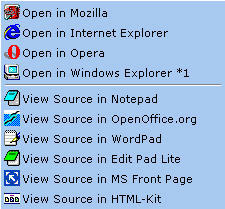
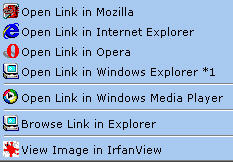


![[SEO Firefox]](../icons/ff_ext_seo_firefox.jpg "checks Google results / incompatible with ???")