This page is intended to be read after unhiding hidden files and
creating keyword shortcuts for your profile and chrome directories. ';
See Profile.
Windows Start and Quick Launch
Windows Quick Launch
Firefox profile names are case-sensitive even if your system is not. If you have more than one version of Firefox they
have to be in different directories, but all of your Firefox profiles are
in the same directory regardless of Firefox version.
Opening_a_new_instance_of_Firefox_with_another_profile --
If you don't have no-remote, Firefox will open additional instances in the same version and profile. Only use -no-remote on the non-default version and profile so you leave the default to work for your mail and other applications.
"C:\Documents and Settings\Administrator\Application Data\Mozilla\Firefox\Profiles\q68768wt.Default"
"C:\Documents and Settings\Administrator\Application Data\Microsoft\Internet Explorer\Quick Launch (scrolled area)"
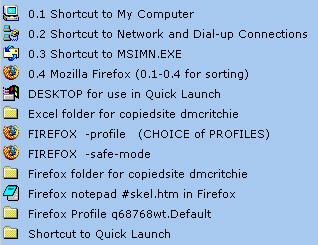
Items with "dmcritchie" in the pathname are for webpage development.
Items with descriptions beginning 0.1 thru 0.4 are named so that these items sort to the always visible top 4 of quick launch. The remainder
of the 55 that I have are in the scrollable area of the Quick Launch, I've shown
the primary 4 that I use when starting up system, and those of Firefox usage interest.
Firefox Beta Testing (#betatesting)
Some information on Beta Testing of places can be found
on my home page, and on my places page.
Have added additional items to the end of my Quick Launch using
using variations of "C:\Program Files\Mozilla Firefox 3 Beta 2\firefox.exe" -safe-mode
Mozilla Firefox 3 Beta 2 -profile (CHOICE of PROFILES)
Mozilla Firefox 3 Beta 2 -safe-mode
Mozilla Firefox 3 Beta 2Set as default browser
Mozilla Firefox 3 Beta 2 -safe-mode -no-remote -p (CHOICE of PROFILES)
The (older, non Beta) Firefox 2.0.0.11 is available in Quick Launch
with the profile name specified.
0.4 . Mozilla Firefox
"C:\Program Files\Mozilla Firefox\firefox.exe" -p "default" -no-remote
The “Nightly Tester Tools” extension from oxymoronical.com is used to identify
on the Title Bar which version and profile is in use:
Before continuing the use and creation of Desk Top Shortcuts, Quick Launch Shortcuts, and Start Shortcus
are all created and used in the same manner, so if you can do one you can pretty much do any of them.
The Quick Launch shows a minimum of 4 icons, to change simply drag the wall to the right or left, but don't know
where minimum of 4 is actually defined though it works perfect for me.
The Quick Launch Bar is used like the desktop, and you want there to be only shortcuts
in it. From the desktop, My Computer, Windows Explorer drag with the right-mouse button to the Quick Launch and use the "create shortcut here" before dropping into Quick Launch.
If you drag with left mouse button make sure you see the shortcut marking appear as you drag
toward the destination. The alternative is to create a/another shortcut where it resides
with the right-click and then drag the duplicate to the destination.
WinKey shortcuts using Vista (#winkey)
The items in my Quick Launch move around too much and are too many to be practical in keyboard
shortcuts since I sort most of them alphabetically. But the first 10 can be addressed
with the WinKey+digit for the first ten (1-9,0).
Some of the other WinKey shortcuts
are R=Run, U=Ease of Access (Control Panel), D=reveal/hide desktop (toggle), F=search box,
L=lock computer, X=Windows Mobility Center, M=minimize all applications (restore with WinKey+Shift+M).
Manually creating a shortcut (#manual)
In your Windows File Explorer use File, New, Short -- type
or paste in the complete path for your Firefox profile. Then place the
created shortcut in your Quick Launch. Then you have two shortcuts
you can use one in Firefox ("profile:) and one in File Explorer via the Quick Launch.
Some specific examples of Quick Launch shortcuts (posted 2007-01-07)
Drag a Windows Shortcut to Quick Launch (#dragicon)
Expose the Windows Desktop with WindowsKey+D (toggle)
Hold Ctrl key and drag icon to position on exposed area of the Quick Launch
to create a copy on the Quick Launch Bar.
You can't directly drag to the scrollable area of quick launch, but you
can expand and contract the visible area and then reposition in the
scrollable area.
Drag a page to Quick Launch (#dragpage)
To add a web page to the Quick Launch simply bring up the page you want in Firefox, then
grab the favicon (icon) at left of the
location bar and drag to the quick launch, like you might drag
it to the personal toolbar, a personal toolbar folder, or to bookmarks, or even the desktop.
(You can also drag to another tab, but that doesn't create a shortcut)
Once on the launch pad or on the desktop you can change (/shorten) the description.
If you do drag a secure page (https:) to the Quick Launch or to the Desktop
to Launch Firefox, you may have a problem if in your file type for HTA (HTML Application) has DDE turned on under Advance options and then Edit & Open,
uncheck DDE. (don't have definitive information on this).
Add a program to the Quick Launch bar (#addpgm)
Source: Windows Help
In My Computer or Windows Explorer, click the icon for the program you want to add, and drag it to the Quick Launch portion of the taskbar.
The icon for that program appears next to the other Quick Launch icons on the taskbar.
If the Quick Launch bar is not displayed, right-click an empty area on the taskbar, click Toolbars, and then click Quick Launch.
Windows Vista considerations (#vista)
Windows Vista has restrictions on what can be in the Windows Start, so things that you might have had there have to be placed on the desktop or into the Quick Launch.
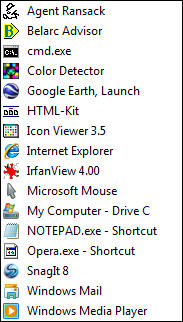
Anything on the desktop, or from a search, or from the "Program Files" directory can be placed into the Quick Launch as a shortcut by holding the Ctrl key and dragging it's icon to the Quick Launch. You may want to eliminate such shortcuts from the desktop afterwards once they are in the Quick Launch. You will have to regenerate the QuickLaunch Bar for each Vista user -- Even if you are the only user you should have a Administrator account and a User Account that can get Admininistrative privileges as needed. Many of the items shown are listed on my another page. (see picture above with white background). Some more information specific to Windows Vista.
Use of Shortcuts to Launch Firefox (#usage)
The Created shortcuts in Quick Launch could be entered via Windows Start, Start Run;
but the Quick Launch will work much faster, provide quick means of
Windows Desktop, provides quick access to alphabetical list
of items on the windows desktop. Less need to use
WinKey+D (toggle) to show the desktop.
Starting Firefox with the normal "Default" Profile, so if you
were last running in Safe Mode for instance you do not have to change
the profile, you can simply use the Quick Launch.
The remaining are not immediately visible but on the drop-up.
FIREFOX -profile (Provides a choice of your Firefox Profiles)
FIREFOX -safe-mode (Provides a quick entry for Firefox Safe Mode,
which starts Firefox with extensions disengaged, and toolbar and
chrome customizations, and themes disengaged)
Firefox Profile xxxxx.Default (Provides quick Windows File Explorer
access to your profile and chrome directories, for updates)
Return to Profile page, or return to
firefox.htm, which referenced both
this page and the profile page.
Firefox repair of Desktop and Quick Launch icons (#desktopicons)
Normally you would not have a webpage specified when you start Firefox,
as that would be the homepage in your profile.
If your desktop Firefox icon (or Quick Launch icon) generated by
Firefox install becomes corrupted you can fix as follows:
Right click on the desktop Firefox icon, and select Properties
On the General Tab:
Mozilla Firefox
On the Shortcut Tab:
Target: "C:\Program Files\Mozilla Firefox\firefox.exe"
Start in: "C:\Program Files\Mozilla Firefox"
Shortcut key: None
Run: Normal Window
on the Compatibility Tab:
(don't enter anything)
An alternative would be to recreate the desktop icon Programs:
Start, Programs, Mozilla Firefox, right click of Firefox,
copy then do to desktop and paste.
You will also note that there is a "Safe Mode" icon as well.
Resizing, Moving, Rearranging (#move_resize)
Width of the visible portion of the Quick Launch bar (#resize)
If you can't resize the width of the Quick Launch bar, check for "locked profile" (check wording but locking probably does not apply to Win2000). Width of displayed portion of quick launch can not be made smaller than 2-4 icons (depending, I presume on choice of large or small icons).
Resize the Quick Launch Bar]
[How to use the Quick Launch bar]
Move Quick Launch Bar within the Taskbar (#move)
If the taskbar is at the bottom drag to top border so it has a height of two rows,
then drag the vertical separator to drag as a group. When arranged correctly
drag the separator to the width that you want (probaly 4 icons for the quick launch bar).
To arrange items within Quick Launch right-click and use "Sort by name", and that
is why some of items have numbers in front in my example at top of page, the numbers
won't show on the task bar because the space only allows for icons to show.
Taskbar (docking) (#docking)
The system taskbar normally at the bottom can be docked to left side, top, right side,
or back to bottom by
grabbing an empty area on the taskbar with the left mouse button and dragging it to the desired screen edge.
[ref.],
Location and Backup considerations (#backup)
The Quick Launch Bar will be backed up when you backup your "C:\Documents and Settings\" folder, which also contains all your application settings including
your Firefox profiles. The Quick Launch is at
C:\Documents and Settings\Administrator\Application Data\Microsoft\Internet Explorer\Quick Launch
Context Menu items in Quick Launch (#context)
These context menu items apply to Quick Launch, Desktop shortcuts, Start Menu items and
are a little bit out of the ordinary items you see in context menus, you should check
your own to see all of what you actually have.
"Run as Administrator"
"Open File Location" from a file item or "Open Folder Location" from a folder item, opens the containing folder.
Right click on the Windows desktop shortcut, then on the
shortcut tab, you will see Run: choose from
Normal Window, Minimized, or Maximized.
Command line use -fullscreen
"C:\Program Files\Mozilla Firefox\firefox.exe" -p "default" -no-remote -fullscreen
"C:\Program Files\Mozilla Firefox\firefox.exe" -fullscreen
To get out of full screen use
using Firefox F11
using Windows Alt+SpaceBar then Restore
Use of -no-remote allows you to start with another Firefox version and profiles
than what may already be running, but any Firefox started in this manner will not be found by other applications such as your mail program, which will open the default, and will
show a conflict with a duplicagte program reported as already running. So for
other applications you would want your default Firefox version (without -no-remote) to be running.
If the Quick Launch bar is not displayed, right-click an empty area on the taskbar, click Toolbars, and then click Quick Launch. Windows will put the Quick Launch immediately to the left of the system tasks, so look for it there as well.
excessive hidden files: (as if any hidden files were not excessive, also see
Hidden Files in Windows)
Unlikely that this will happen to you, but with quick launch supposed to be showing,
but have only an empty location for it on the Taskbar, had this problem that I created for myself after trying to fix things after an update.
The part of the System Status Bar that you normally show is Start button, a few Quick Launch
buttons, running applications, system tasks (system clock). All added items within Start,
the Search,
and all of the Quick Launch can be missing if hidden attributes get turned on somewhere within Documents and Settings. Unhiding all folders/files within D&S recovers Start
(except Search items), and Quick Launch, but still wasn't be able to see Tools, Folder Options, View until rebooted.
Identifying Problem with Safe Mode, New Profile, cleaning (#safemode)
The material here will eventually be moved to other locations, or perhaps other sites simply
referenced if adequate information is found.
General, may include each of following topics (#general)
There are several ways you can go about finding the problem,
including Standard diagnostics and other things.
Safe Mode (#safe)
Safe Mode eliminates extensions from your run environment. If your problem
disappears in Safe Mode it is most likely an Extension, and not likely to
be a Firefox problem.
close firefox. start firefox in safe mode ( start > programs >
firefox[safe mode] with old profile, try to reproduce same problem
Disabling extensions until you find problem (#disable)
You usually have an idea of what extension might be the problem,
whether it is a known problematic extension, or one you
your last installed extensions. If not any of those then try
disabling half of extensions, if still fails disable half of what
is still active; otherwise, enable half of what you disabled.
New Profile (#newprofile)
First test with a new profile, then if that works you want to copy in your
and passwords,
by migrating the following file from the old profile to the new profile.
(Migrating settings to a new profile, KB article)
bookmarks.html
cert8.db
'chrome' folder, if you have one
key3.db and signons.txt or signons2.txt
hostperm.1
mimeTypes.rdf
Note: configuration changes in user.js, pref.js, userChrome.css, userContent.css configuration files were NOT copied, decide what you want.
Then reinstall the extensions small groups at a time until you
have the problem.
Cleaning current Profile (#clean)
You should have adequate backup
of your entire profile. Be aware of problems caused by files restored as
readonly from a backup.
With Firefox closed, move (or rename) these files out of your old profile, start
FF with old profile and check whether same problem occurs or not: (comments include
some of the problems that might be solved). Firefox will recreate clean files..
formhistory.dat, remembering what was previously entered in a form such as the search bar.
history.dat, large file may make history display slow, files can't be saved if
history.dat is readonly.
localstore.rdf, problems with extensions particularly when Firefox is updated, take
a snapshot of your toolbars beforehand so you can manually redo your toolbars (View, Toolbars, customize).
cookies.txt,
Permissions controlled in Cookie permissions are controlled in "Tools -> Options -> Privacy -> Cookies". use Network.cookie.cookieBehavior to control third party cookies. Websites report cookies are disabled when they are not -- settings in Zone Alarm.
(Wiki article).
hostperm.1 is a companion file to indicate which sites you allow or prohibit to set cookies, to display images, to open popup windows and to initiate extensions installation.
You probably would want to try to restore cookies and prune it down if that was the
problem. The others will probably be of little concern.
Install Log (#install_log)
If you go to the folder that firefox.exe is run from there
is an install.log that might useful for some install timestamps.
For me on Windows that is
C:\Program Files\Mozilla Firefox\install.log
Plugins are not disabled in Safe mode (#plugins)
Generally plugins are available to all users/profiles, and exception is
when using Firefox Portable, where the plugins are within extension(s).
Firefox Portable (#firefox portable
Firefox Portable provides a means of testing a new version of Firefox in a very isolated environment (thumbdrive) if you want to be wary.
Provides a method of isolated testing of some changes you might want to
make in your existing Firefox installation. But after learning more about how Firefox works from working with
Firefox Portable, you will be able to do the same isolations with a new profile
on your working Firefox version.
Firefox Portable (notes), suggestions for use of a portable thumb drive for use away from home or office.
Firefox simultaneous Profiles, by Edward N Heinrich, the-edmeister, Firefox Experimental Tricks
running multiple Profiles and/or Firefox installations
using environment variable called MOZ_NO_REMOTE.
Command line arguments - MozillaZine Knowledge Base, can be used in desktop shortcuts and quick launch as well. An interesting one is opening two urls,
-- firefox.exe "www.mozilla.org|www.mozillazine.org" not to be confused with a profile that would be preceded by -P
Some help with Windows 7, including how to get back the Quick Launch.